Outputting Paper
AppendixSetting Up
2
Before Use
1
Printing
3
Basic Device Operations
4
Index
- 103 -- 102 -
Outputting Paper
AppendixSetting Up
2
Before Use
1
Printing
3
Basic Device Operations
4
Index
4
Open the fi le to be printed.
Customers using Mac OSX go to “Using
Mac OS X Printer Drivers” Step 5.
5
Click [Advanced] in the "Print" screen.
Using Windows PS Printer Drivers
6
Select [Stacker (Face-up)] in [Output
Bin] in [Job Options], and click [OK].
7
Implement printing.
Using Windows PCL Printer Drivers
6
Select [Stacker (Face Up)] in [Output
Bin] in [Job Options], and click [OK].
7
Implement printing.
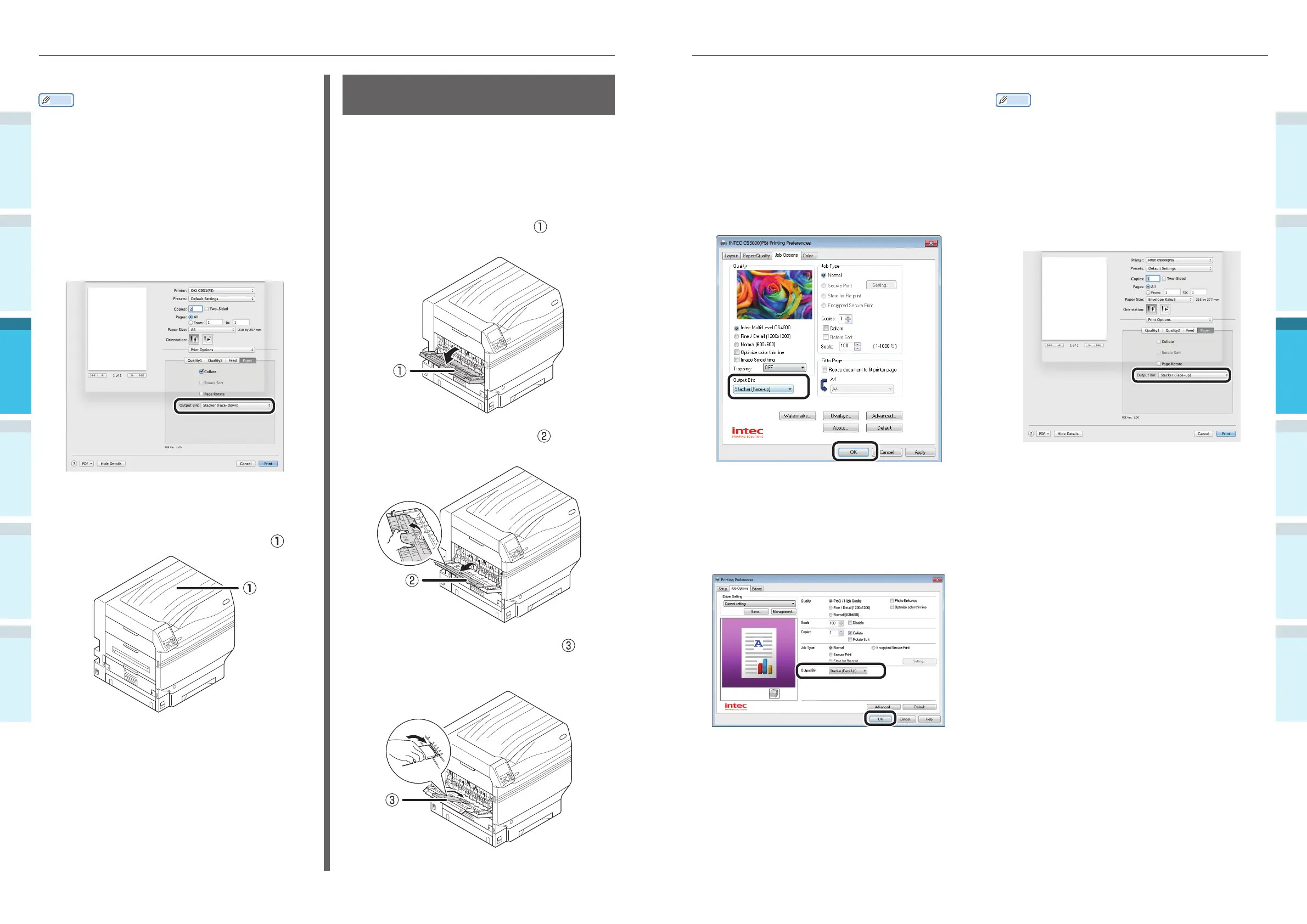
Using Mac OS X Printer Drivers
Memo
This section uses "TextEdit" as an example.
5
Select [Print] in the [File] menu.
6
Select [Print Options] using the print
dialog box.
7
Select [Stacker (Face-up)] in [Output
Bin] in the [Paper] tab.
8
Click [Print] to print.
Printed paper is output to the face-up
stacker.
Using Mac OS X Printer Drivers
Memo
This section uses "TextEdit" as an example.
1
Open the fi le to be printed.
2
Select [Print] in the [File] menu.
3
Select [Print Options] using the print
dialog box.
4
Select [Stacker (Face-down)] in [Output
Bin] in the [Paper] tab.
5
Click [Print] to print.
6
The printed paper will be output to the
face-down stacker (output tray) (
).
Using the Face-Up Stacker
(Print Face Is Up)
The paper is output with the print side face-
up. Paper is stacked in the reverse order from
printing.
To output from the face-up stacker, specify the
face-up stacker in "Output Bin" using the printer
drivers.
1
Open the face-up stacker ( ) on the
left of the printer.
2
Open the paper supporter ( ) as
shown in the diagram.
3
Rotate the auxiliary supporter ( ) in
the direction of the arrow until its lock
position.



 To Next Page