- 46 - - 47 -
Installing the Device Installing the Device
AppendixPrinting
3
Setting Up
2
Before use
1
Basic Device Operations
4
Index
AppendixPrinting
3
Setting Up
2
Before use
1
Basic Device Operations
4
Index
7
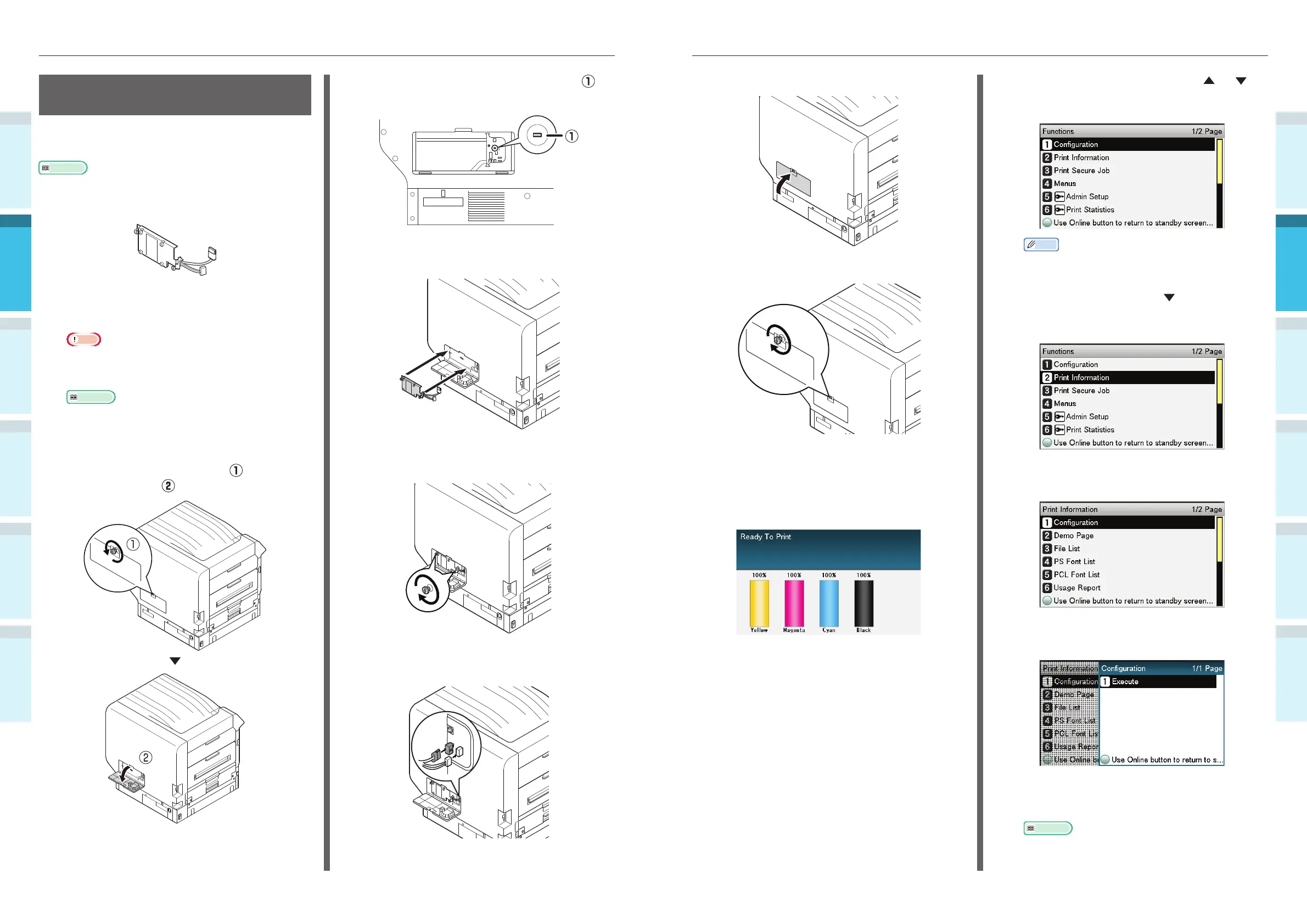
Close the access cover.
8
Tighten the access cover screws.
9
Connect the cables, and turn ON the
device power supply.
10
Check that the standby screen is
displayed in the liquid crystal panel.
11
Print the "Confi guration".
Press either the scroll button
or
on the control panel to display the
"Functions" screen.
Memo
�
Print the "Confi guration" on A4 size paper. Set A4
size paper in the paper feed tray.
12
Press the scroll button to select [Print
Information], and then press the [OK]
button.
13
When the [Confi guration] have been
selected, press the [OK] button.
14
When [Execute] has been selected,
press the [OK] button.
15
Check that the HDD has been added to
the "Confi guration".
Reference
�
“Printer Information” (P.54)
Mounting the Built-in HDD
(Optional)
Mount the (optional) built-in HDD to increase the
memory capacity or implement secure printing.
Reference
�
For the functions required by the HDD, see "Advanced".
Built-in HDD
1
Turn OFF the device power supply, and
remove the cables.
Note
�
When turning OFF the power supply, make sure
to press the power switch and wait for shutdown
before turning OFF (O) the main power switch.
Reference
�
“Connecting Power Cables” (P.51)
�
“Turning OFF the Power Supply” (P.52)
2
Loosen the screws on the access cover
at the back of the printer (
), and
open the door (
).
3
Check that the internal LED lamp ( ) is
OFF.
4
Align the screws (x2) on the built-in
HDD to the holes on the device.
5
Rotate the screws (x2) in the direction
of the arrows to tighten securely.
6
Connect the HDD connectors to the
device.



 To Next Page