- 90 - - 91 -
Printing from Trays Printing from Trays
AppendixSetting Up
2
Before Use
1
Printing
3
Basic Device Operations
4
Index
AppendixSetting Up
2
Before Use
1
Printing
3
Basic Device Operations
4
Index
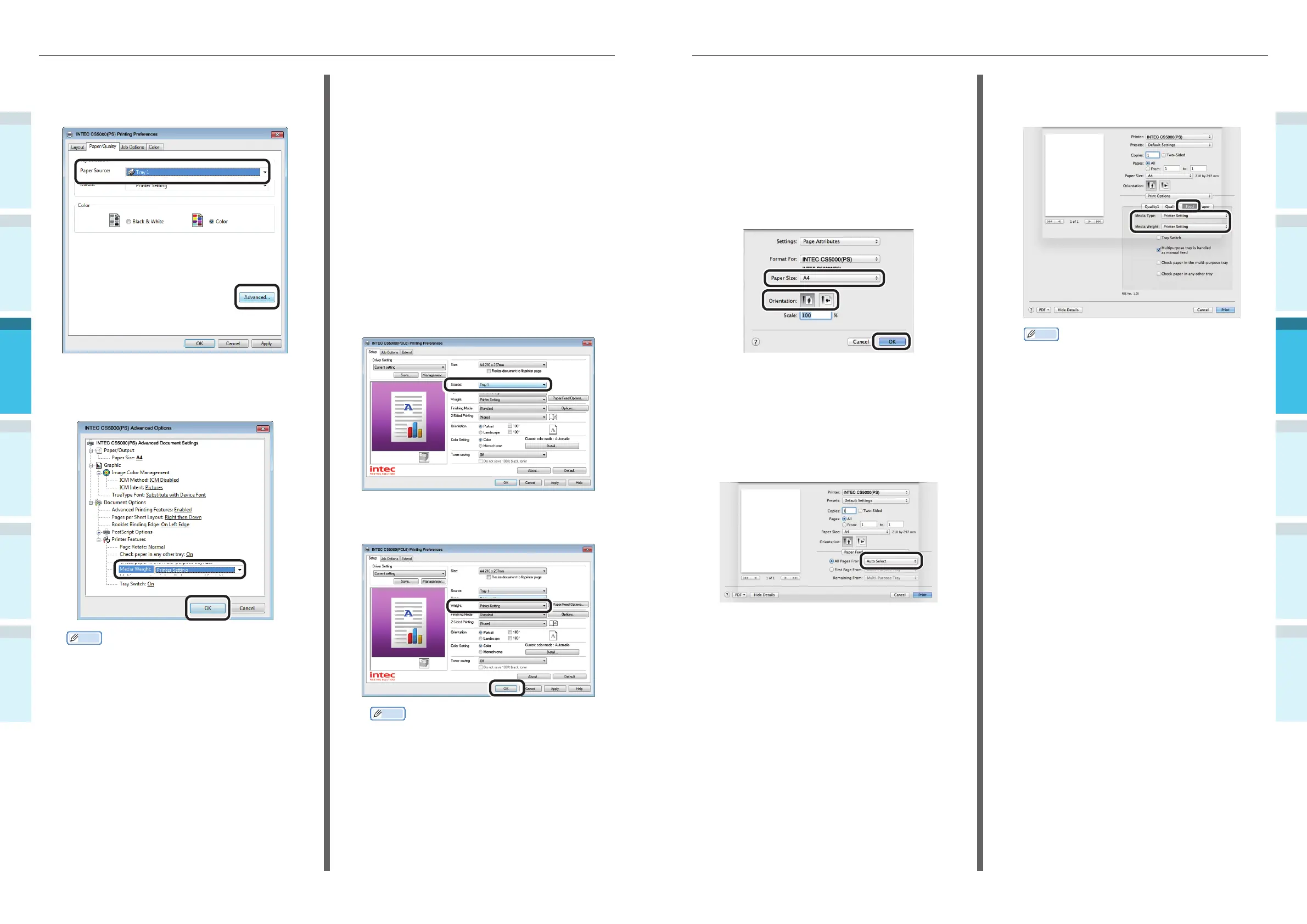
Using Mac OS X Printer Drivers
1
Open the fi le to be printed using
TextEdit.
2
Click [Page Setup] in the [File] menu.
3
Select the paper size and print
orientation using the page setup dialog
box, and click [OK].
4
Select [Print] in the [File] menu.
5
Select [Paper Feed] in the print dialog
box.
6
Check that [Auto Select] has been
selected.
7
Select [Print Options] using the print
dialog box.
8
Chick the [Feed] tab in the printer
setup panel, and select [Media Type]
and [Media Weight].
Memo
Normally, select [Printer Setting]. Select [Printer
Setting] to use the values set using the printer
control panel.
9
Click [Print] to print.
6
Use [Paper Source] in the [Paper/
Quality] tab to select the tray to be
used, and click [Advanced].
7
Select a suitable value from [Media
Weight] in the "Advanced Options"
screen, and then click [OK].
Memo
Normally, select [Printer Setting]. Select [Printer
Setting] to use the values set using the printer
control panel.
If outputting to the face-up stacker, open the printer
face-up stacker, and select [Stacker (Face-Up)] in
[Output Bin].
8
Click [OK] in the "Printing preferences"
screen.
9
Click [Print] in the "Print" screen to
print.
Using Windows PCL Printer
Drivers
1
Open the fi le to be printed using
WordPad.
2
Click [Page Setup] in the [File] menu.
3
Select the paper size and print
orientation, and click [OK].
4
Click [Print] in the [File] menu.
5
Click [Preferences].
6
Select [Tray 1] in [Source] in the
[Setup] tab.
7
Select a suitable value in [Weight], and
click [OK].
Memo
Normally, select [Printer Setting]. Select [Printer
Setting] to use the values set using the printer
control panel.
8
Click [Print] in the "Print" screen to
print.



 To Next Page