- 92 - - 93 -
Printing from the Multi-Purpose Tray Printing from the Multi-Purpose Tray
AppendixSetting Up
2
Before Use
1
Printing
3
Basic Device Operations
4
Index
AppendixSetting Up
2
Before Use
1
Printing
3
Basic Device Operations
4
Index
9
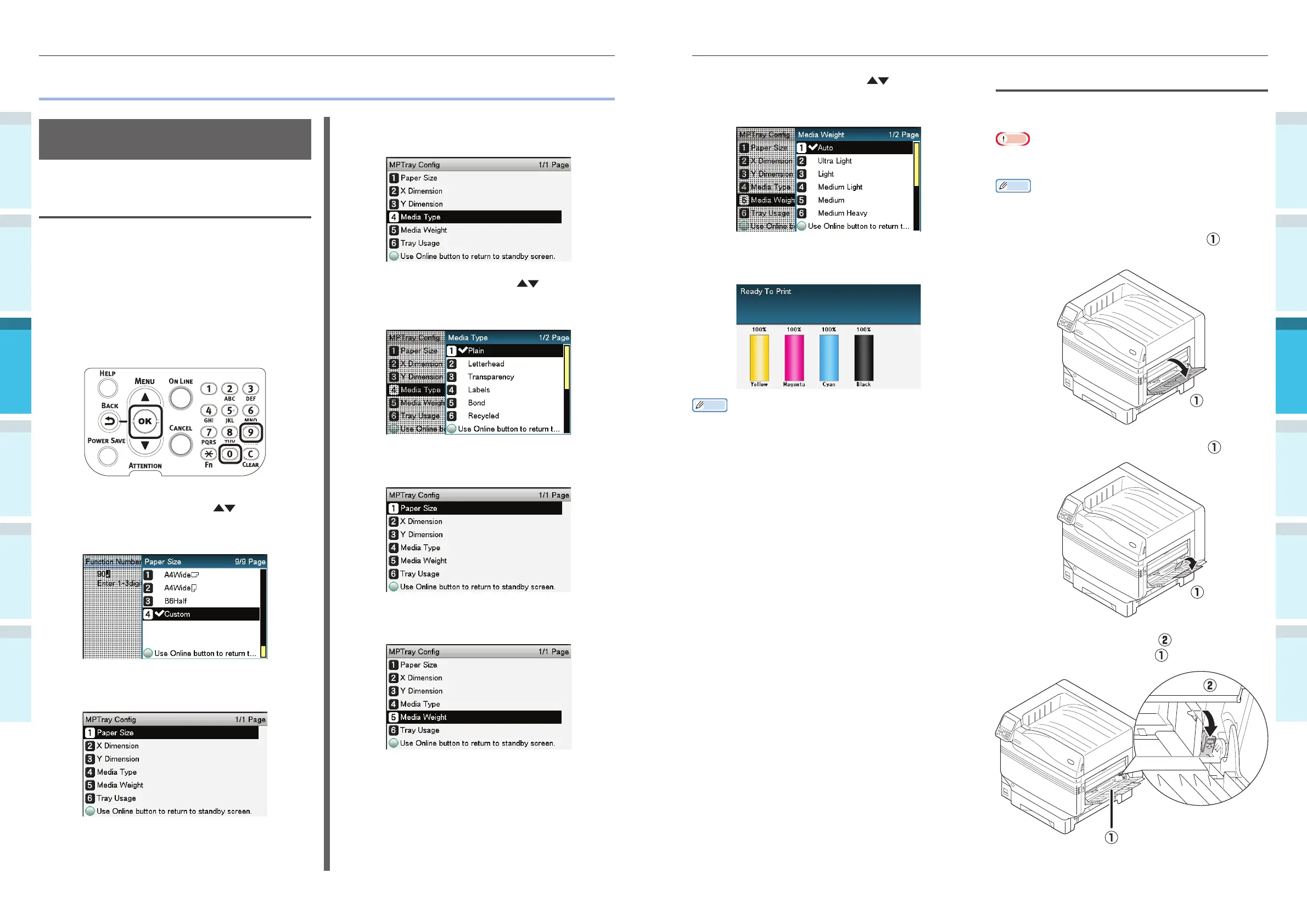
Press the scroll buttons to select
the size of the paper that has been set,
and press the [OK] button.
10
Press the [BACK] button several times
to return to the standby screen.
Memo
Press the [CANCEL] button to return to the standby
screen.
Setting Paper
The multi-purpose tray prints to the face-up side
of the paper that has been set.
Note
Do not collate and set paper of different sizes, types, and
thicknesses at the same time.
Memo
If setting custom size paper, it is necessary to register the
size. For details, see "Advanced".
1
Open the multi-purpose tray ( )
towards you.
2
Open the auxiliary supporter ( ).
3
Pull the setting lever ( ) on the right of
the paper supporter (
) towards you.
Printing from the Multi-Purpose Tray
Setting Paper in the Multi-
Purpose Tray
Setting Paper Using the Control
Panel
If the paper size is "Envelope" or " Custom Size",
use the control panel to set the paper size.
1
Press the [Fn] key.
The numerical values input screen will
be displayed.
2
Press [9], [0], and click the [OK]
button.
3
Press the scroll buttons to select
the size of the paper that has been set,
and press the [OK] button.
4
Press the [BACK] button to return to
the previous screen.
5
Select [Media Type], and press the [OK]
button.
6
Press the scroll buttons to select
the type of paper that has been set,
and click the [OK] button.
7
Press the [BACK] button to return to
the previous screen.
8
Select [Media Weight], and press the
[OK] button.



 To Next Page