- 66 - - 67 -
Connecting the PC Connecting the PC
AppendixPrinting
3
Setting Up
2
Before use
1
Basic Device Operations
4
Index
AppendixPrinting
3
Setting Up
2
Before use
1
Basic Device Operations
4
Index
9
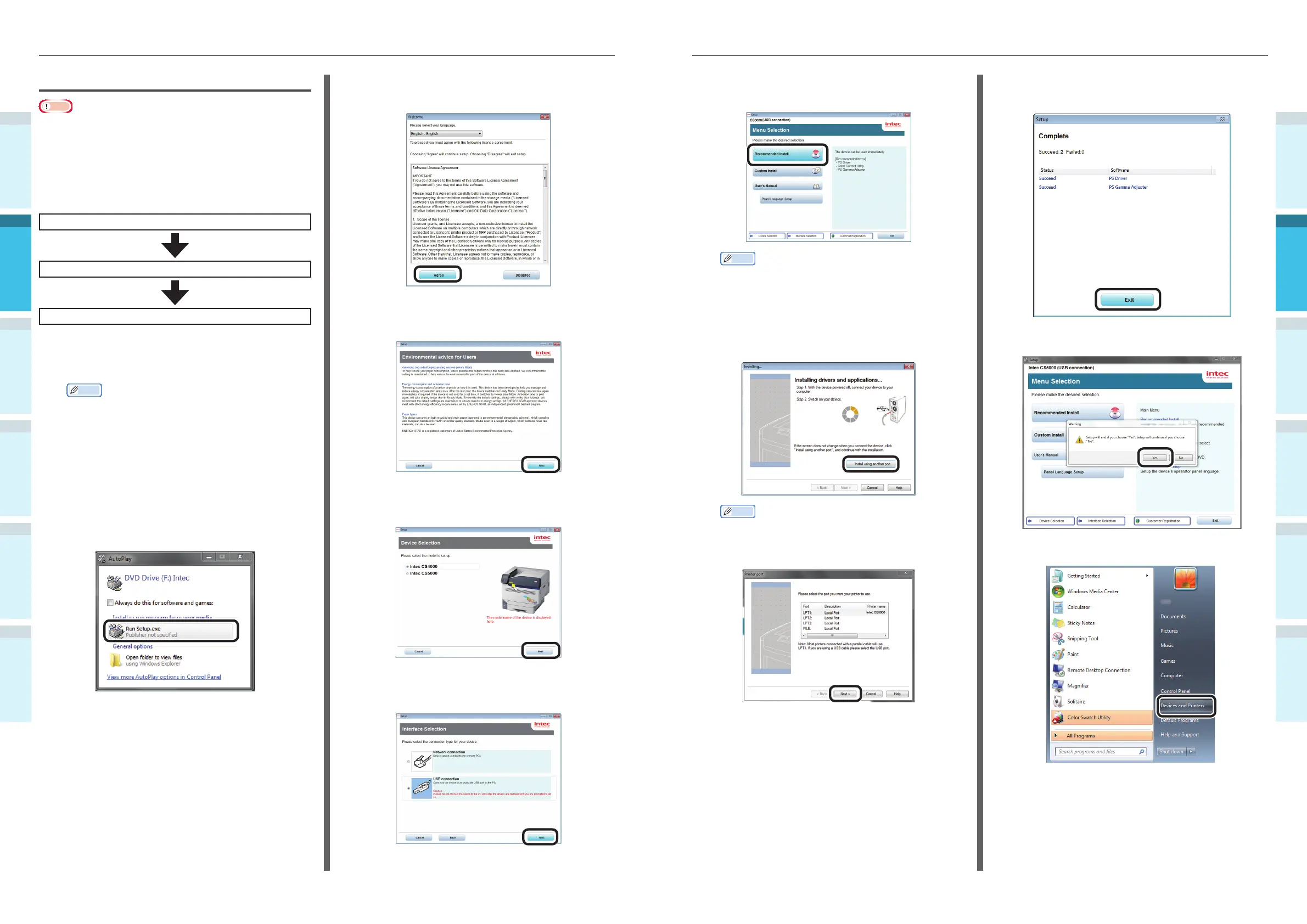
Click [Recommended Install] to start
the installation.
Memo
�
Click [Custom install] to select "PCL6 Driver".
10
When the following screen is displayed
during the installation, connect the
device and PC using a USB cable, and
then turn ON the device power supply.
Memo
�
If the display does not change even when the device
is connected, click [Install using another port].
Select the port to which the device is connected
using the "Printer port" screen, and click [Next].
11
When the installation has fi nished, click
[Exit].
12
In the menu screen, click [Exit]> [Yes].
13
Select [Start]> [Devices and Printers].
USB Connections
Note
�
Check that the device power supply is turned OFF.
�
Setup requires computer administrator privileges.
�
This section described the operating procedure for
Windows 7 unless otherwise specifi ed. The screens and
operating procedure may differ depending on the OS.
Setup Flow
Turning ON the PC power supply
Installing the printer drivers
Turning ON the device power supply
1
Turn ON the PC power supply to start
Windows.
Memo
�
When the device power supply is turned ON, the
"Add new software wizard" may be displayed in the
screen. If this happens, click "CANCEL", and then
turn OFF the device beore proceeding to the next
step.
2
Insert the "Software DVD-ROM" into the
PC.
3
When the "AutoPlay" window is
displayed, click [Run Setup.exe].
4
When the "User Account Control"
window is displayed, click [Yes].
5
Read the "Software License Agreement",
and click "Agree".
6
Read the "Environmental advice for
Users", and click [Next].
7
Select the printer model to be used,
and click [Next].
8
Select "USB connection", and click
[Next].



 To Next Page