- 64 - - 65 -
Connecting the PC Connecting the PC
AppendixPrinting
3
Setting Up
2
Before use
1
Basic Device Operations
4
Index
AppendixPrinting
3
Setting Up
2
Before use
1
Basic Device Operations
4
Index
9
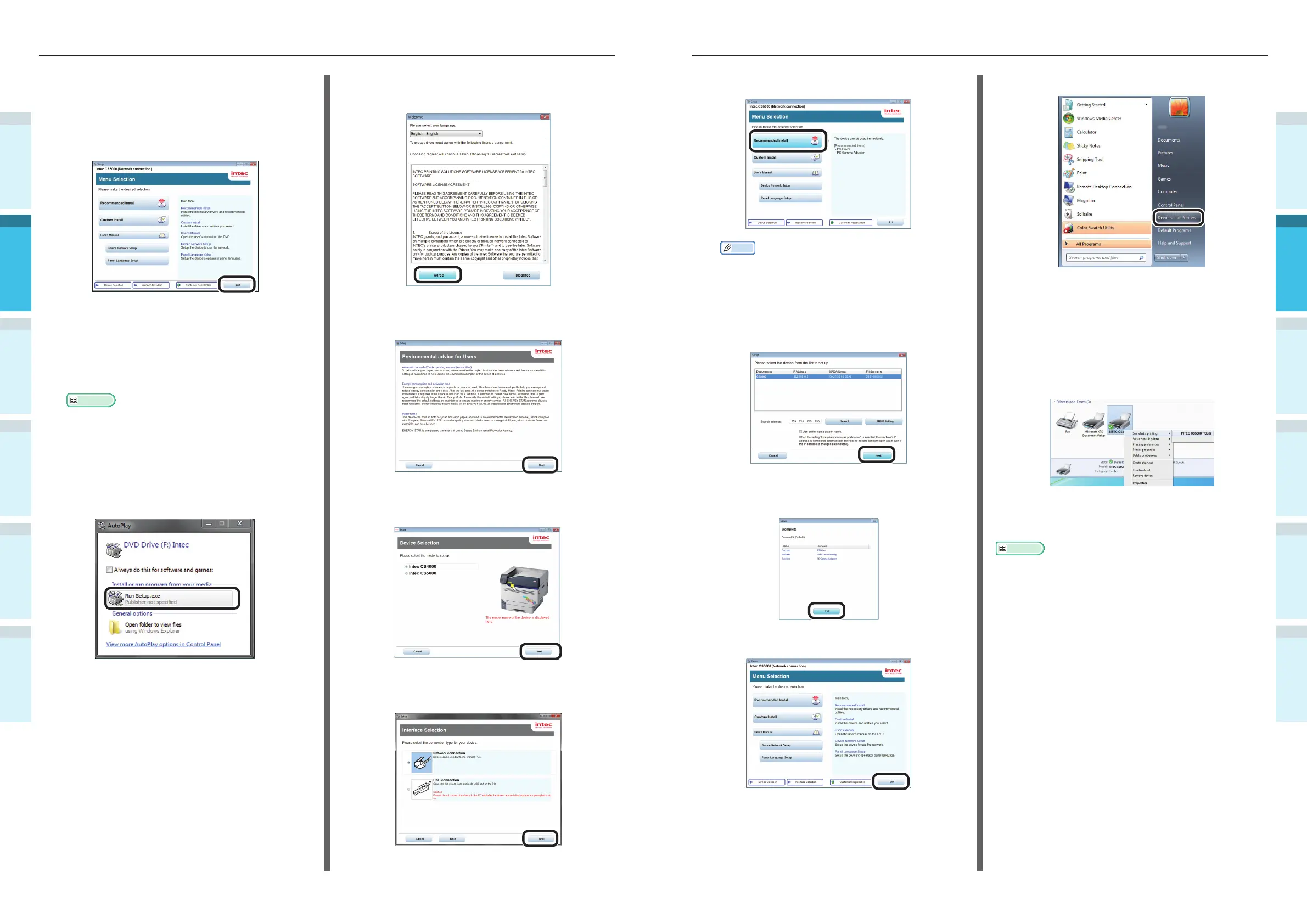
Click [Recommended Install].
Memo
�
Click [Custom install] to select "PCL6 Driver".
10
The printer search will start. When the
printer has been detected, select the
device from the table. Click [Next] to
start the installation.
11
When the installation has fi nished, click
[Exit].
12
Click [Exit] in the menu screen to fi nish.
13
Select [Start]> [Devices and Printers].
14
Check that the Intec CS5000 icon is
displayed.
Right-click the Intec CS5000 icon and
select and item from the menu, and
check that all the printer drivers that
have been installed are displayed in the
sub-menu.
15
Remove the “Software DVD-ROM” from
the computer.
Reference
�
For how to print from the PC, see “Printing from Trays”
(P.89).
12
When the setup is complete, the device
will restart automatically, and the
display will return to the menu selection
screen.
Click [Exit] in the menu screen to fi nish.
Installing Printer Drivers
1
Check that the device and PC are
connected, and that the power supply is
turned ON.
Reference
�
“Connecting Using LAN Cables” (P.57)
2
Insert the "Software DVD-ROM" into the
PC.
3
When the "AutoPlay" window is
displayed, click [Run Setup.exe].
4
When the "User Account Control"
window is displayed, click [Yes].
5
Read the "Software License Agreement",
and click [Agree].
6
Read the "Environmental advice for
Users", and click [Next].
7
Select the printer model to be used,
and click [Next].
8
Select [Network connection], and click
[Next].



 To Next Page