- 62 - - 63 -
Connecting the PC Connecting the PC
AppendixPrinting
3
Setting Up
2
Before use
1
Basic Device Operations
4
Index
AppendixPrinting
3
Setting Up
2
Before use
1
Basic Device Operations
4
Index
Setting the Device Network
Memo
�
If you have set up the IP address for this printer by
following Steps 1~14 in “Installer Printer Drivers
(Windows)” (P.59), then skip this section.
1
Check that the device and PC are
connected, and that the power is turned
ON, and then insert the "Software DVD-
ROM" into the PC.
2
When the "AutoPlay" window is
displayed, click [Run Setup.exe].
3
When the "User Account Control"
window is displayed, click [Yes].
4
Read the "Software License Agreement"
thoroughly, and click [Agree].
5
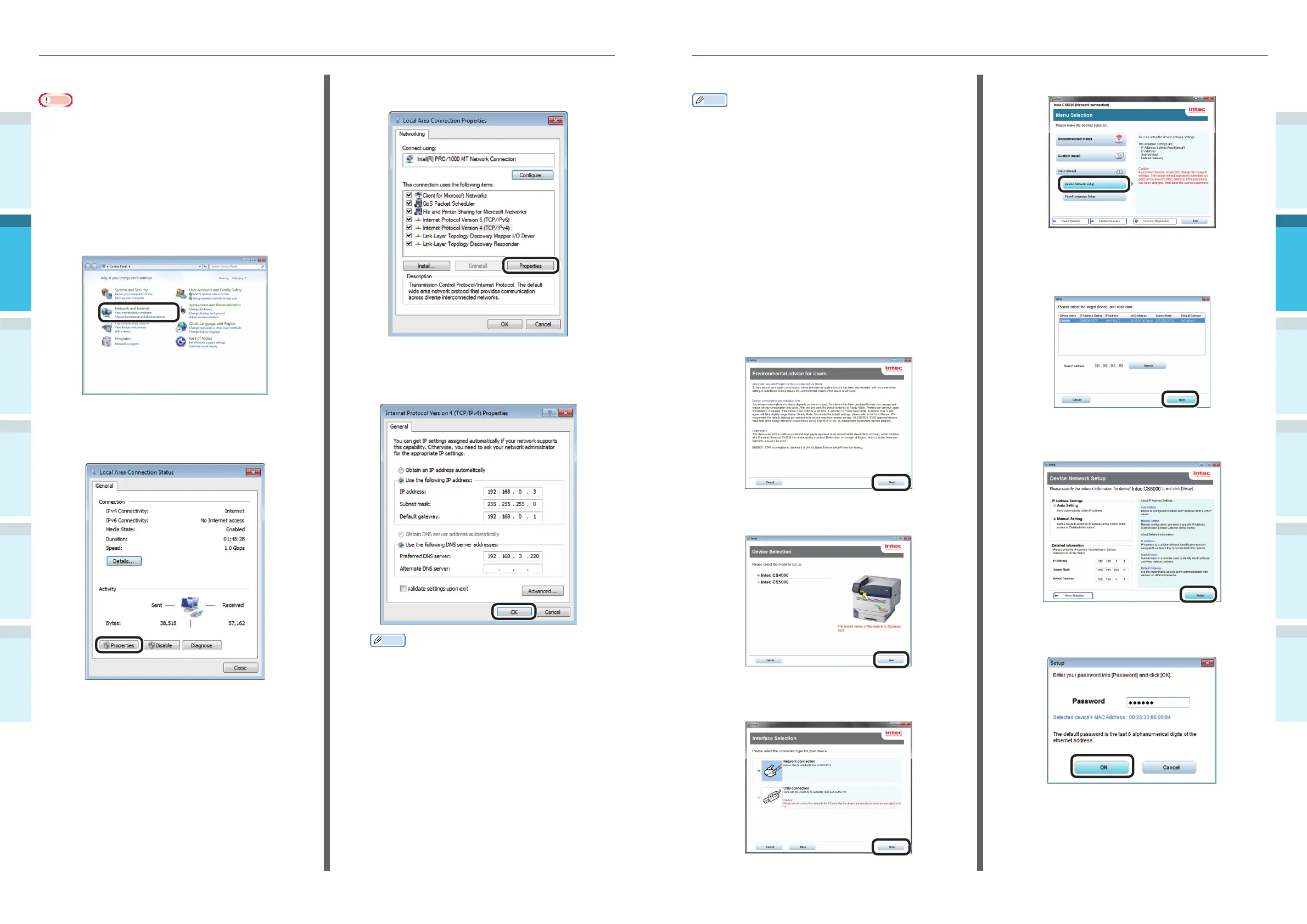
Read the "Environmental advice for
Users", and click [Next].
6
Set the printer model to be set, and
click [Next].
7
Select [Network connection], and click
[Next].
8
Click [Device Network Setup].
9
The printer search will start. Select the
device from the table when the printer
has been detected, and click [Next].
10
Enter the network setup information,
and click [Setup].
11
Enter the network setup password, and
click [OK].
Setting the IP Address in the PC
Note
�
If the IP address has already been set in the PC or is
acquired automatically, go to “Setting the IP Address in
the Device Using the Control Panel” (P.59).
1
Turn ON the PC power supply to start
Windows.
2
Click [Start], and select [Control panel].
3
Click [View network status and tasks].
4
Click [Local Area Connection], and then
click [Properties] in the "Local Area
Connection Status" window.
5
Select [Internet Protocol Version 4 (TCP/
IPv4)], and click [Properties].
6
Enter the IP address, Subnet mask,
Default gateway, and DNS server, and
click [OK].
Memo
�
If acquiring the IP address from the DHCP server
automatically, select "Obtain an IP address
automatically", and do not enter an IP address.
�
Do not enter if not using a Default gateway or DNS
server.
7
Close the "Local Area Connection
Properties" window.



 To Next Page