ASSIST PLUS – Operating instructions V02 Programming
www.integra-biosciences.com 37
5.7.6 Custom programs
A custom program uses a step based operating technique. Each pipetting step is entered
separately in the sequence in which they will be performed. Custom programs can contain
up to 98 steps.
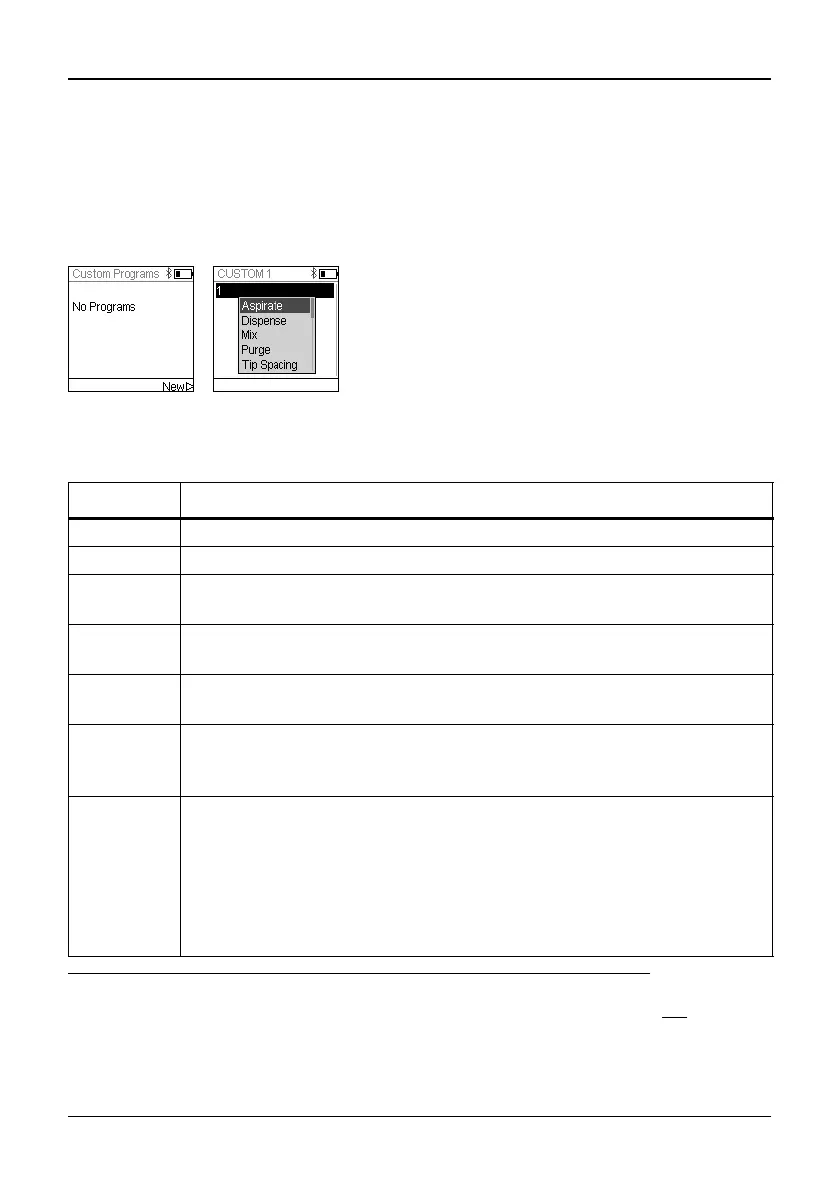
From the ASSIST PLUS Menu select “Custom Programs”, press OK and New . Define
and save a name for your program.
After adding the first step, the selection should now be on the second line. Press OK again
to define the second step. Continue adding steps until your entire pipetting program is
defined.The individual steps are based upon the following basic operations:
The first line is highlighted. Press OK.
Use the Touch wheel to select a first step from the
menu. Press OK, define the required parameters and
press OK to add the step.
Step Description of Custom Program
Aspirate Sets an aspiration volume, Tip Travel distance (
↓)
1
and pipetting speed.
1. Tip Travel distance: the distance the pipette automatically follows during aspirat-
ing, dispensing or mixing allowing to optimize tip immersion depth, see 7.8
.
Dispense Sets a dispense volume, Tip Travel distance (↑)
1
and pipetting speed.
Mix Performs a mixing cycle. Defines the number of cycles, mixing volume, Tip
Travel distance (
↕)
1
and mix speed.
Purge Purges all remaining liquid currently in the GripTips with the selected
purge speed.
TipSpacing Sets tip spacing of VOYAGER pipettes. Note: Tip load may change the tip
spacing for the loading procedure.
Prompt Pauses the program and displays a message. Three lines with 12
characters each are available. To continue the program, press the RUN
key.
Move X,Z Moves the pipette to new X,Z-position in mm of the selected coordinates.
(If current position is higher than next target, the movement sequence is X
and then Z. If current position is lower than next target, the movement
sequence is Z and then X.) Enter the coordinates manually on the pipette’s
screen. When the pipette is connected to ASSIST PLUS, press any Arrow
key of the ASSIST PLUS Touch panel to show the actual coordinates.
Teach the positions and click Set on the pipette to set the coordinates.


 To Next Page