59
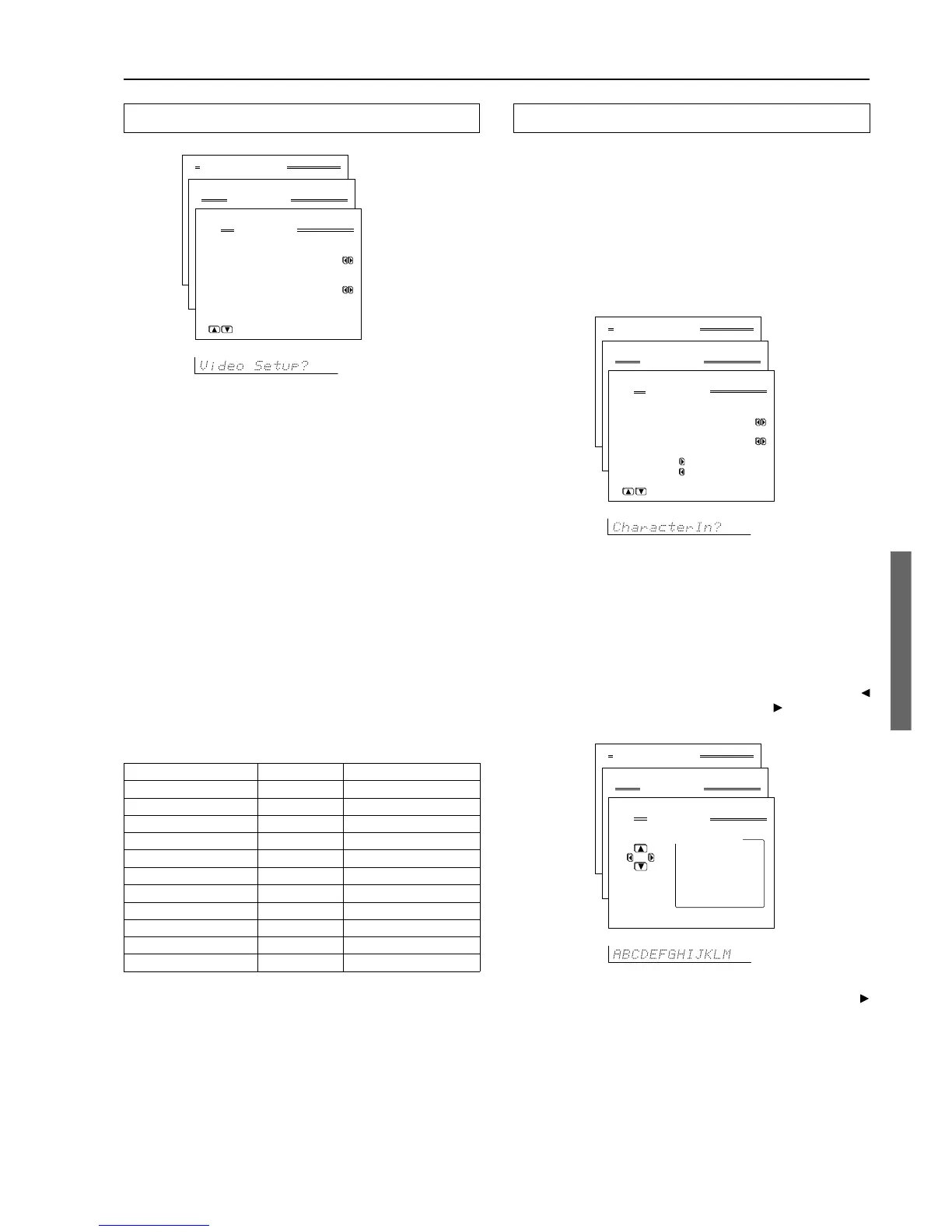
2-3. Video Setup Sub-menu
a. Video
This setting allows you to match the audio from one component with
the video from another. Therefore, you can set a video source to be
displayed while the audio from another input source is heard. For
example, this allows you to play the music from a compact disc,
while displaying the picture from a video cassette player or other
video source.
Last Valid: Select to have the video of the previous input source
continued. For example, if the selected input source is VIDEO 1,
and you then change to CD (set to “Last Valid”), then the audio
from the CD input is played while the video from VIDEO 1
continues.
b. Component Video
The video signal from the input jacks set at the “b.Component
Video” setting is output to the COMPONENT VIDEO OUT jacks.
Use this setting if you connect monitors like TV to the
COMPONENT VIDEO OUT jacks on the DTC-9.4.
For example, when you connect the DVD player to the
COMPONENT VIDEO INPUT 1 jacks, select “DVD” as input
source and set “b.Component Video” to “COMP 1.” and
“b.Component Video” to “COMP 1.”
The default settings are given below.
Input source selected Video Component video input
CD Last Valid Last Valid
PHONO Last Valid Last Valid
TUNER Last Valid Last Valid
TAPE Last Valid Last Valid
DVD DVD INPUT 1
VIDEO 1 VIDEO 1 INPUT 2
VIDEO 2 VIDEO 2 VIDEO
VIDEO 3 VIDEO 3 VIDEO
VIDEO 4 VIDEO 4 VIDEO
VIDEO 5 VIDEO 5 VIDEO
NET AUDIO Last Valid Last Valid
INPUT 1: Selects when the video device is connected to the
COMPONENT VIDEO INPUT 1 jacks.
INPUT 2: Selects when the video device is connected to the
COMPONENT VIDEO INPUT 2 jacks.
VIDEO: Selects when the video device is connected to the
VIDEO IN or S VIDEO IN jacks.
Last Valid: Select to have the video of the previous input source
continued.
Advanced Menu
2.Input Setup
2-3.Video Setup
a.Video
:DVD
b.Component Video
:INPUT 1
Quit:|SETUP|
Input:DVD
Input:DVD
Input Setup
2-4. Character Input Sub-menu
This sub-menu allows you to give names to the stations you have
preset for the AM/FM tuner, and to the input sources you have
connected (excluding the tuner itself). Up to 10 characters can be
entered for each name. For example, if you have a DVD connected to
the VIDEO4 jack, then you can give it the name “DVD2.” Or, if you
have multiple VCRs connected, you can enter the model names or
manufacturer names for each one so that you do not have to
remember which is connected to which input source.
If you want to enter a name for a preset broadcast radio station, select
the station that you want to name and enter the name.
a. Character Display
Use this setting to select whether or not to display a custom name
when the current input source is selected.
Yes: Select to have your custom name displayed.
No: Select to have the default name displayed.
b. Character
If you have selected “Yes” for the Character Display above, then
here you can enter the name that you want to display. Press the
cursor button to clear the current entry. Press the cursor button to
bring up the Character Input screen.
Note:
If you are using the front display and not the OSD Menu, press the
button when “Char: ” appears in the front display. Then
“ABCDEF..” appears. This is the Character Input screen. The cursor
buttons will allow you to navigate through this screen just as they
would if you were using the OSD Menu so you will need to refer to
the figure below for the actual layout of the Character Input screen.
At the Character Input screen, press the cursor buttons to move the
cursor to the desired character and then press the Enter button. The
characters entered will appear in order in the 10-character space field
above.
Advanced Menu
2.Input Setup
2-4.Character Input
a.Character Display
:No
b.Character
:
Press to edit.
to clear.
Quit:|SETUP|
Input:DVD
Input:DVD
Advanced Menu
2.Input Setup
2-4.Character Input
b.Character
:
ABCDEFGHIJKLM
NOPQRSTUVWXYZ
abcdefghijklm
nopqrstuvwxyz
|ENTER| 0123456789-.’
()+*/=,:;!?_
Back:
|RETURN|
Input:DVD
Input:DVD



 To Next Page