RFX Load Stick Systems
7005195 Rev A, August 2021
Page 12
INDICATOR OVERVIEW
Indicator Controls (continued)
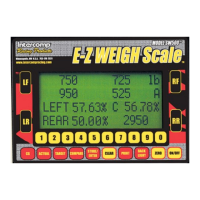
To select the continuous serial output setting, press the 1 key. Three selections are
available.
SETTING FUNCTION
OFF Continuous output disabled. Print screen enabled
MULTI-LINE Continuous output enabled, multi-line format
TOTAL ONLY Continuous output enabled, total only format
The Baud Rate of the SW scale must match the Baud Rate setting of the indicator to
enable wireless communication. To change the Baud Rate press the 2 key. The active
Baud Rate will have an asterisk to the right of the number displayed. Press the
corresponding key to change the Baud Rate. Refer to the Serial Output section for
additional information.
CLEAR
When in Normal weighing mode, press the CLEAR key to erase a memory location.
Press the CLEAR key to reset the number to 00 when accessing a numeric entry
screen. Refer to the Clear Baseline Setup section for additional information.
STORE/ENTER
The STORE/ENTER key is used to store a setup as a target setup. Refer to the Store
Baseline Setup section for additional information. The STORE/ENTER key is also used
to save a numeric entry.
COMPARE
Press the COMPARE key to compare the actual weight to the target weight. The value
is positive when the actual weight is less than target weight. The value is negative when
the actual weight is greater than the target weight.
TARGET
The ideal weight setup for the car is described as the target weight. Press the TARGET
key to view the target weight. Refer to the Store Baseline Setup and Recall Baseline
Setup sections for additional information.
ACTUAL
Press the ACTUAL key to view the actual weight. The ACTUAL key can be used to exit
the program or as a Back key to scroll back to previous screens.


 To Next Page