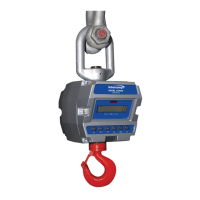
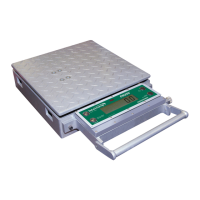
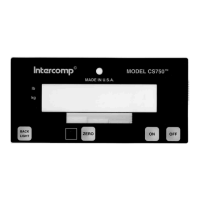
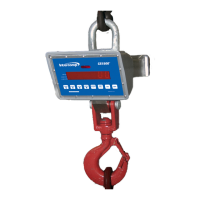
RFX Load Stick Systems
7005195 Rev A, August 2021
Page 29
OPERATION
iRaceWeigh BLUETOOTH CONNECTION
When using the SW RFX Indicator with the iRaceWeigh app, the following instructions
will set up a single mobile device to communicate with the indicator using a Bluetooth
connection.
ATTENTION: When using the iRaceWeigh app, only one mobile device at a
time can be connected to the indicator using a Bluetooth link.
1. Enable Bluetooth on the indicator: Press the ZERO key and PRINT key
simultaneously to access the Main Menu. Press the 5 key to access the BT
(Bluetooth app-link) menu. Press the 1 key to ENABLE Bluetooth.
2. Enable the Bluetooth connection on the mobile device.
3. Download/install the free iRaceWeigh app from Google Play or Apple App Store.
4. When opening iRaceWeigh for the first time, a pop-up window will be displayed to
allow the iRaceWeigh access to the device location on Android devices and
Bluetooth on IOS devices. Failure to allow access will deny permission to the app to
use the mobile device Bluetooth feature.
5. Navigate to the Settings tab. Switch the Connection Mode from Intercomp Wi-Fi
Module to Bluetooth.
6. Return to the main Weights tab. Click on the Refresh arrow located in the bottom
left corner of the screen.
7. The mobile device will start scanning for indicators. The scan may take several
seconds. When the scan completes, one of the following messages will be
displayed.
1) If no indicators are found, a pop-up message "No Indicators Found" will be
displayed.
2) If one indicator is found, no message is displayed. iRaceWeigh will attempt to
connect with that indicator.
3) If multiple indicators are found, the device will attempt one of the following
actions depending on the AUTO-CONNECT setting inside of iRaceWeigh.


 To Next Page