132 Chapter 9: TempView TempScan / MultiScan User's Manual
TempView Charts & Meters Toolbar Menu Items
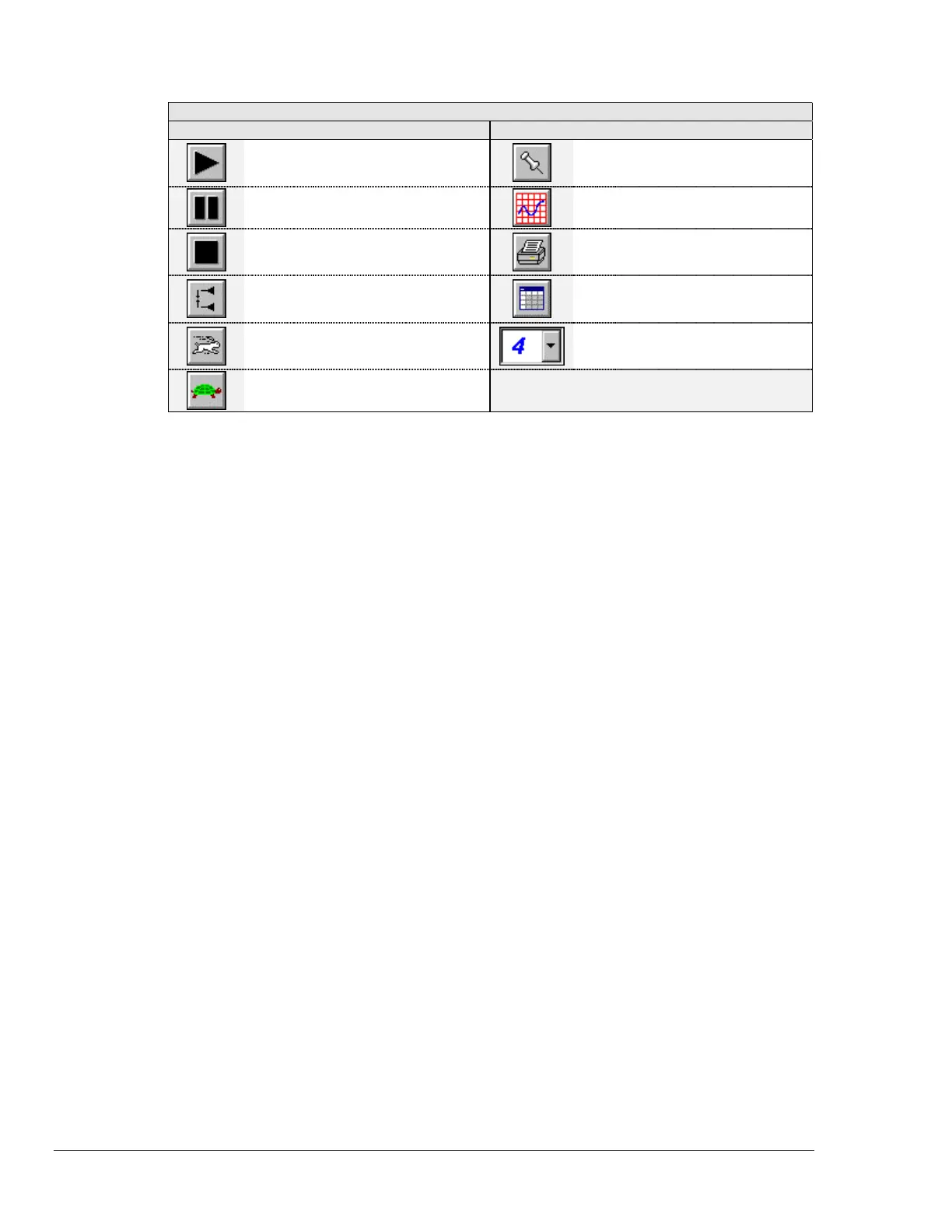
Button ( # ) Tool Name Button ( # ) Tool Name
(16)
Start
(Control Pull-Down Menu)
(22)
Stay On Top
(Options Pull-Down Menu)
(View Pull-Down Menu)
(17)
Pause
(Control Pull-Down Menu)
(23)
Show Grids
(Options Pull-Down Menu)
(18)
Stop
(Control Pull-Down Menu)
(24)
Print (Charts/Meters)
(Options Pull-Down Menu)
(View Pull-Down Menu)
(19)
Reset Peak Hold (Indicator)
(Control Pull-Down Menu)
(Pop-Up Menu)
(25)
Rows x Columns
(View Pull-Down Menu)
(20)
Faster
(Speed Pull-Down Menu)
(26)
Number of Charts/Meters
(Options Pull-Down Menu)
(View Pull-Down Menu)
(21)
Slower
(Speed Pull-Down Menu)
These TempView Charts & Meters Windows components are discussed in further detail in the following
text.
Channel Display Area
With any of the TempView Charts & Meters Windows, the Channel Display area
(H)
consists of the
single or multiple display of selected channels. However, the channel-display configuration of the
Charts Window and the Meters Windows involves the following differences:
• Charts Window: At the top-right corner of each channel display, an Active Channel pull-down list
(I)
is located. To assign an active channel to a chart, click on the pull-down list
(I)
, and a channel
list will appear. Select the desired channel. When no active channel is selected the box reads
None.
For the selected active channel, you can change the minimum or maximum values on the left-hand
side of the channel display, by using your cursor to highlight the upper or lower limit, respectively,
then typing in the new limit, and pressing the
<Enter> key. The new limits will take effect and a
new mid-range value will automatically appear.
• Meters Windows: To configure any of the Meters channel displays, click the right mouse button
while the cursor is on the selected channel of the Channel Display area
(H)
, and a pop-up menu will
appear. For more detail on this pop-up menu, see section Configure Meter Pop-Up Menu Items
(Meters Only) on page 137.



 To Next Page