TempScan / MultiScan User's Manual Chapter 9: TempView 137
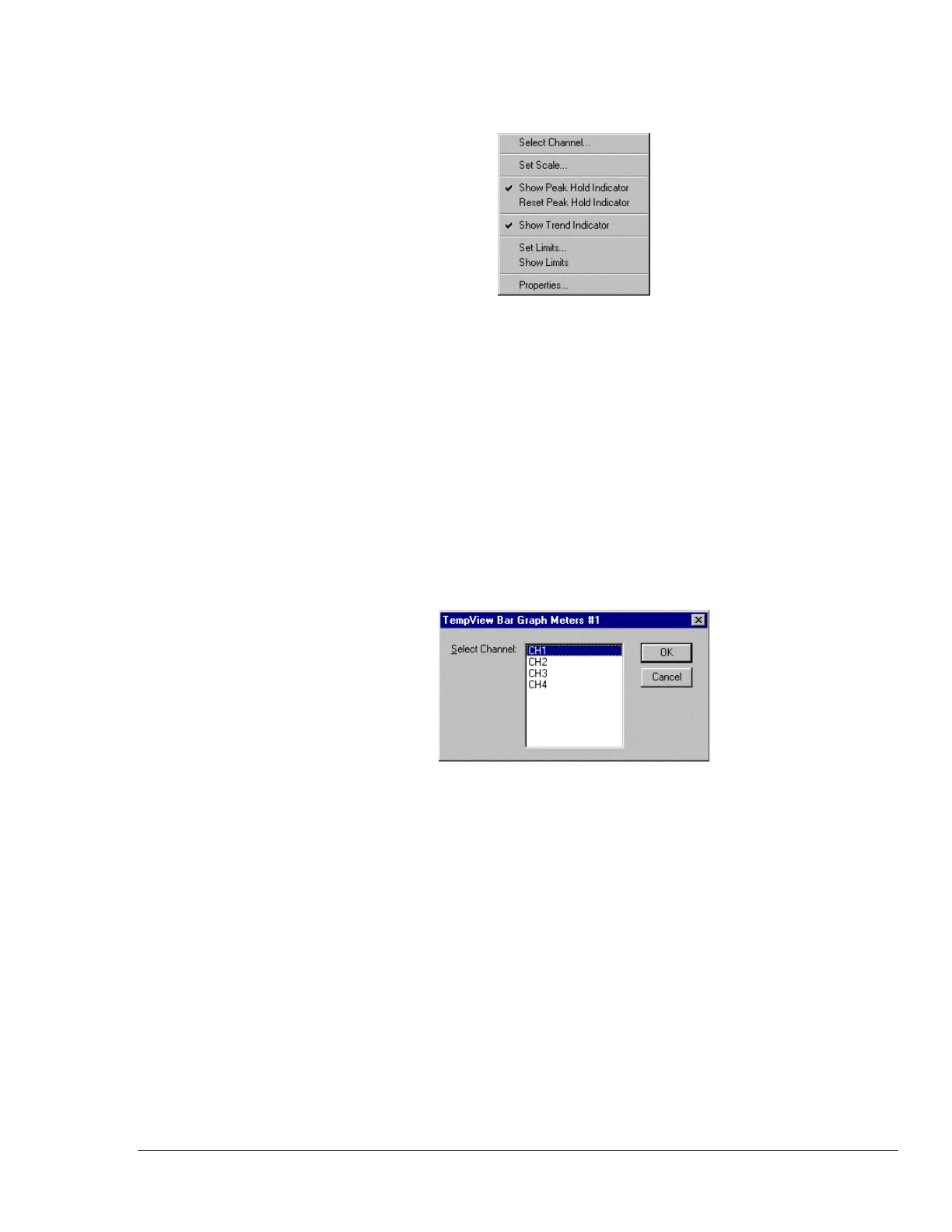
Configure Meter Pop-Up Menu Items (Meters Only)
This menu is similar for all three Meters Windows.
Note: The Show & Reset Peak Hold Indicator items does not appear in the Digital Meters menu.
Configure Meter Pop-up Menu Items
(Click on right mouse button in Meters Channel Display)
Unlike the TempView Charts Window, each TempView Meters Window features a Configure Meter
pop-up menu. Access this menu as follows:
1.
If not already done so, open the desired TempView Meters Window.
2. Place the mouse cursor over the desired channel of the Channel Display area
(H)
.
3. Click on the right mouse button. A pop-up menu will appear. Note that the TempView Digital
Meters Window has no pull-down, toolbar, or pop-up menu items referring to Peak Hold.
Select Channel…
Selects an active channel for the desired meter display.
This dialog box is similar for all three Meters Windows.
TempView Meters Select Channel Dialog Box
(Pop-Up Menu > Select Channel…)



 To Next Page