70 Chapter 8: ChartView & ChartView Plus TempScan / MultiScan User's Manual
Print Charts
The Print Charts button activates a screen print of ChartView’s main window.
Main Window Pull-Down Menus
The ChartView main window features several pull-down menus. As an alternative to the menus, you
can enable several menu items by using Toolbar buttons, previously discussed. The items which are in
common (between the pull-down menu and toolbar) are described in more detail in the Toolbar section.
File Menu
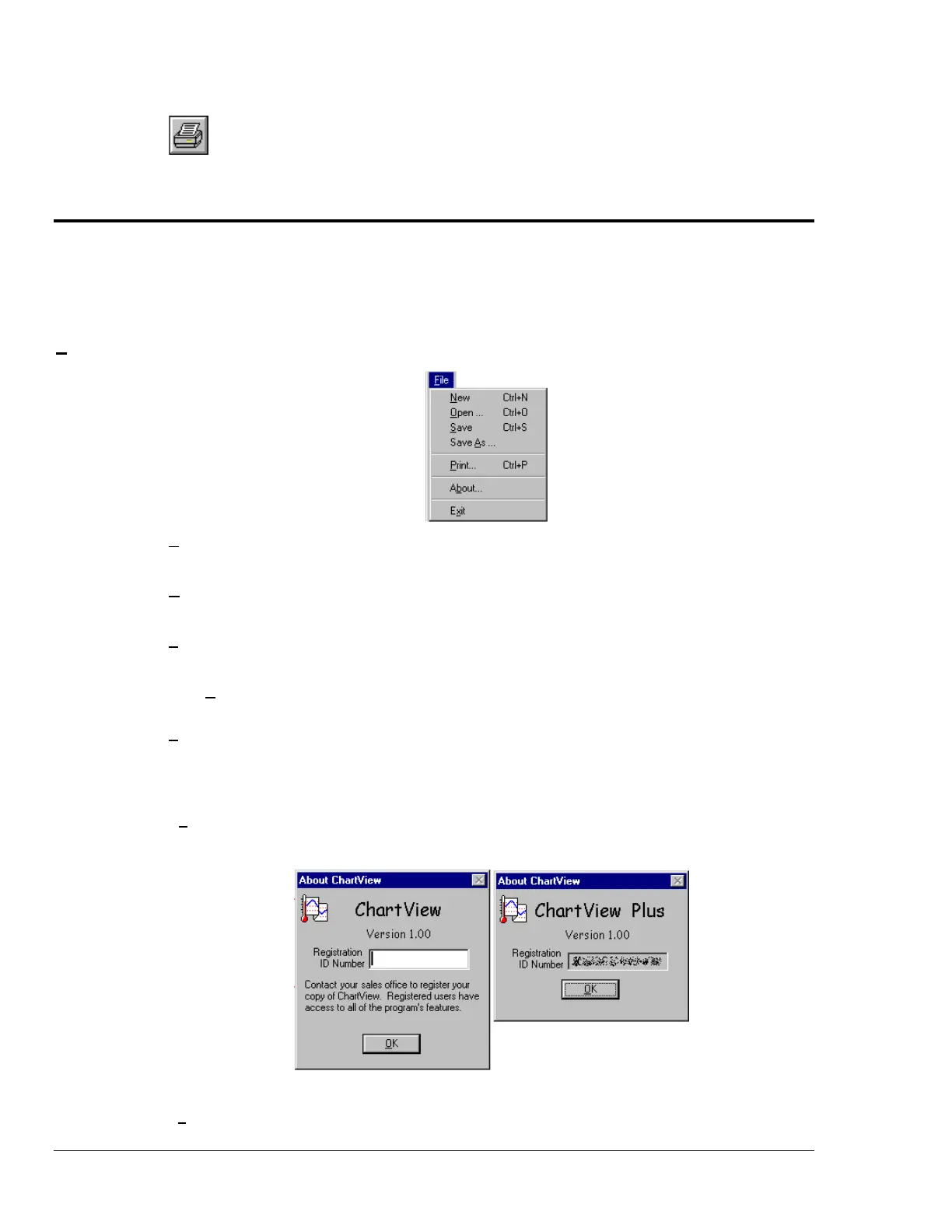
New
(Ctrl + N)
Sets all channel parameters to their startup (factory default) setting.
Open…
(Ctrl +O)
Sets all channel parameters as directed by a specified configuration file (.cvw). The Load
ChartView Setup window prompts you to select from a list of previously saved configuration files.
Save
(Ctrl + S)
Saves the existing all-inclusive channel configuration settings for later recall. The Save
command overwrites the existing version if the versions are named the same.
Save As…
Saves the existing configuration for later recall; asks whether to overwrite the original version or
save under a new filename.
Print…
(Ctrl + P)
The Print Charts button activates a screen print of ChartView’s main window. Note that when a
chart contains overlapping channels and the channels share values such that their traces
reside on top of each other, then the channels that are listed lower in the display list (the most
recently added channels) will obscure the channels higher in the list (those which were added
first).
About…
Clicking About will display a “ChartView” or “ChartView Plus” dialog box, as well as the software
version number. ChartView Plus can be activated from the ChartView dialog box, upon entering
a valid Registration ID Number and clicking the OK button. Your program can be registered
through your service representative.
Dialog Boxes for ChartView and ChartView Plus
Exit
Exits the ChartView program.



 To Next Page