80 Chapter 8: ChartView & ChartView Plus TempScan / MultiScan User's Manual
Bar Graph, Analog & Digital Meters
Overview
This section pertains to channel data display screens (windows, or dialog boxes) other than the main
chart screen (ChartView’s main window).
After a brief discussion and illustration of each meter type, commonalties to these three types of meters
is presented. These common areas include: Toolbars, Pull-Down Menus, and two special Pop-Up
Menus, one for configuring the meters, and the other for replacing a represented channel with another.
Note: The acquisition-to-disk has a higher priority then the updating of Charts, Meters, and the
Reading column. Therefore, data is displayed as soon as the acquisition task is satisfied. As
the scan rate is increased, the acquisition-to-disk task will take up more processor (CPU) time
and the displaying of data will be updated as time allows. If you select linear conversion
(
mX + b
) as the units for channel configuration you should expect a further impact on real time
display performance. The
mX + b
conversion is discussed in the section, Channel and Alarm
Setup Dialog Box.
Note: The meter channels selected are independent of the group chart assignments.
Bar Graph Meters
Selecting Bar Graph Meters from ChartView’s Window pull-down menu brings up the Bar Graph
window. This window displays several channels in bar graph format. To activate the display, select
the Start button from the toolbar. At least one meter must be assigned to an active (On) channel. You
can select to view up to 32 meters at a given time.
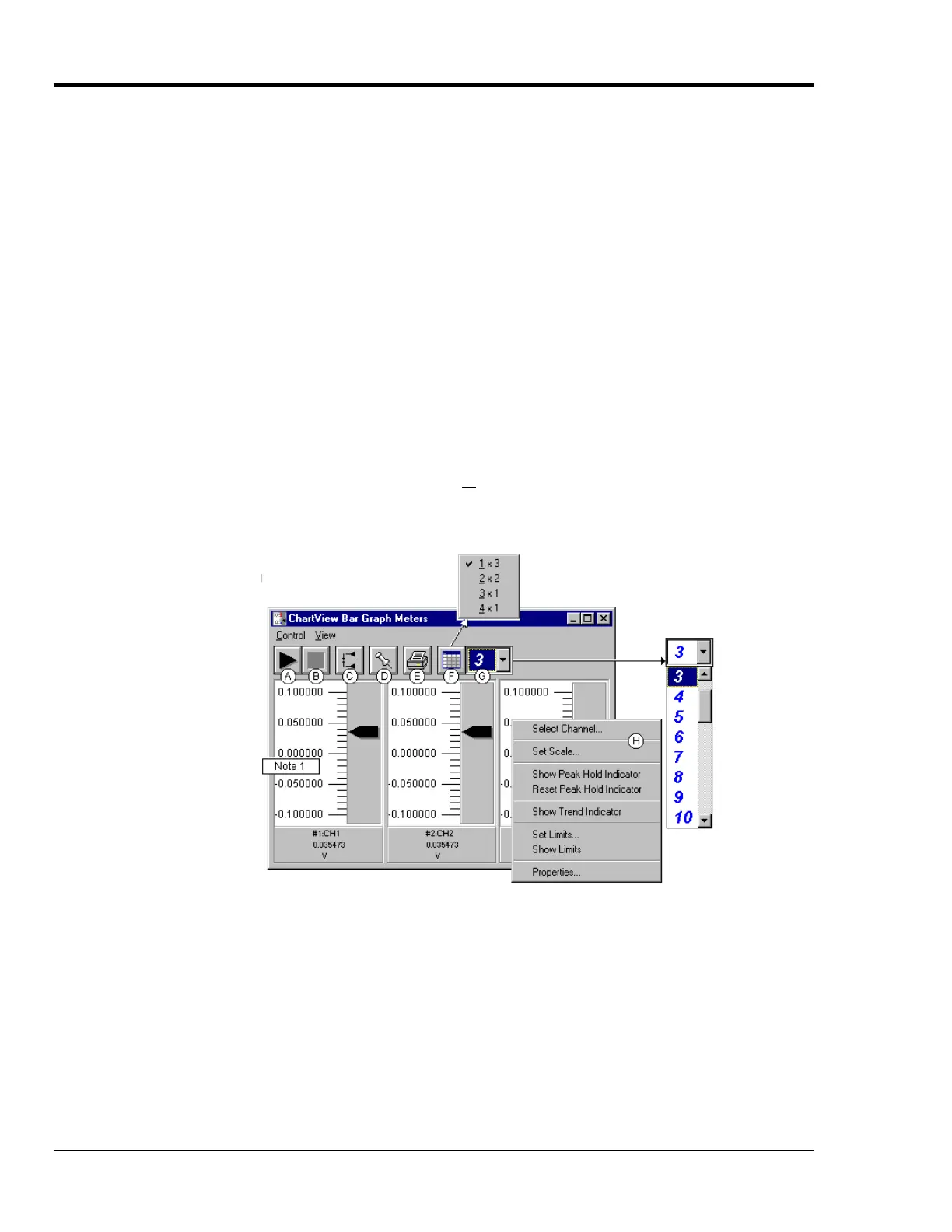
Bargraph Meters, Shown with 3 Meters Selected for Viewing
Note: Double-clicking the left mouse button in a meters scale area brings up a channel selection
pop-up menu. A single click with the right mouse button in this same area brings up a
configuration pop-up menu (item H). Both of these pop-up menus are discussed in the
section, Meters Configuration Menu.
The items in this window are as follows:
A - Start C - Reset Peak Hold E - Print G - Number of Meters
B - Stop D - Stay On Top F - Rows x Columns H - Configuration Pop-Up Menu
These items are discussed in more detail, following the description of Digital Meters.



 To Next Page