TempScan / MultiScan User's Manual Chapter 8: ChartView & ChartView Plus 79
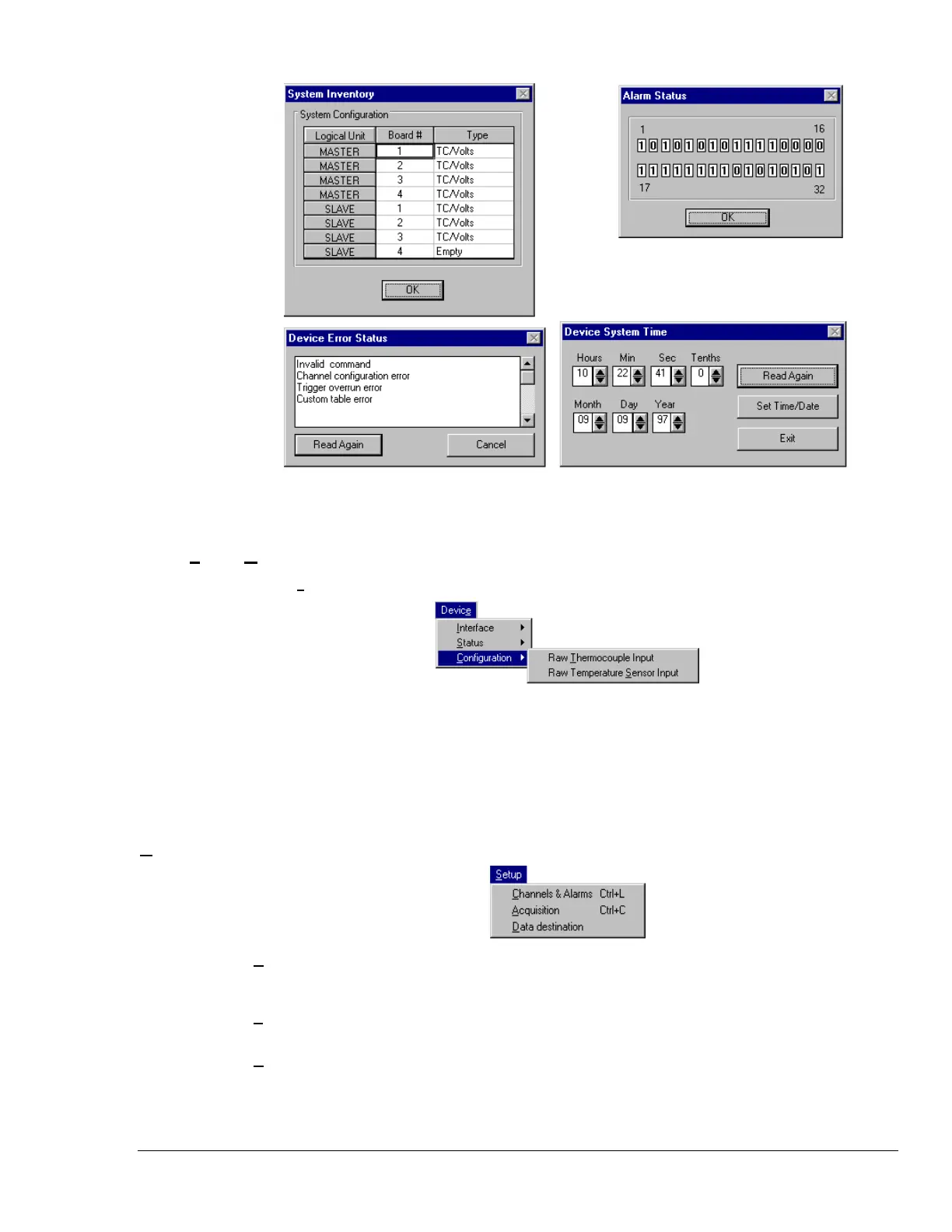
Device Status Dialog Boxes
Device …¾
¾¾
¾ Configuration ¾
¾¾
¾
A Device Expanded Menu (obtained with use of the F12 Key)
You can expand the Device pull-down menu by pressing the F12 function key on your
computer keyboard prior to pulling down the menu. After pressing F12 the pull-down
menu will show a listing entitled “Configuration.” The expanded-menu setting is not
saved in the configuration file when exiting ChartView. If the expanded menu is
desired you must press F12 each time you start ChartView. This expanded menu is
typically not used by the operator. The Raw Thermocouple Input and Raw
Temperature Sensor Input selections primarily exist as an aid in troubleshooting by
experienced technicians.
Setup Menu
Channels & Alarms
Ctrl+L
Accesses the Setup Window for configuring channels and alarms. From the channels
& alarms dialog box you can select the Acquisition Setup and Data Destination dialog
boxes.
Acquisition
Ctrl+C
Accesses the Acquisition Setup dialog box. From the Acquisition Setup box you can
select the Channels & Alarms dialog box, as well as the Data Destination dialog box.
Data Destination
Accesses the Setup Window for assigning the Data Destination and also provides a
means of configuring the Auto Re-arm feature for ChartView Plus (see page 91).
From the Data Destination dialog box you can directly access the Acquisition Setup
and the Channels & Alarms dialog boxes.



 To Next Page