TempScan / MultiScan User's Manual Chapter 8: ChartView & ChartView Plus 75
Window Menu
Bar Graph Meters
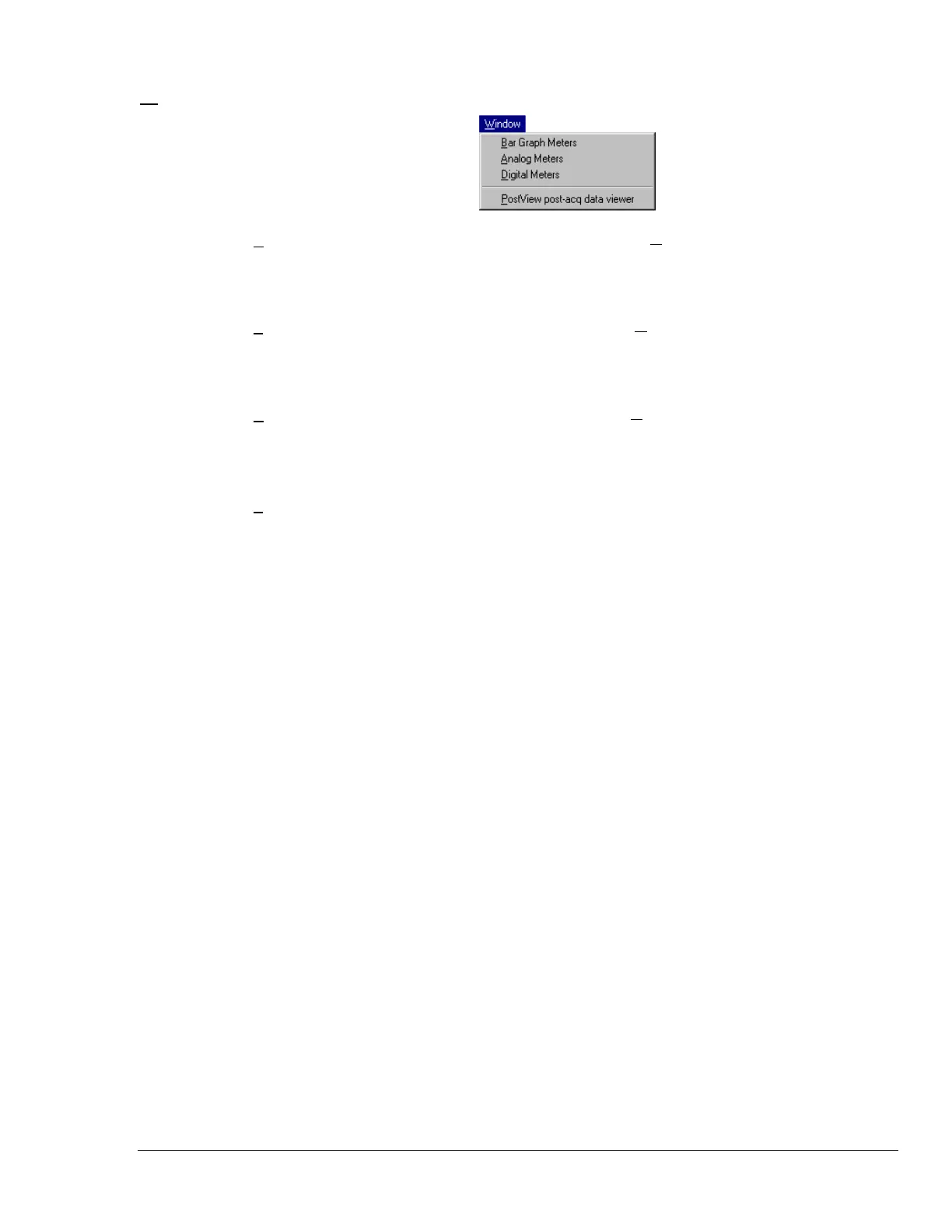
Selecting Bar Graph Meters from ChartView’s Window pull-down menu brings up the
Bar Graph window. This window displays several channels in bar graph format. To
activate the display, select the Start button in the meter toolbar. At least one meter
must be assigned to an active (On) channel. You can select to view up to 32 meters at
a given time. (See page 80).
Analog Meters
Selecting Analog Meters from ChartView’s Window pull-down menu brings up the
Analog Meters window. This window displays several channels in a dial/gage format.
To activate the display, select the Start button in the meter toolbar. At least one meter
must be assigned to an active (On) channel. You can select to view up to 32 meters at
a given time. (See page 81).
Digital Meters
Selecting Digital Meters from ChartView’s Window pull-down menu brings up the
Digital Meters window to display several channels in numeric format. To activate the
display, select the Start button from the toolbar. At least one meter must be assigned
to an active (On) channel. You can select to view up to 32 meters at a given time. (See
page 82).
PostView post-
acq data viewer
The “PostView post acquisition data viewer” selection accesses the PostView program.
This independent program allows you to view waveforms recorded by data acquisition
programs such as ChartView, ChartView Plus, and TempView. PostView is detailed in
chapter PostView on page 141.



 To Next Page