68 Chapter 8: ChartView & ChartView Plus TempScan / MultiScan User's Manual
9. Choose channels for the selected chart. With ChartView Plus you can select up to 4 overlapping
channels per chart. With the basic ChartView program you are limited to one channel per chart.
There are four methods of adding channels. These are as follows:
• Highlight an available channel using the cursor and left-hand mouse button; then click the Add button.
Repeat for each channel to be added.
• Double-click on the channel (in the available channels list to add; in the selected channels list to remove)
• Hold down the keyboard’s Shift Key and use the left-hand mouse button to select a block of consecutive
available channels (up to 4); then click the Add button. Example: CH3, CH4, CH5,CH6.
• Hold down the keyboard’s Ctrl button and use the left-hand mouse button to select up to 4 available
channels (these can be non-consecutive); then click the Add button.
• Example: CH1, CH3, CH5, CH7, as in the previous figure.
Note: You can also remove channels in a similar manner by highlighting a channel(s) in the
Select Channels box, and then clicking on the Remove button. In the previous figure,
CH7 (in the select box) is highlighted. Clicking the Remove button would delete that
channel from Chart1.
Note: When a chart contains overlapping channels and the channels share values such that their
traces reside on top of each other, then the channels that are listed lower in the display list
(the most recently added channels) will obscure the channels higher in the list (those
which were added first).
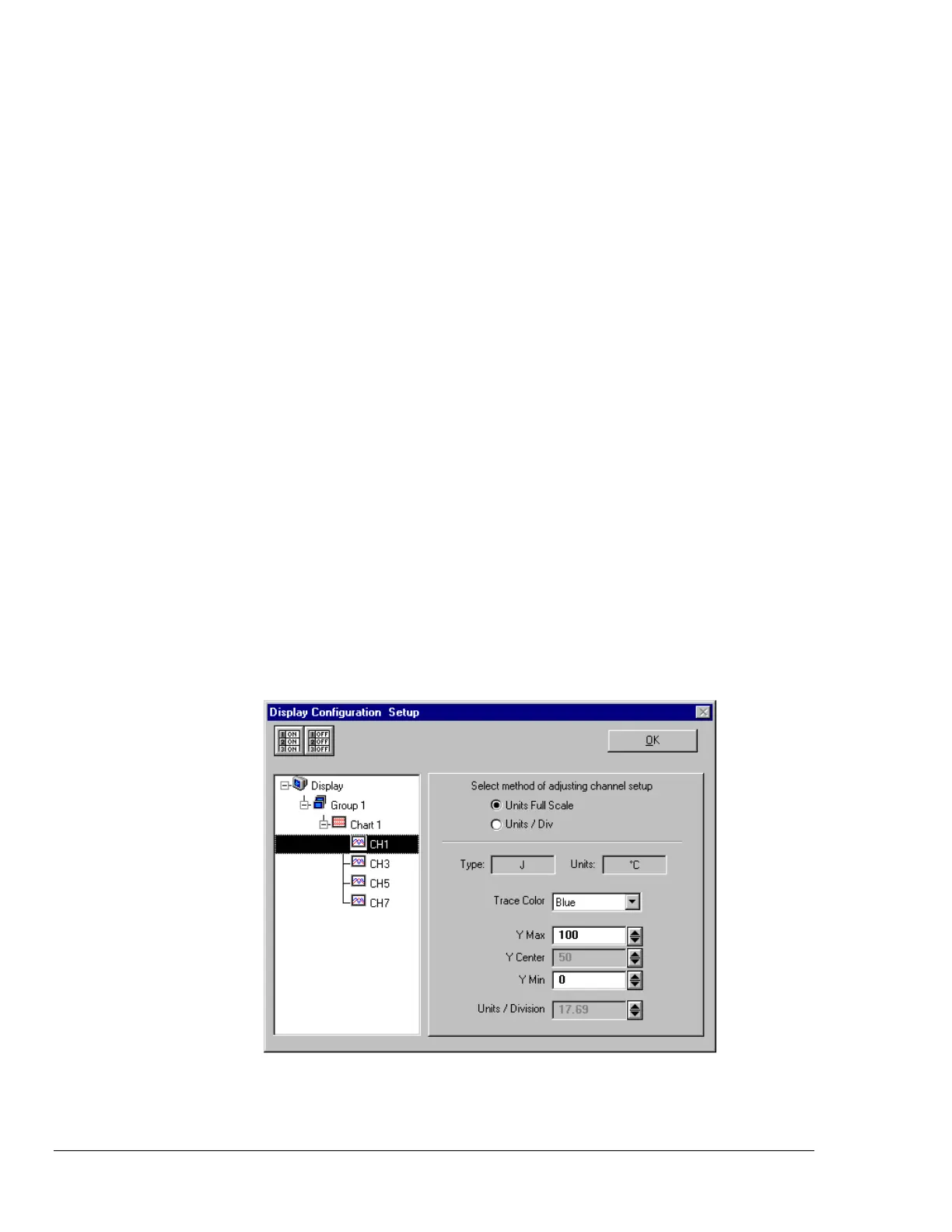
10. In the display area (on the left-hand side of the screen) click on a channel to check the channel’s
configuration and to re-configure the channel, if desired. The Display Configuration Setup
Window will appear similar to that in the following figure.
Note: Changing the display configuration does not change the existing channel and alarm
configuration. It only changes how the chart groups, charts, and channels will be
displayed.
This screen contains two “radio buttons” for selecting the method of adjusting the display mode
and channel setup. It is the same screen that was discussed in the sub-section, Editing an Existing
Display Configuration. From this screen you need to choose Units Full Scale or Units/Div. Each
method was previously discussed in the section Normal Edit on page 64.
Adjusting Channel Setup for Channel 1



 To Next Page