IPEVO Presenter Software(Cont'd)
11
Camera Mode
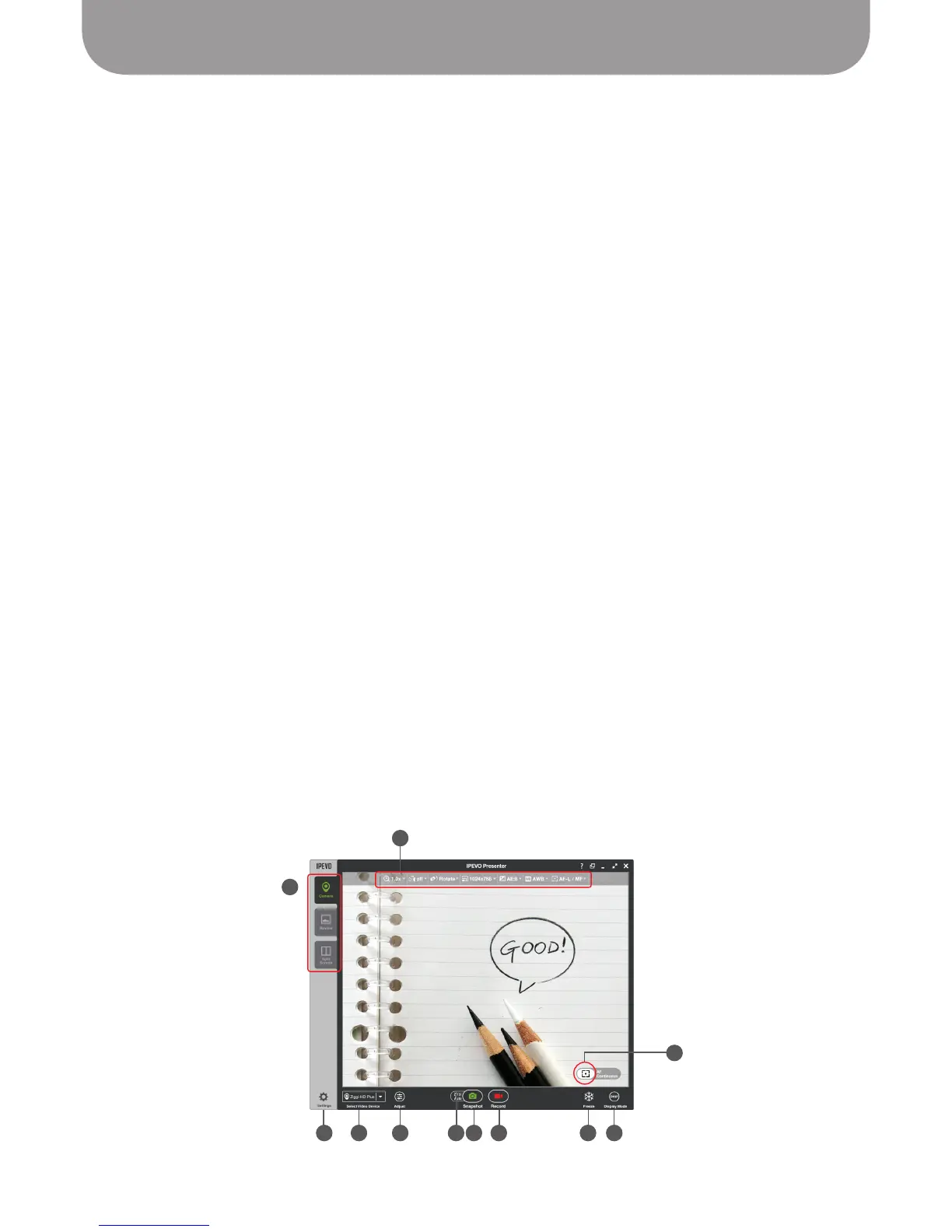
Please review the basic elements of the Presenter software:
A – Mode Tab
Modes can be selected by clicking on the appropriate tab.
B – Camera Mode
Several camera functions can be changed using the pulldown menus. These include: Zoom,
Mirroring Mode, Rotation, Resolution, Exposure and White Balance. This tab will also communicate
the current settings of these functions.
C – Snapshot Button
Click the green camera icon to take a snapshot.
See Page 24 for more on taking snapshots.
D – Auto
This function sets up an automatic shooting schedule for snapshots.
See Page 25.
E – Video Button
Click the red video camera icon to begin recording video.
See Page 27 for more on recording video.
F – Focus Button
Click the rectangular crosshairs icon to focus the image. Below this icon, the software will tell you
whether you are in Single (AF-S) or Continuous (AF-C) focus mode.
G – Settings
Here, you can access additional settings such as Sound Effect, Snapshot Timer, Refresh Rate and
Video Settings.
H – Select Video Device
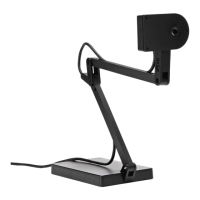
If you have multiple connected video devices, be sure to select Ziggi-HD Plus as your video device.
I – Adjust
Adjust certain parameters of the image such as Saturation and Hue.
See Page 33
.
J – Freeze
Clicking this icon will freeze the current image indefinitely. Click the icon again to "unfreeze" the
image and return to live action.
K – Display Mode
Click this icon to remove the top pulldown menus for an uncluttered image suitable for presentation.
Camera mode
A
B
G H I D C E J K
B
A
F


 To Next Page