Multiple Doc Cam Support
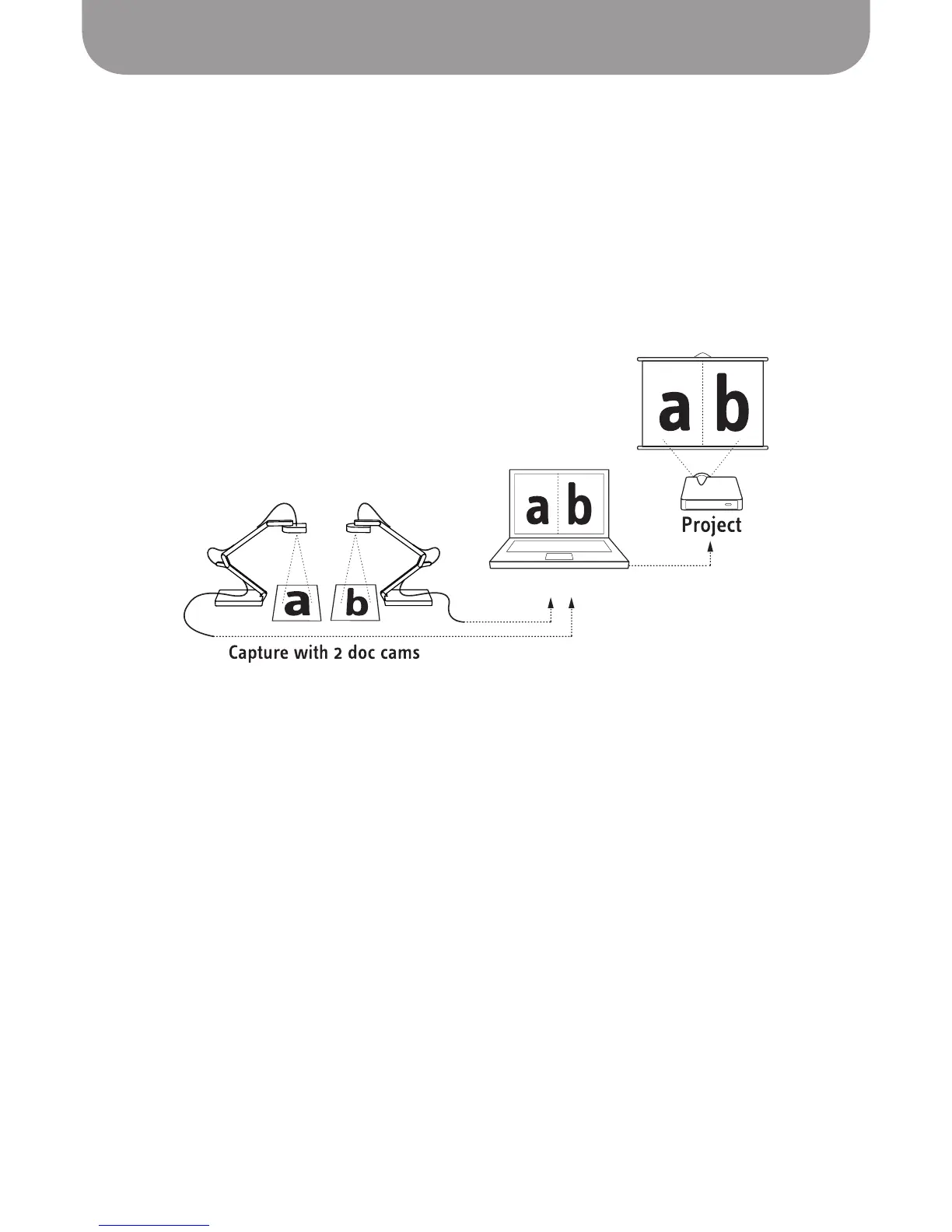
Two Presenter windows
35
Multiple Doc Cam Support
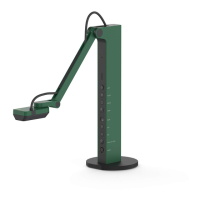
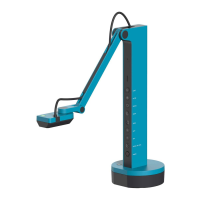
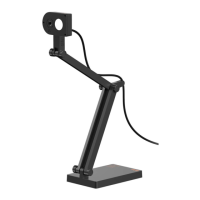
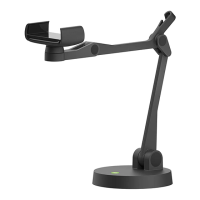
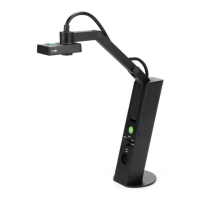
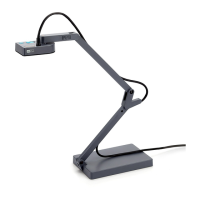
Presenter can now support multiple document cameras for both Mac and Windows PC. You can generate
a separate Presenter window for each of the document cameras connected to your computer. To do so,
press Ctrl+N on PC or Command+N on Mac. A new Presenter window will be created. Use the "Select
Video Device" function in Camera mode to select the appropriate doc cam for each of your Presenter
windows. You can also assign the same document camera to two separate Presenter windows. Simply
assign the same doc cam for each window's "Select Video Device" function. For one example of how to
use this function, you can have one window zoomed in to show details, and the other unzoomed to show
the entire object.
*
Please note: High computer performance is required when two doc cams are connected at high
resolutions. If the image freezes or lags in this setup, consider lowering the resolution.


 To Next Page