Snapshots
24
Snapshots
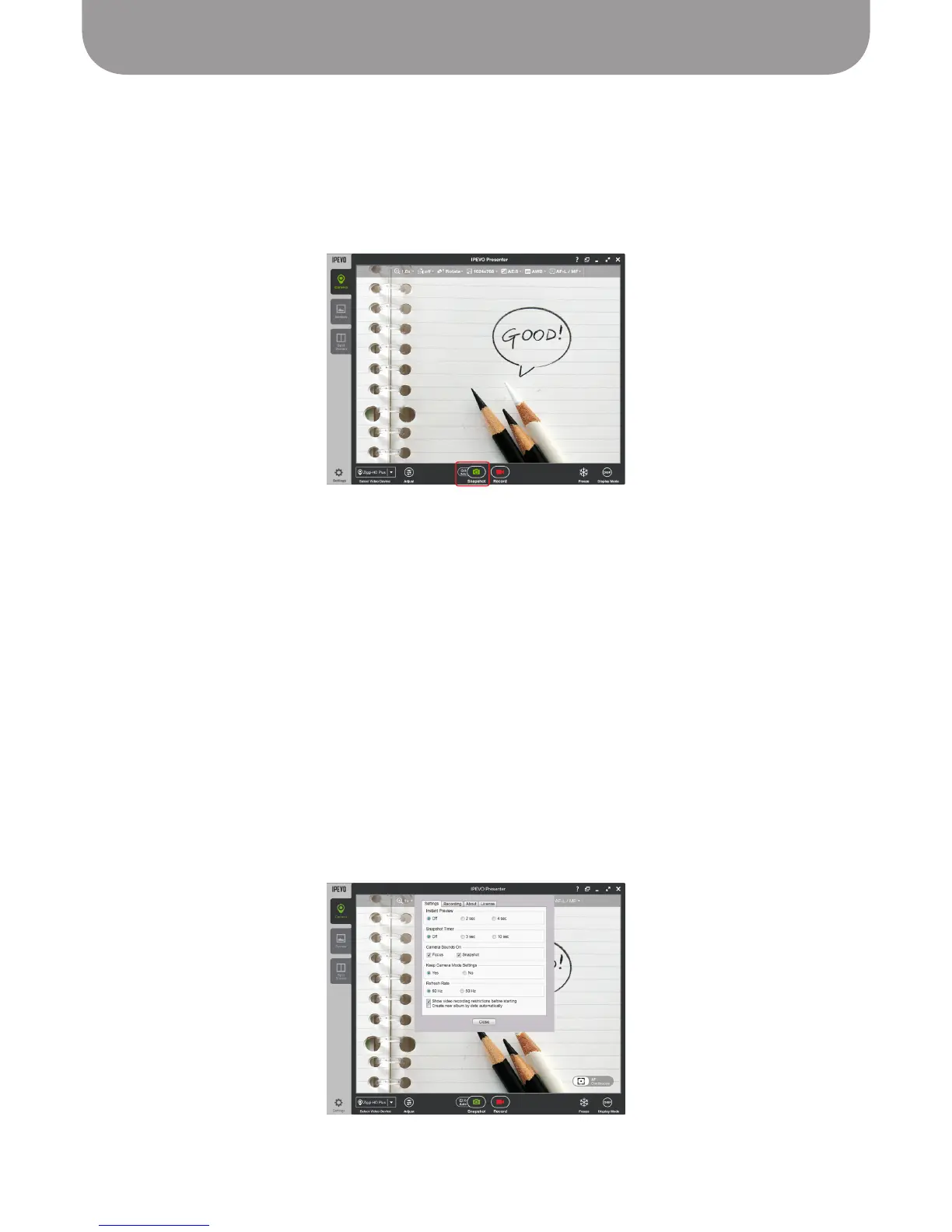
Ziggi-HD Plus has the ability to take snapshots, still images extracted from the current video capture.
Ziggi-HD Plus saves these snapshots, in .jpg format onto your computer's hard drive.
Taking a snapshot is simple – click the green camera icon at the bottom of the Presenter window in
Camera mode.
Taking a Snapshot
Once you take a snapshot, the screen will briefly go black, accompanied by a classic shutter sound effect,
and then your snapshot will appear on screen in an Instant Preview. After another brief period of black,
the video capture function will resume. For changing or disabling Instant Preview, and for disabling the
shutter sound effect,
see Page 30
, Advanced Settings.
Using the Timer Function
The Timer provides a delay (in seconds) between the time you press the Snapshot button and the time
when Ziggi-HD Plus actually takes the snapshot. You might find this delay necessary to avoid any shake in
the camera body that could result in a blurry image. Using the Timer eliminates this possibility.
When using the Timer, a countdown will appear on screen, with beeps for each second.
The Snapshot Timer, located via Settings
(see Page 30)
, can be set to either 3 seconds or 10 seconds. By
default, the Timer is set to Off.
To review snapshots, enter Review mode.
See Page 12.


 To Next Page