Recording Videos
27
Recording Videos
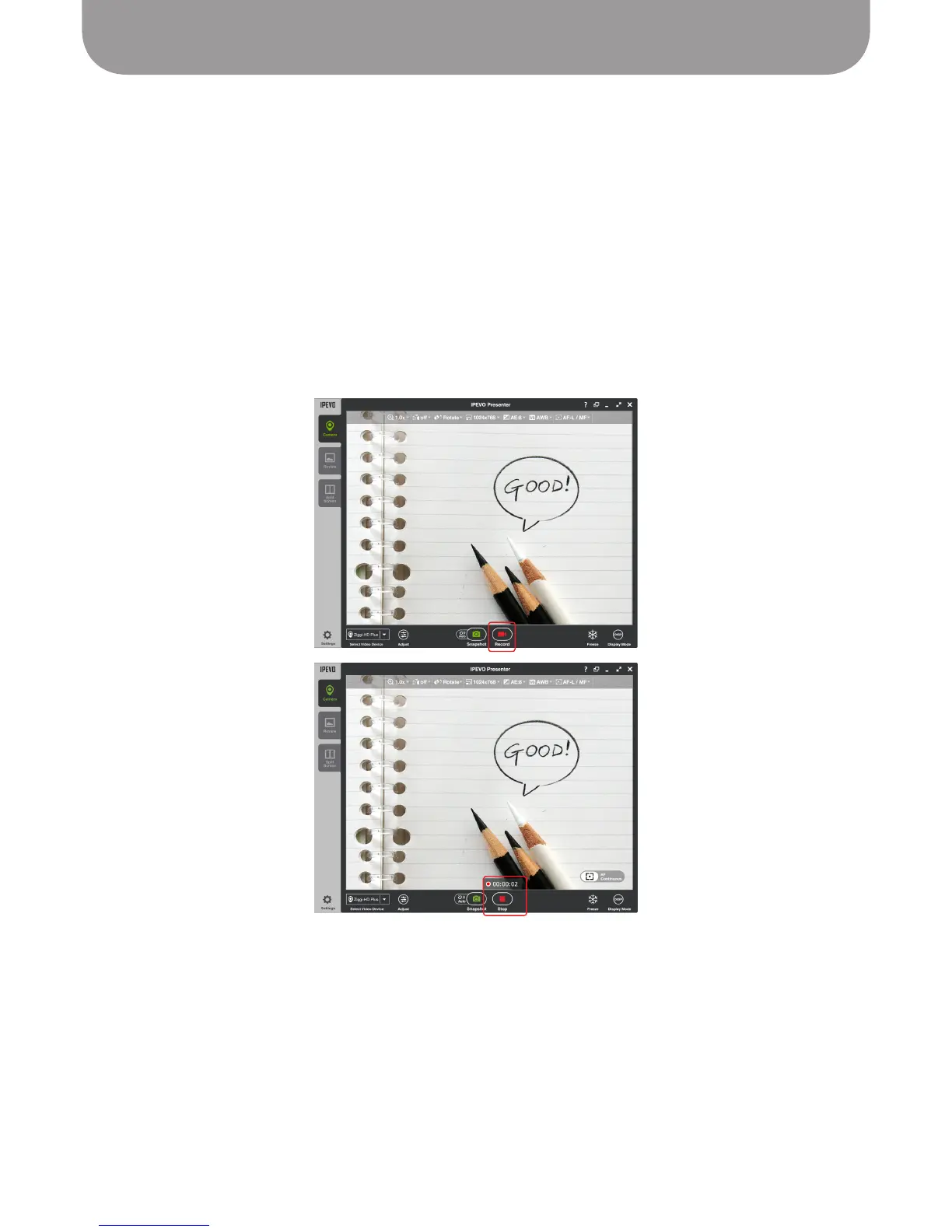
In addition to snapshots, Ziggi-HD Plus can also capture video. To do so, click on the red video camera
icon at the bottom of the Presenter window in Camera mode.
After a couple seconds of preparation, the video will appear. A counter will appear just above the
Snapshot and Record icons, letting you know the running duration of the video.
During videos, the Record icon will change into a Stop icon. Hit this icon to stop video recording. The
resulting video will be automatically saved to your hard drive.
To review videos, enter Review mode.
See Page 12.


 To Next Page