Splitscreen Mode
36
Splitscreen Mode
The newest version of Presenter supports splitscreen mode for both Mac and Windows PC. Two doc cams
can be connected and presented in splitscreen, or a single doc cam's video feed can be presented in
splitscreen. Functions like zoom, resolution change, rotate and more can be changed independently in
each splitscreen window.
*Please note: Do not use a USB hub for this purpose. You’ll need to plug the two document cameras into
the USB ports on your computer.
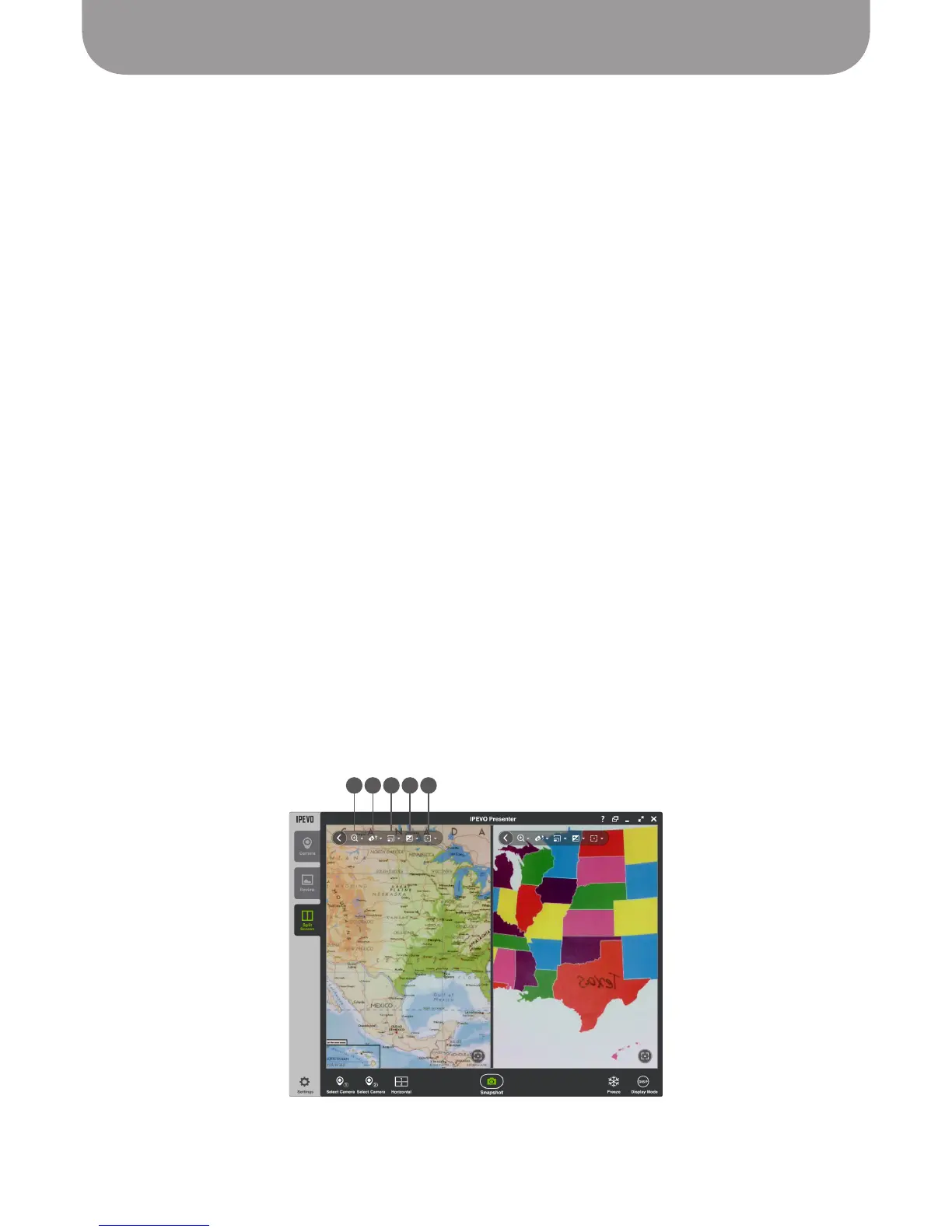
To enter Splitscreen mode, click on the Split Screen tab on the left.
• Select Camera 1 – Select the camera for the first splitscreen pane.
• Select Camera 2 – Select the camera for the second splitscreen pane. It can be the same or different
than Camera 1.
• Adjust Camera – Within the Select Video Device pop-up, hit Adjust Camera to tweak the image coming
from the selected camera.
• Horizontal/Vertical – Splitscreen can be presented either horizontally or vertically depending on your
selection.
Each splitscreen pane can be further adjusted by hitting the "<" icon in the upper right to bring up more
options. Hit ">" again to collapse the options.
A – Zoom
Digitally zoom the image.
B – Rotate
Rotate the image.
C – Resolution
Change the resolution of the image.
D – Exposure
Brighten or darken the image.
E – Manual Focus
Drag the Focus Slider to the desired focus, which will lock into place. To return to
Autofocus, uncheck the "AF-Lock" box.
Splitscreen mode
A
B
A B C D E
*
Please note: High computer performance is required when two doc cams are connected at high
resolutions. If the image freezes or lags in this setup, consider lowering the resolution.


 To Next Page