IPEVO Presenter Software(Cont'd)
12
D C E F G
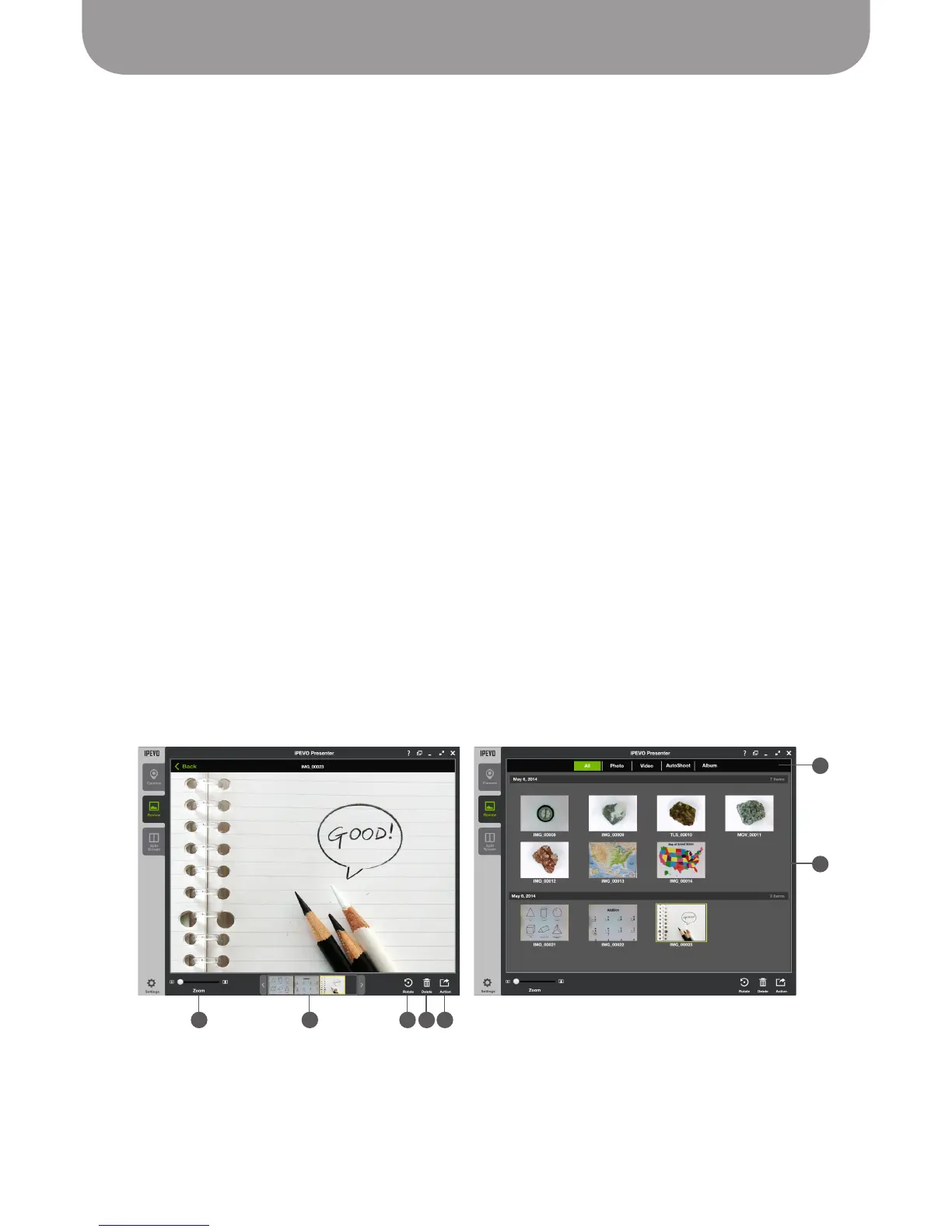
Review Mode
To review snapshots and videos you've taken
(see Pages 24 through 27)
, enter Review mode by clicking on
the Review tab on the left-hand side of the Presenter window.
A – Image Pane
This shows thumbnails of snapshots and videos sorted by date. Videos are differentiated by the white
video camera icon in the center of the thumbnail. Double-click on a thumbnail to make that snapshot
or video full screen.
B – Sort
Choose between seeing all snapshots and videos, only snapshots, or only videos. You can also select
Autoshoot to display automated snapshot series, and Album to display any photo albums you've
created.
See Pages 25 and 26 for more on Autoshooting and Albums.
C – Slideshow Mode
Double-clicking on a thumbnail will enter a slideshow. Top numbers indicate the total number of
images, along with which image you are viewing currently. Click on the arrows on either side of the
numbers to switch between images. Click "Back" at the top left to return to thumbnails.
D – Zoom
Slide to make either thumbnails or full-screen images larger or smaller.
E – Rotate
Select a snapshot to rotate it 90 degrees. Note that videos cannot be rotated.
F – Delete
Select a snapshot or video and click Delete to delete it from your hard drive.
G – Share
Selected images can either be exported to PDF or exported to a specified place on your hard drive or
network.
Review mode
Please note: Thumbnails may also be selected and right-clicked to bring up options to Rotate, Delete, or
Export the images.
B
A


 To Next Page