IsoPrime User’s Guide
Version 1.01 IsoPrime100 User’s Guide Page 53 of 219
It is not possible to acquire data into the default projects. The default projects are used as
templates to create new projects and analysis cannot be performed until the project/sample list
has been renamed.
Caution: do not store data files in the default project folders. If
IonVantage ever needs to be re-installed, the data files will be
replaced and the data will be lost.
Users may create their own template projects by setting up a new project based upon the
appropriate default project and then modifying the files as required. New projects may then be
created and based upon the new template.
CREATING A NEW PROJECT
Carry out the following steps to set up a new project:
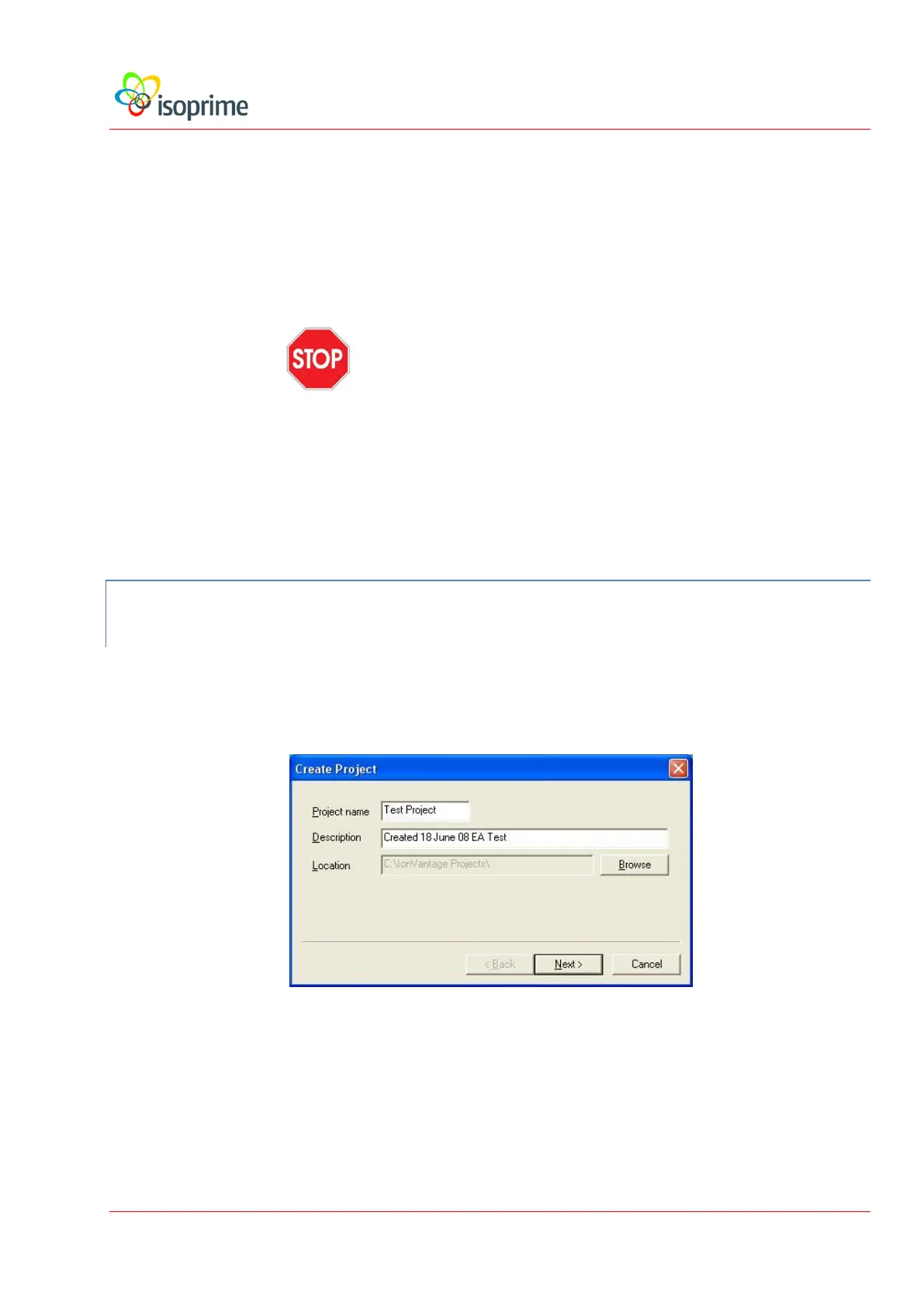
Select Project Wizard from the Projects menu of the sample list. This will bring up
the following menu:
Enter a name for the project, a description of the project and a location for the
folder. Although projects may be set up in any location, users are advised to
save them to a local hard disk. Saving a project to a networked drive or
removable media may compromise operation because of the slower access time.
Press the Next button. The following window is displayed:


 To Next Page