Basic Operations
EN I
51
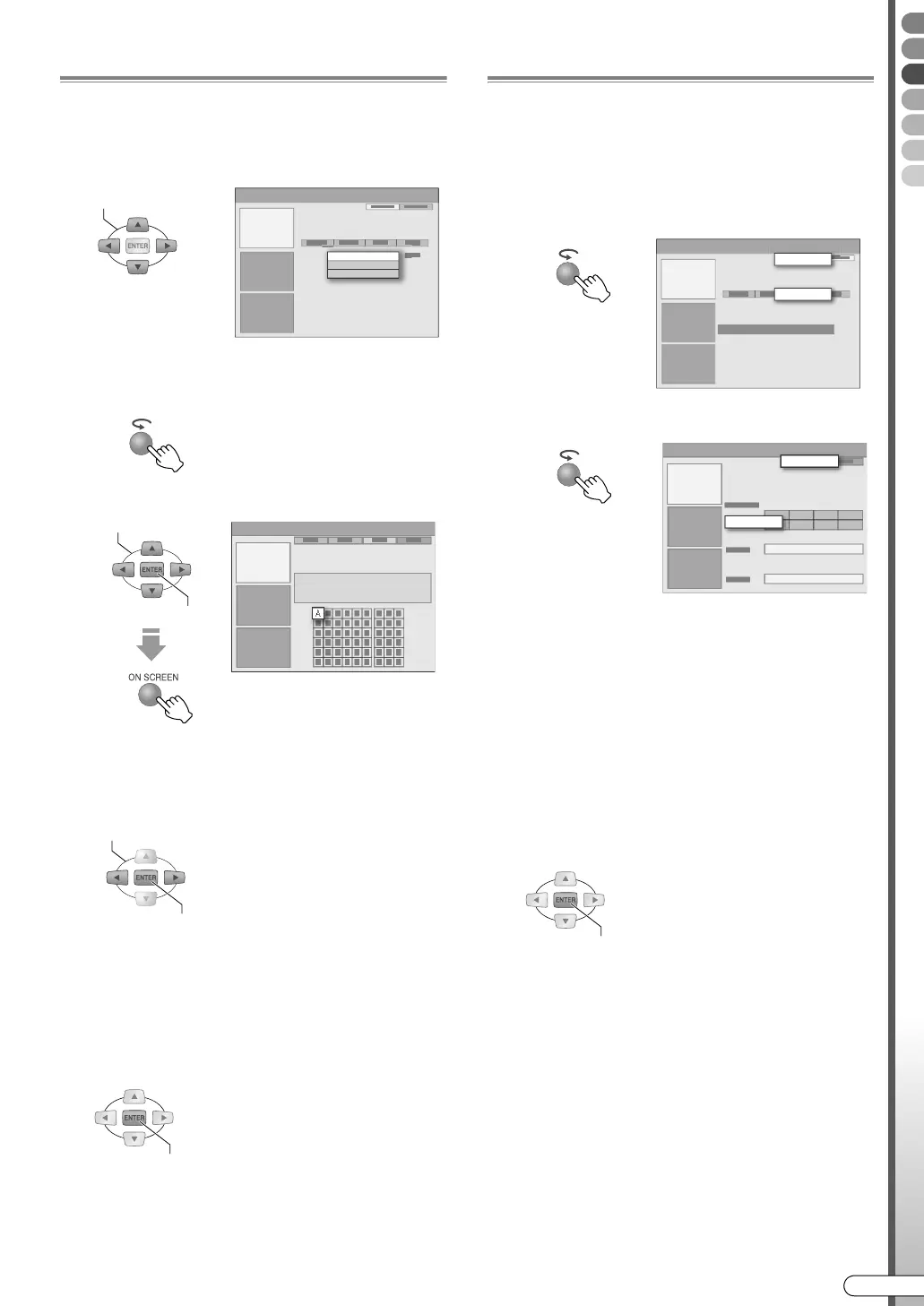
To Search by Keyword
You can search for a desired programme by specifying
the words that appear in the title.
A Select AMy ChoiceB from the ASearchB area
screen.
0 If keywords have been registered previously, a
keyword list will be displayed as menu.
B Display the Virtual Keyboard.
C Enter the characters.
0 The keyboard’s character set changes when the
Action (YELLOW) button is pressed.
0 Press the Action (GREEN) button.
D Select ASaveB to register the keyword.
0 The keyword entered will be displayed as menu in
the keyword list.
0 To cancel the character entry, press the Action
(RED) button.
0 If you do not wish to save, select ADon’t saveB,
then press ENTER.
E Start the search.
0 At this time, check that the registered keyword is
selected.
Using the AMy TVB Area
Your favourite channels, categories and keywords can
be compiled and memorised as a profile. Your desired
programmes can be searched anytime by using this
profile.
A Select AMy TVB from Menu Bar.
B Add AProfileB.
C Select and add AChannelsB.
0 Select from the channel (mosaic) screen, then press
ENTER.
0 A maximum of 16 channels can be set.
D Select and add ACategoriesB.
0 Select the category as with the ASearchB area.
0 A maximum of 4 category types can be set.
E Select and add AKeywordsB.
0 Enter the keyword as with the keyword search.
0 A maximum of 16 keywords can be set.
F Search for programmes using the profile set.
SELECT
My Choice
A
SELECT
CONFIRM
SELECT
CONFIRM
CONFIRM
My TV
Profile
Channels
Add
CONFIRM
DR-MX10SE.book Page 51 Wednesday, December 14, 2005 3:37 PM


 To Next Page
 Loading...