USER’S MANUAL OF LK-330E
LABEL & MARK INDUSTRIES COMPANY
38
the pages behind it will have the same repeated printing times.
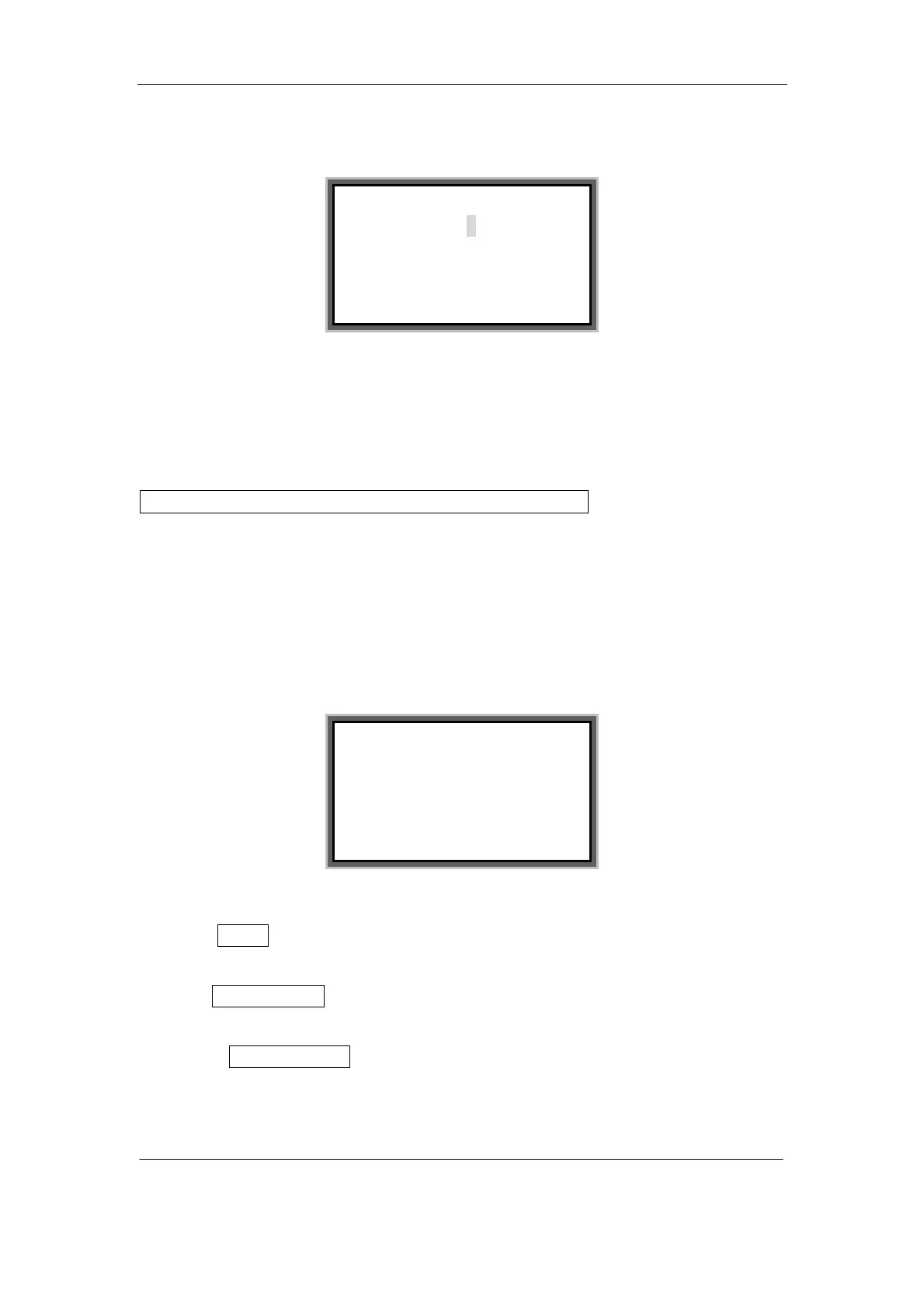
Press [Repeat], then the screen will display as follows:
Enter the number (integer) you want to repeat and press [Enter], and the page in
which the cursor exists and all the pages behind it will be printed repeatedly for the
number of times you just input, and then the screen will return to the text editing
window automatically.
If the input number exceeds the limits or is not an integer, the screen will display
Exceeds the limits, Press any key to enter another number! Now press any key to
input a valid integer.
4.2.10 Alignment
This function is used to set the left alignment or center alignment of the characters.
This setting is valid for all the contents to be printed.
Press [Alignment] and then the screen will display as follows:
Press[↑] or [↓] to make your selection.
1. Select Center and press [Enter], then the contents will be printed in a cinput
alignment manner. The screen will return to the text editing window automatically.
2. Select Left alignment and press [Enter], then the contents will be printed in a left
alignment manner. The screen will return to the text editing window automatically.
3. To select Fine adjustment, just select it and press [Enter].
Fine adjustment is used to fine adjust the print contents toward the left or the right
when the print contents can not be aligned center or left completely as previously
Repeat (1~20):
Center
Left Align
Fine Adjust


 To Next Page