LaCie Ethernet Disk Configuring Your LaCie Ethernet Disk
User Manual page 14
Launch the Administration Page
Windows Users
1. Select LaCie Network Assistant in Start/Programs. A Network
Assistant icon will appear in the system tray and Network As-
sistant will automatically detect your LaCie Ethernet Disk and
any other LaCie storage devices on your network.
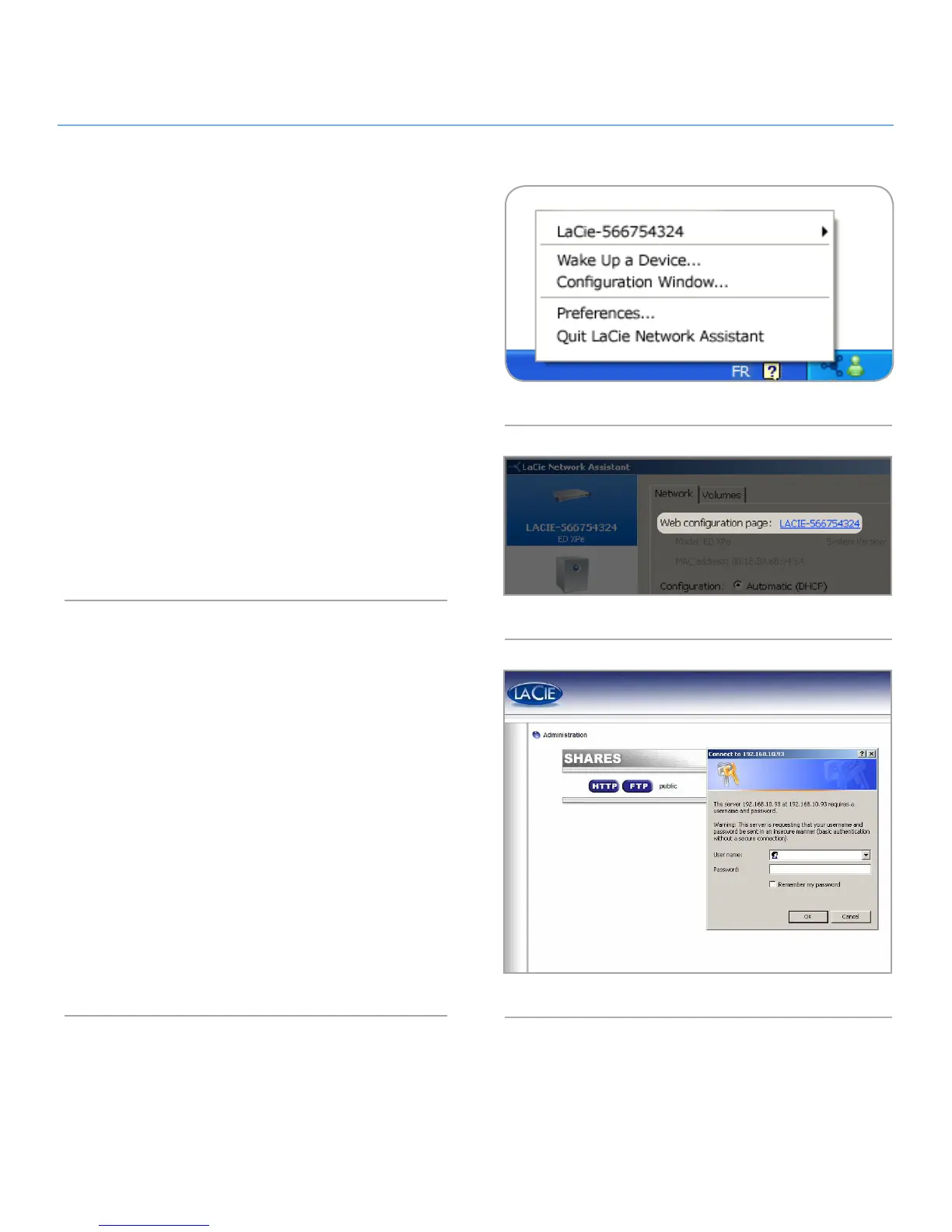
2. Click on the icon in the system tray and select Configuration
Window... from the LaCie Ethernet Disk sub-menu (Fig. 05). The
LaCie Network Assistant page will open.
3. Under the Network tab, click the Web configuration page
link (Fig. 06).
4. To log in to LaCie Ethernet Disk administration (Fig. 07), enter:
Login: administrator
Password: admin
5. Click Log on.
Continue to section 7. Using the Web Administration Page.
Mac Users
1. Double click LaCie Network Assistant in your Applications
folder. An Network Assistant icon will appear in the menu bar
and the Assistant will automatically detect your LaCie Ethernet
Disk and any other LaCie storage devices on your network.
2. Click on the icon in the menu bar and select Configuration Win-
dow.... The LaCie Network Assistant page will open.
3. On the Network tab, click the Web configuration page link
(Fig. 06).
4. To log in to LaCie Ethernet Disk administration (Fig. 07), en-
ter:
Login: administrator
Password: admin
5. Click Log on.
Continue to section 7. Using the Web Administration Page.
Fig. 05
Fig. 06
Fig. 07













 To Next Page