LaCie Ethernet Disk Managing Your LaCie Ethernet Disk
User Manual page 39
7. Press the Run or schedule backup job button to start the
backup process.
You can stop the backup process while it is running by clicking
the Stop the running backup button.
To view the scheduled backup jobs, click on the Server tab. To
remove a scheduled backup, press the Delete button for the
scheduled job.
9.9.2. Recovering Files Using The Built-In
Backup Engine
TECHNICAL NOTE: You can use Backup to back up and re-
store data on either file allocation table (FAT) or NTFS file system
volumes. However, if you have backed up data from an NTFS
volume, it is recommended that you restore the data to an NTFS
volume. If you do not, you could lose data as well as some file and
folder features such as permissions.
1. Connect locally to the Ethernet Disk using keyboard, mice
and monitor. You can also connect using the Remote Desk-
top Connection Client.
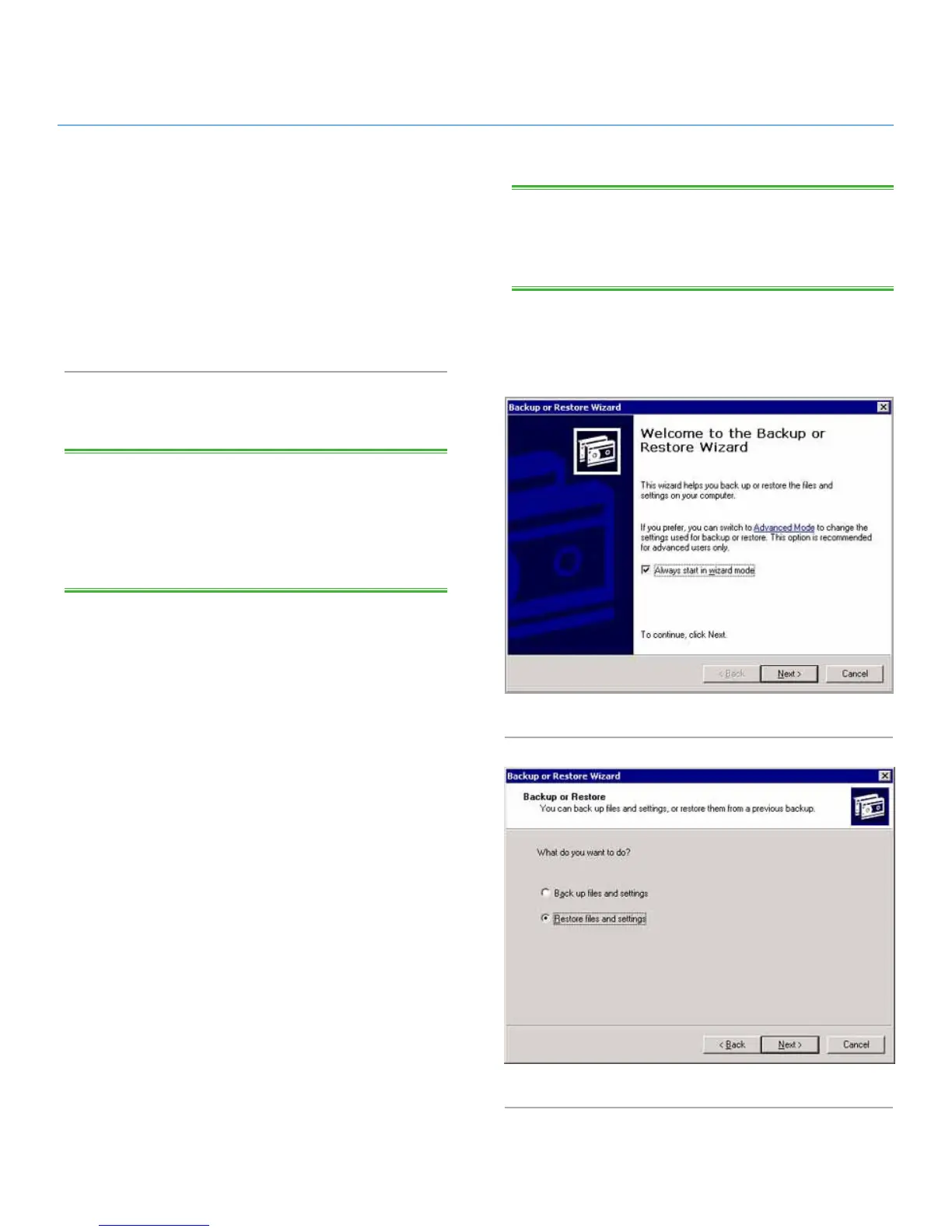
2. Double-click on the NT Backup icon on the desktop (Fig. 47).
3. Click the Next button.
4. Select Restore files and settings and click the Next button
(Fig. 48).
TECHNICAL NOTE: Backup time is dependent upon the speed
of the drive that you are using, the port that you are using (internal
drives are limited to 133Mb/s, Hi-Speed USB 2.0 is limited to
480Mb/s) and the amount of the data that you are backing up.
Fig. 47
Fig. 48













 To Next Page