LaCie Ethernet Disk Using the LaCie Shell
User Manual page 46
11.2. Accessing the LaCie Shell
Using Remote Desktop for
Mac OS X
First, download and install the Remote Desktop client from Mi-
crosoft’s website: http://www.microsoft.com/mac.
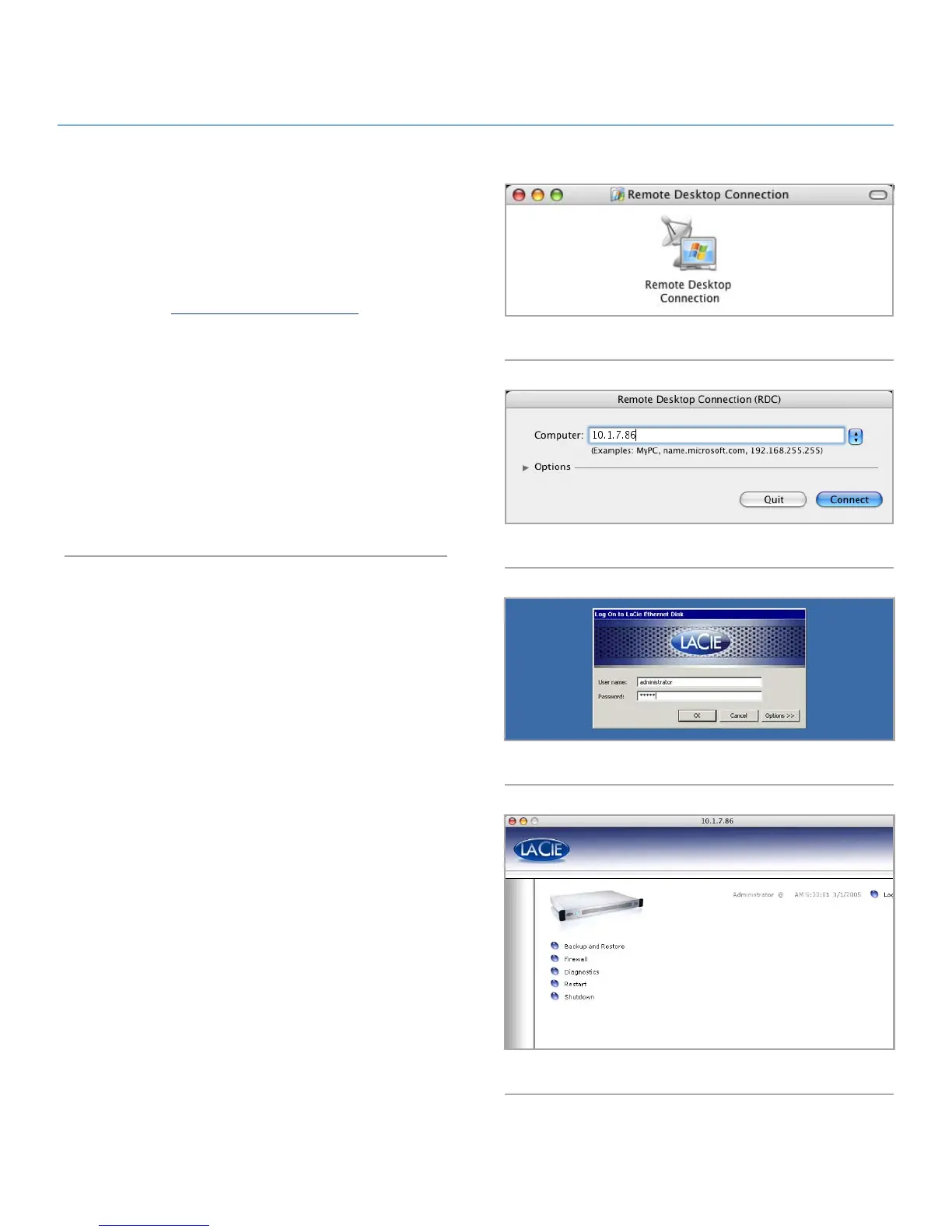
1. Locate the installation folder and double-click on the Remote
Desktop Connection icon (Fig. 58).
2. In the Remote Desktop Connection dialog Computer field en-
ter the IP address of the LaCie Ethernet Disk, and click Con-
nect (Fig. 59).
3. In the LaCie Log On dialog Type in the Administrator user-
name and password, and click OK (Fig. 60).
The LaCie Shell then appears (Fig. 61).
Fig. 58
Fig. 59
Fig. 60
Fig. 61













 To Next Page