LaCie Network Space MAX • DESIGN BY NEIL POULTON Accessing & Transferring Files
User Manual page 21
3.2.1. Switching User
By default, you will be logged in as a guest, and will not therefore
have access to private shares. In order to access protected shares,
you will have to change the login credentials using the LaCie Net-
work Assistant. Follow these steps:
1. Click the LaCie Network Assistant icon in the Task Bar (Win-
dows) or Menu Bar (Mac) and select Configuration Window....
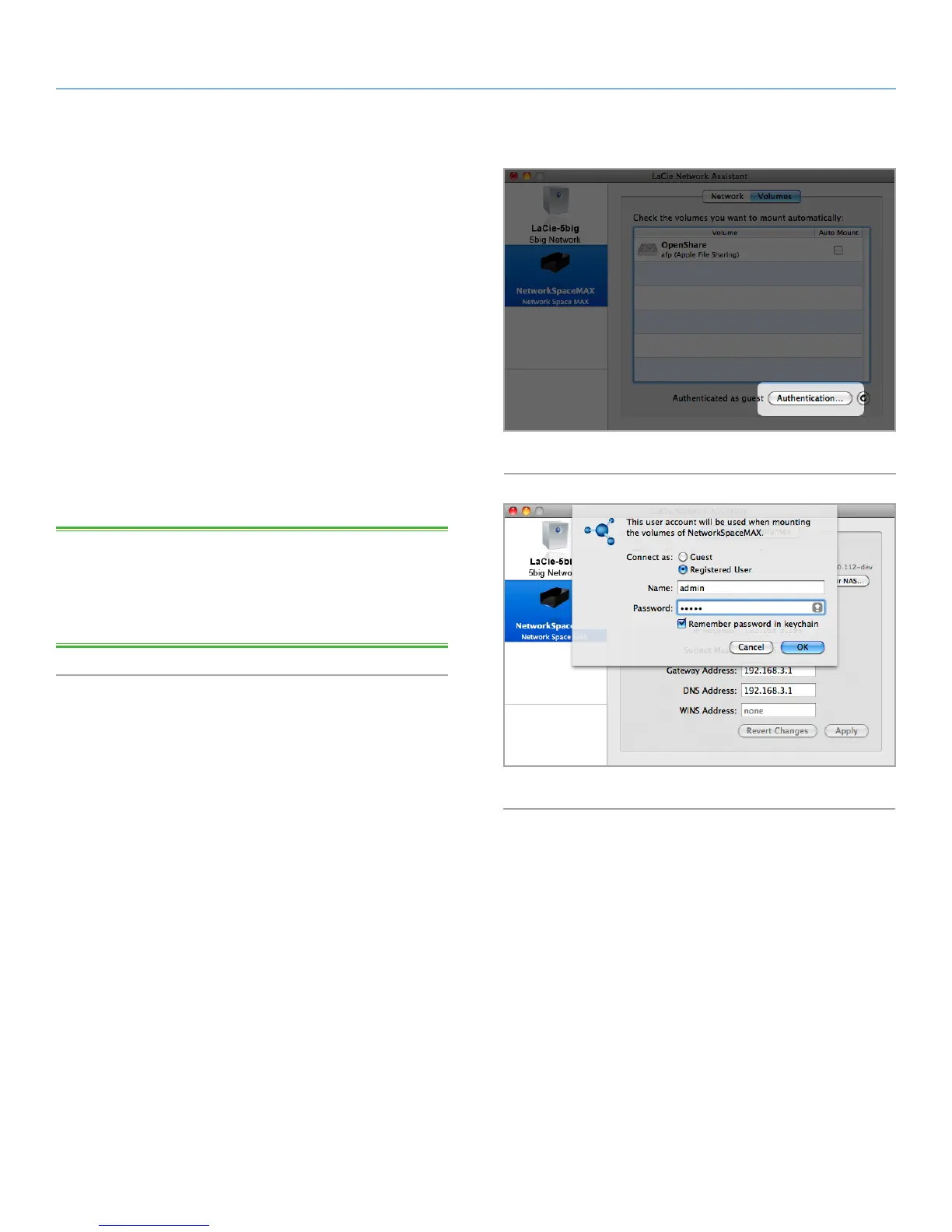
2. Click on the Volumes tab and then click the authentication but-
ton (Fig. 21).
3. When prompted, enter your username and password (Fig. 22).
Note that the admin name and password can be changed from
the Dashboard > Home page.
4. Click OK. Now when you click the LaCie Network Assistant
icon, you should see a listing of shares accessible to the au-
thenticated user.
TECHNICAL NOTE: Normally you will have created an admin
account during the Setup Wizard. If for whatever reason you did
not complete the Setup Wizard, you can access the default pri-
vate share (MyShare) by authenticating as username=admin /
password=admin.
Fig. 21
Fig. 22













 To Next Page