LaCie Network Space MAX • DESIGN BY NEIL POULTON Administering Your LaCie Network Space MAX
User Manual page 42
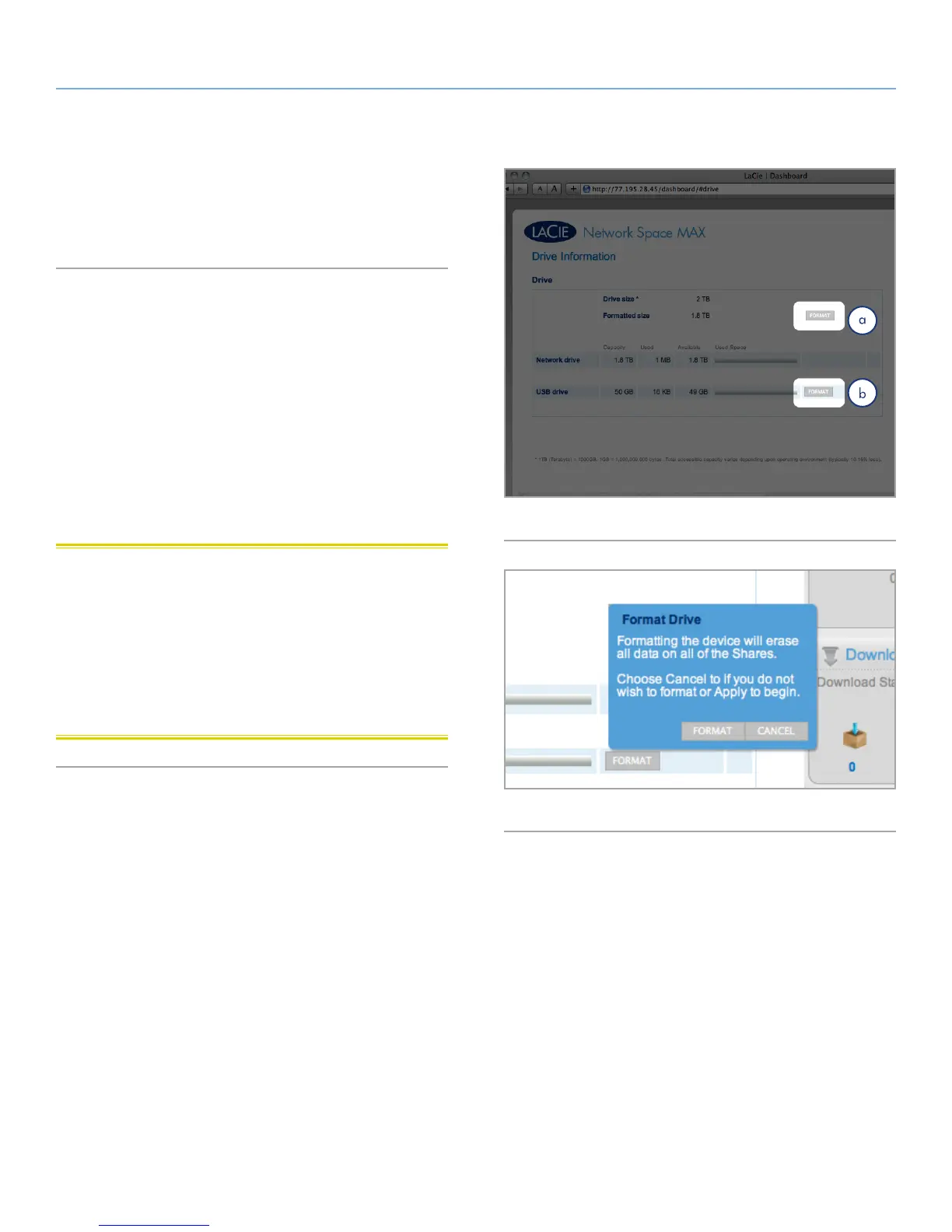
4.9. Dashboard: Drive Information
This page shows you information about disk usage and will allow
you to reformat your drive.
4.9.1. Formatting Your Network Space MAX
When you click the top Format button (Fig. 63, a), ALL data on the
disk (including on USBShare) will be erased and the disk will be
formatted. Data on any USB hard drive connected to the front port
will not be affected. When you click the bottom Format button (Fig.
63, b), only the USBShare will be formatted.
To reformat:
1. Click the FORMAT button.
2. In the blue window that opens, confirm by flicking the FORMAT
button.
CAUTION: Formatting will erase all the data on your drive (but
will not remove users or settings). Make sure to back up all your
data onto another volume before proceeding. If you are formatting
USBShare and wish to back it up first onto another share, LaCie rec-
ommends you use the File Browser (see 3.3. Accessing Shares Using
File Browser (Dashboard)) instead of using SMB/AFP (i.e. using the
Finder for Mac users or an Explorer window for Windows users).
LaCie cannot be held for responsible for the loss of data occurring
during formatting.
Fig. 63
Fig. 64













 To Next Page