24
Store & Naming PRESET
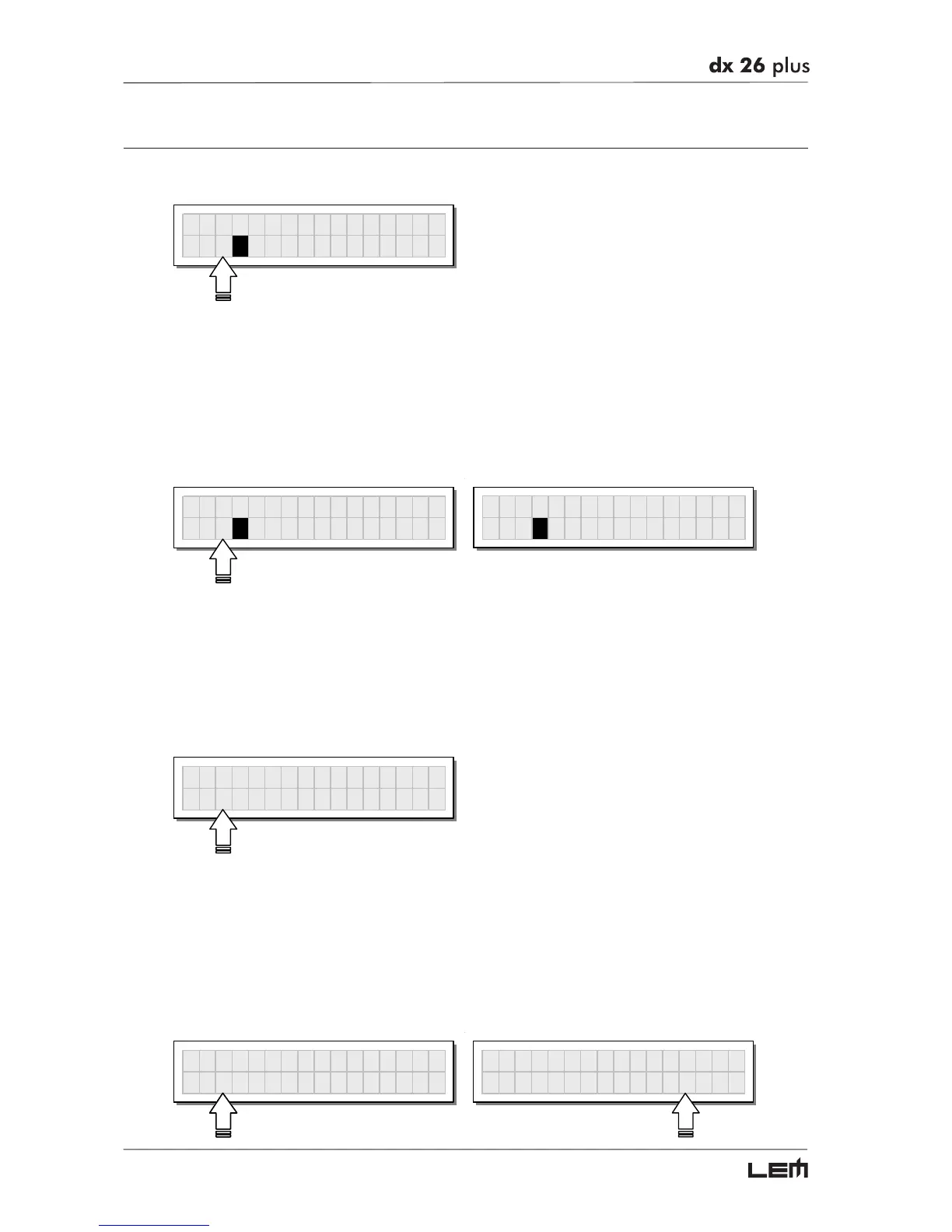
This menu page allows to create new PRESETS, i.e. to save all the current system settings.
Store Preset
2U 2x2
X
To save a PRESET:
☞ Use DIAL to reach the memory area in which the PRESET is to be saved.
N.B.: in this procedure, the Factory PRESET areas aren’t available, since the Factory PRESETS cannot be permanently
modified. Nevertheless remember that it is possible to load a Factory PRESET, save it in a User PRESET or Card
PRESET area, modify it as required and then store it again in the same User or Card area.
N.B.: scrolling through the memory areas, the display shows the number, type and name of the PRESETS contained in
them; scrolling through the 128 Card memory areas without the Multimedia Memory Card, a warning appears on the display:
Store Preset
3U O
eraHall 1
Store Preset
101C NO C
RD
☞ Press ENTER. The PRESET Naming page appears, by means of which it’s possible to edit the name
of the PRESET to be saved.
N.B.: if you’re in one of the 128 memory areas reserved for the Card and you remove the Multimedia Memory Card
before pressing ENTER, nothing happens: the display remains unchanged and Store PRESET procedure remains
unvaried.
The name of the “start” PRESET (i.e. of the PRESET currently loaded) is proposed as default. The
cursor takes up position on the first of the twelve character spaces available.
Preset Namin
At this point:
✧ If you decide to accept and confirm the name suggested, press ENTER.
✧ If you want to abort Naming procedure (for example because you’ve chosen the wrong memory area)
and return to Store PRESET procedure, press ESC.
☞ If you want to assign a new name to the PRESET you’re storing:
- use the
WW
WW
W and
XX
XX
X keys to position the cursor on the required character
- use DIAL to enter the alphanumeric value wanted
- after finishing, press ENTER.
Preset Namin


 To Next Page