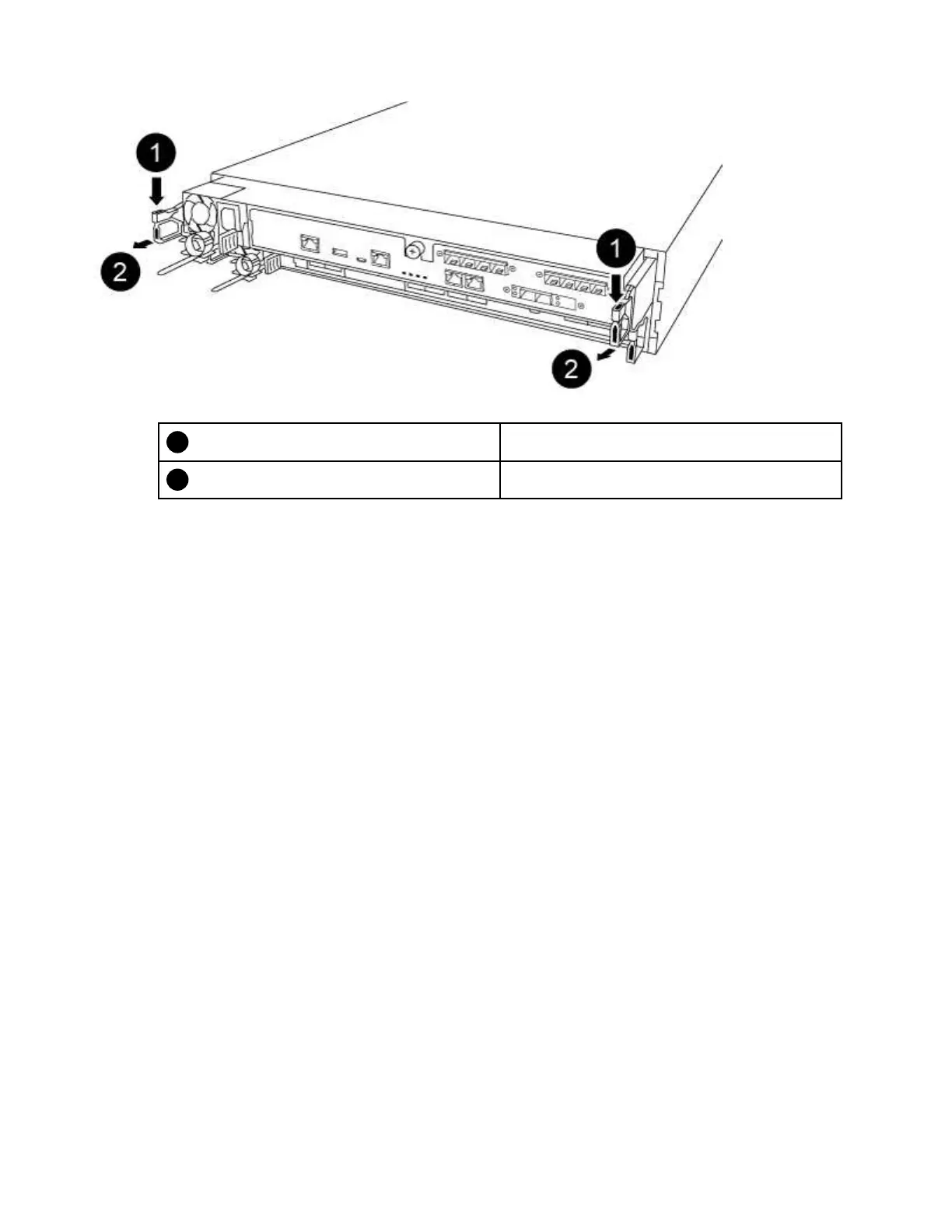
Lever
Latching mechanism
Step 6. Using both hands, grasp the controller module sides and gently pull it out of the chassis and set it
on a flat, stable surface.
Step 7. Set the controller module aside in a safe place, and repeat these steps for the other controller
module in the chassis.
Moving drives to the new chassis
You need to move the drives from each bay opening in the old chassis to the same bay opening in the new
chassis.
A video for this task is available at:
• YouTube:
https://www.youtube.com/playlist?list=PLYV5R7hVcs-C8THdP1nmPF25RWwGRta3v
Step 1. Gently remove the bezel from the front of the system.
Step 2. Remove the drives:
a. Press the release button at the top of the carrier face below the LEDs.
b. Pull the cam handle to its fully open position to unseat the drive from the midplane, and then
gently slide the drive out of the chassis.
The drive should disengage from the chassis, allowing it to slide free of the chassis.
Attention: When removing a drive, always use two hands to support its weight.
Attention: Drives are fragile. Handle them as little as possible to prevent damage to them.
Step 3. Align the drive from the old chassis with the same bay opening in the new chassis.
Step 4. Gently push the drive into the chassis as far as it will go. The cam handle engages and begins to
rotate upward.
Step 5. Firmly push the drive the rest of the way into the chassis, and then lock the cam handle by pushing
it up and against the drive holder. Be sure to close the cam handle slowly so that it aligns correctly
with the front of the drive carrier. It will click when it is secure.
78
ThinkSystem DG5000 Hardware Installation and Maintenance Guide




 To Next Page