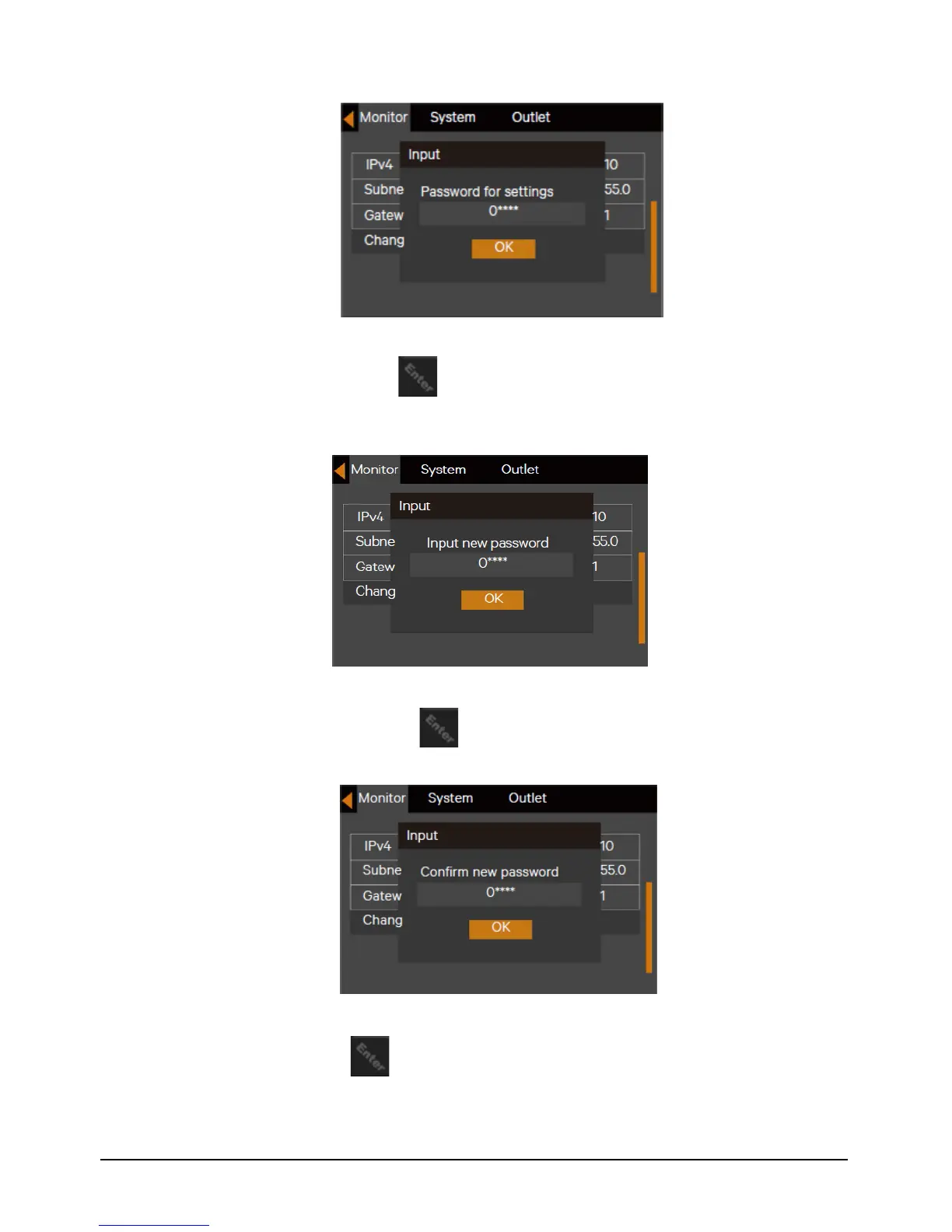
Figure 5-17 Password for settings
4. Input the existing password, press the key to confirm it, then the system requires to input a new password.
See Figure 5-22.
Figure 5-18 Inputting new password
5. After inputting the new password, press the key to confirm it, then the system requires confirming the new
password, see Figure 5-23.
Figure 5-19 Confirming new password
6. After the confirmation, press the key and the system prompts that the password changing is successful, see
Figure 5-24.



 To Next Page