
 Need help?
Do you have a question about the Lorex LHV2000 series and is the answer not in the manual?
General safety precautions and warnings to follow when using the product.
Instructions and guidelines for the safe and proper installation of the system.
Information regarding servicing the product and conditions requiring service.
Guidelines for cleaning, handling, and general usage of the product safely.
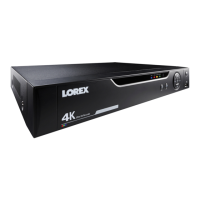
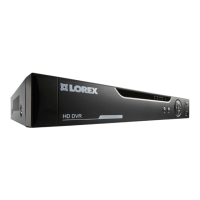
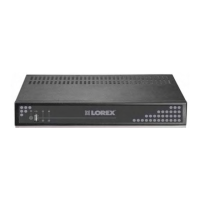
Description of the front panel controls and indicators for specific models.
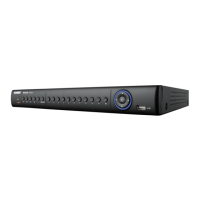
Description of the front panel controls and indicators for the LHV2216 model.
Step-by-step guide to connect BNC cameras to the DVR.
Instructions for connecting a monitor to the DVR.
Procedure for upgrading system firmware if an update is available.
Default login credentials and network port numbers for system access.
Information and tips for connecting various types of cameras.
Guide to setting up the remote control address for multiple systems.
Explanation of the system's on-screen display elements and their functions.
How to access and use the Quick Menu for system functions.
Steps to adjust color settings for cameras via the system interface.
Overview of the Navigation Bar and its quick access functions.
Description of the Camera Toolbar functions for channel-specific actions.
Details on continuous and motion-based video recording types.
How to configure scheduled or manual recording modes for the system.
Settings for managing hard drive space by overwriting old recordings.
Instructions for playing back recorded video files from the system's hard drive.
Explanation of the controls used for video playback.
How to use Smart Search to review motion events in specific zones.
Recommended steps to format a USB thumb drive before system use.
Procedure for backing up video files to a USB device.
Guide on how to view backup video files using the Lorex video player.
Steps to change the system password for admin and user accounts.
Instructions for creating new user accounts with specific permissions.
How to create account groups to manage user permissions.
Configure image settings, recording parameters, and titles for cameras.
Access menus for viewing system information like HDD, Record, Version, Alarms.
Configure general system, schedule, network, recording, and display settings.
Options to shut down, restart, or log out of the system.
Minimum system requirements for connecting to the system over the internet.
Step-by-step guide to connect the system to your router via Ethernet.
Instructions on how to find and record the system's unique Device ID.
Steps to connect to the system remotely using client software.
Overview of the FLIR Cloud Client software's home page and tabs.
How to view live video streams from connected systems within the client.
Guide on how to control PTZ cameras using the FLIR Cloud Client.
Explanation of playback controls within the FLIR Cloud Client software.
How to set up and manage user accounts and their permissions in the client.
Instructions for connecting and using the FLIR Cloud app on mobile devices.
Guide to connecting and using the FLIR Secure app on mobile devices.
Steps to connect to the system over a local network before DDNS setup.
Guide to setting up DDNS for remote system access over the internet.
Instructions on port forwarding for remote connectivity.
Steps to create a DDNS account with Lorex for remote access.
Detailed steps for installing a hard drive in LHV2000 series DVRs.
Instructions for safely removing the hard drive from the DVR.
Procedure for formatting hard drives before they can be used with the system.
Steps to configure and control PTZ cameras connected to the DVR.
Advanced controls for saving positions and automating PTZ camera actions.
Guide to connecting a self-powered microphone for audio recording.
Steps to enable and configure audio recording settings in the system.




 To Next Page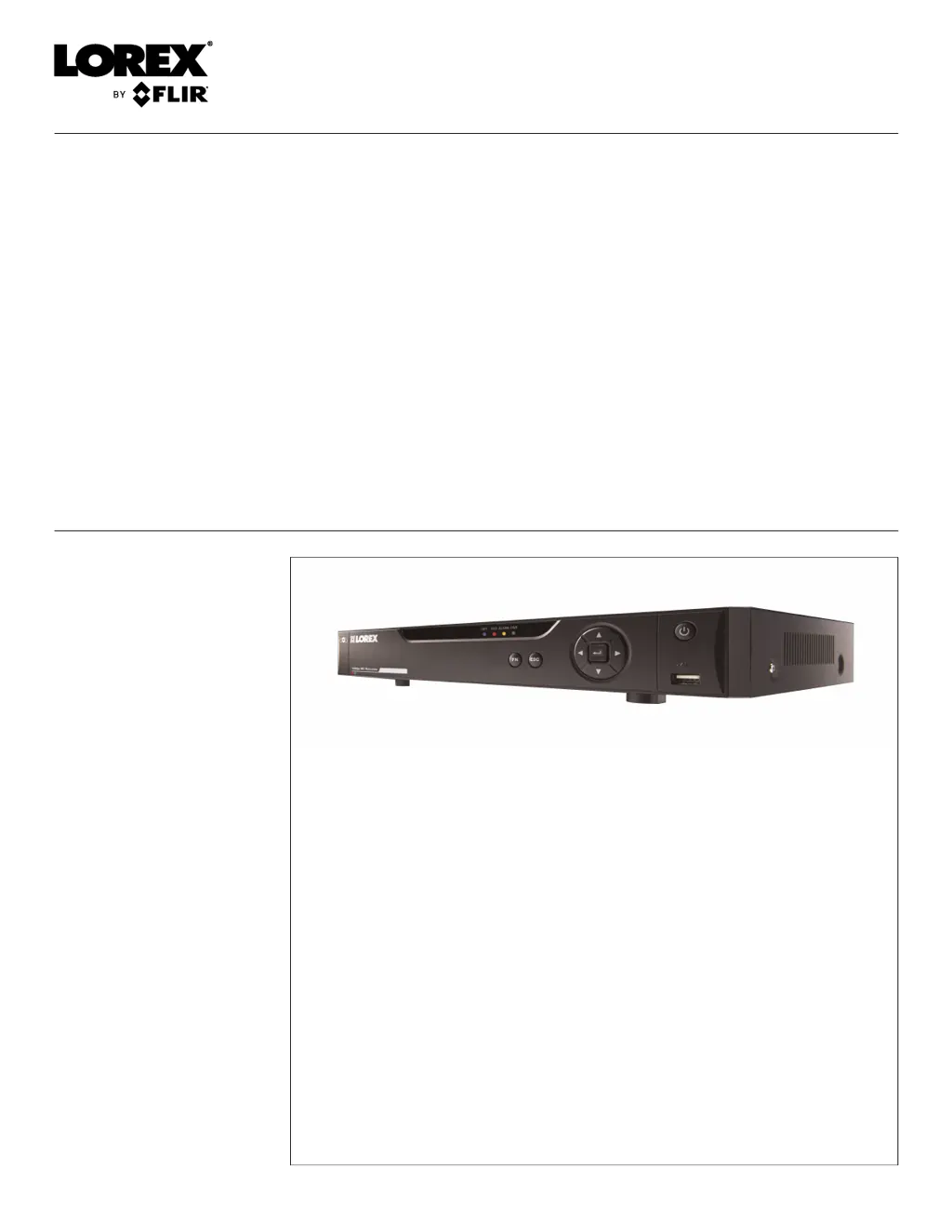


 General