EasyManua.ls Logo

Lorex LHV2000 series - User Manual

Lorex LHV2000 series
209 pages
Print Icon
To Next Page IconTo Next Page
Loading...
Instruction Manual
LHV2000 Series

Table of Contents

Other manuals for Lorex LHV2000 series

Questions and Answers

  • M
    matthew61Aug 2, 2025
    Why does my Lorex DVR keep beeping?
    • H
      Hannah OrtegaAug 2, 2025
      The most likely cause is that motion detection is enabled and the alarm buzzer is activated. To disable the beeping, go to the Main Menu, click Event, then Motion, then Motion Detect. Uncheck Buzzer for each channel and click Apply.
  • A
    Ashley ThomasAug 9, 2025
    What to do if I am not receiving email notifications from my Lorex LHV2000?
    • B
      Bruce RobinsonAug 10, 2025
      There are a couple of potential reasons for this. First, ensure you have configured email notification. Second, make sure that Send Email is enabled in the Event menu for the events you want to be notified about.
  • J
    Justin PalmerAug 17, 2025
    What to do if there is no picture on selected channels of my Lorex LHV2000?
    • S
      shawaliciaAug 17, 2025
      This issue can occur if the camera cables are loose or disconnected. Check the camera video cable and connections, and disconnect and reconnect the cable at both the system and the camera. You might also try moving the camera to another channel or using a different cable.
  • G
    gabriellathompsonAug 25, 2025
    How to fix a Lorex DVR when the mouse is not detected?
    • R
      Richard TaylorAug 25, 2025
      This can happen if the mouse cable isn't firmly connected. Ensure the mouse cable is securely connected to one of the USB ports. If that doesn't work, the system might need a reset. Power off the Lorex DVR by disconnecting the power cable, then firmly connect a USB mouse to one of the USB ports. Reconnect the power cable to the DC 12V port on the rear panel.

Summary

Important Safeguards

General Precautions

General safety precautions and warnings to follow when using the product.

Installation

Instructions and guidelines for the safe and proper installation of the system.

Service

Information regarding servicing the product and conditions requiring service.

Use

Guidelines for cleaning, handling, and general usage of the product safely.

LHV2000 Series Features

Getting Started (LHV2000 Series)

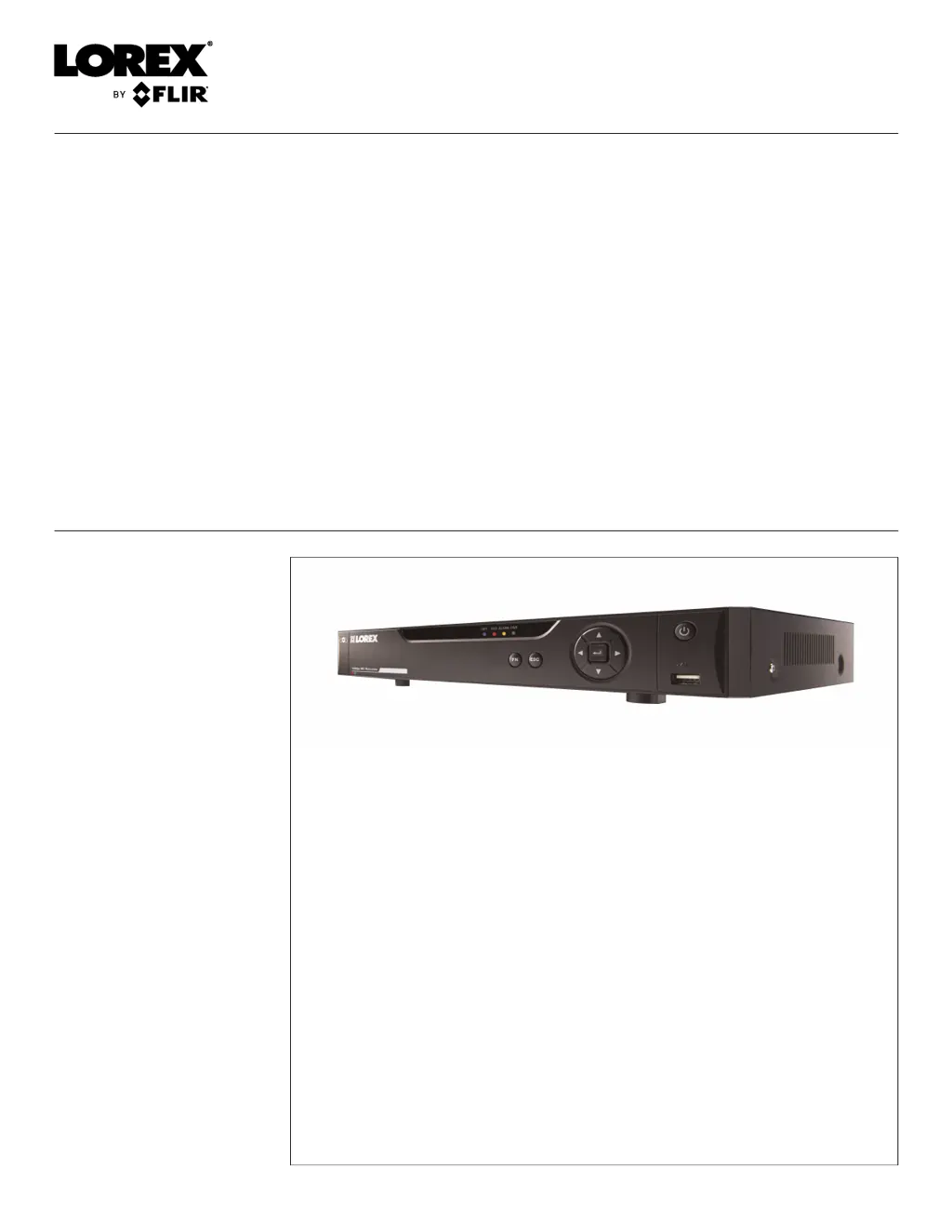
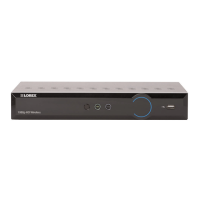
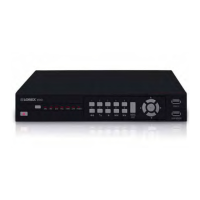
Front Panel (LHV2000 Series)

LHV2104; LHV2108; LHV2116

Description of the front panel controls and indicators for specific models.

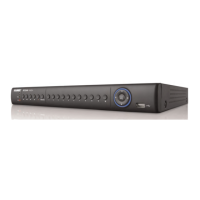
LHV2216

Description of the front panel controls and indicators for the LHV2216 model.

Rear Panel (LHV2000 Series)

Basic Setup (LHV2000 Series)

Connect the BNC Cameras

Step-by-step guide to connect BNC cameras to the DVR.

Connect the Monitor

Instructions for connecting a monitor to the DVR.

Upgrade Firmware to Latest Version

Procedure for upgrading system firmware if an update is available.

Default System Password & Port Numbers

Default login credentials and network port numbers for system access.

Connecting Cameras

Information and tips for connecting various types of cameras.

Mouse Control

Remote Control

Setting the Remote Control Address

Guide to setting up the remote control address for multiple systems.

Using the System

On-Screen Display

Explanation of the system's on-screen display elements and their functions.

Using the Quick Menu

How to access and use the Quick Menu for system functions.

Adjusting Color Settings

Steps to adjust color settings for cameras via the system interface.

Using the Navigation Bar

Overview of the Navigation Bar and its quick access functions.

Using the Camera Toolbar

Description of the Camera Toolbar functions for channel-specific actions.

Setting The Time

Recording

Video Recording Types

Details on continuous and motion-based video recording types.

Setting up Scheduled or Manual Recording

How to configure scheduled or manual recording modes for the system.

Configuring Hard Drive Overwrite

Settings for managing hard drive space by overwriting old recordings.

Search (Playback)

Playing Back Video from the Hard Drive

Instructions for playing back recorded video files from the system's hard drive.

Playback Controls

Explanation of the controls used for video playback.

Using Smart Search

How to use Smart Search to review motion events in specific zones.

Backup

Formatting the USB Thumb Drive

Recommended steps to format a USB thumb drive before system use.

Backing up Video

Procedure for backing up video files to a USB device.

Viewing Backup Files on PC

Guide on how to view backup video files using the Lorex video player.

Managing Passwords and User Accounts

Changing Passwords

Steps to change the system password for admin and user accounts.

Adding Users

Instructions for creating new user accounts with specific permissions.

Adding Groups

How to create account groups to manage user permissions.

Using the Main Menu

Camera

Configure image settings, recording parameters, and titles for cameras.

Info

Access menus for viewing system information like HDD, Record, Version, Alarms.

Setting

Configure general system, schedule, network, recording, and display settings.

Shutdown

Options to shut down, restart, or log out of the system.

Connecting to Your System Over the Internet on PC or Mac

System Requirements

Minimum system requirements for connecting to the system over the internet.

Connect your System to Your Router

Step-by-step guide to connect the system to your router via Ethernet.

Obtain the system’s Device ID

Instructions on how to find and record the system's unique Device ID.

Connect to the System Over the Internet

Steps to connect to the system remotely using client software.

Using FLIR Cloud Client for PC or Mac

Home Page

Overview of the FLIR Cloud Client software's home page and tabs.

Live View

How to view live video streams from connected systems within the client.

Controlling PTZ Cameras

Guide on how to control PTZ cameras using the FLIR Cloud Client.

Playback Controls

Explanation of playback controls within the FLIR Cloud Client software.

Managing User Accounts

How to set up and manage user accounts and their permissions in the client.

Connecting to your System Using Smartphone or Tablet Apps

FLIR Cloud

Instructions for connecting and using the FLIR Cloud app on mobile devices.

FLIR Secure

Guide to connecting and using the FLIR Secure app on mobile devices.

DDNS Setup (Advanced)

Accessing your System within a Local Network (LAN)

Steps to connect to the system over a local network before DDNS setup.

DDNS Setup -Access your System Remotely over the Internet

Guide to setting up DDNS for remote system access over the internet.

Step 1 of 4: Port Forwarding

Instructions on port forwarding for remote connectivity.

Step 2 of 4: Create a DDNS Account

Steps to create a DDNS account with Lorex for remote access.

LHV2000 Series Hard Drive Installation

Installing a Hard Drive

Detailed steps for installing a hard drive in LHV2000 series DVRs.

Removing the Hard Drive

Instructions for safely removing the hard drive from the DVR.

Formatting Hard Drives

Procedure for formatting hard drives before they can be used with the system.

Connecting a PTZ Camera (LHV2000 Series)

Controlling a PTZ Camera (Local DVR)

Steps to configure and control PTZ cameras connected to the DVR.

Advanced PTZ Controls

Advanced controls for saving positions and automating PTZ camera actions.

Recording Audio

Connecting a Self-powered Microphone

Guide to connecting a self-powered microphone for audio recording.

Configuring Audio Recording

Steps to enable and configure audio recording settings in the system.

Troubleshooting

LHV2000 Series System Specifications

Lorex LHV2000 series Specifications

General IconGeneral
SeriesLHV2000
Compression FormatH.264
Remote AccessYes
Remote ViewingYes
Video InputsBNC
Channels4
Video OutputHDMI / VGA
Storage CapacityUp to 6TB HDD
Network Interface10/100 Mbps Ethernet
Operating Temperature-10°C to 55°C (14°F to 131°F)
Power Supply12V DC

Related product manuals