EasyManua.ls Logo

Lorex LH314 - User Manual

Lorex LH314
90 pages
Print Icon
To Next Page IconTo Next Page
Loading...
Copyright © 2009 Lorex Technology Inc.
www.lorexcctv.com
LH310 SERIES
INSTRUCTION MANUAL
English Version 4.0
LOREX-EDGE
NETWORK READY H.264 HIGH PERFORMANCE
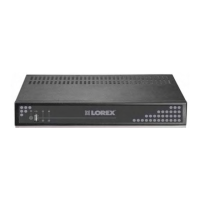
DIGITAL VIDEO SURVEILLANCE RECORDER
MODEL:

Table of Contents

Other manuals for Lorex LH314

Questions and Answers

  • L
    Latoya RamosAug 14, 2025
    Why is my Lorex LH314 system not receiving power?
    • M
      Manuel ColeAug 14, 2025
      Your Lorex DVR might not be receiving power because the cable from the power adapter is loose or unplugged. Ensure all cables are correctly connected and the power adapter is securely connected to the back of the unit. If the cables are connected, but the system isn't receiving sufficient power, confirm the system is powered on (LED indicators should be on). If connected through a power bar or surge protector, try bypassing it and connecting directly to the wall outlet. Also, verify the outlet has power by testing it with another device or trying a different outlet.
  • W
    William TaylorAug 18, 2025
    What to do if my Lorex DVR hard drive is full and not recording?
    • R
      rachel95Aug 18, 2025
      If your Lorex DVR hard drive is full (0%) and no longer recording, it may be because overwrite is not enabled. To resolve this, go to the Main Menu, select Record, then Record Mode, and enable overwrite. This allows the system to continuously record by overwriting old data once the hard drive is full.
  • K
    Kathy GonzalezAug 21, 2025
    What to do if my Lorex DVR mouse is not detected?
    • D
      Deborah SmithAug 21, 2025
      If the mouse is not detected by your Lorex DVR system, first ensure the mouse cable is firmly connected to the USB port on the rear panel. If that doesn't work, power off the system (disconnect the power cable), firmly connect the USB mouse to the USB port on the rear panel, and then reconnect the power cable to the DC 12V port on the rear panel to reset the system.
  • J
    Joseph CarlsonAug 25, 2025
    How to fix no picture on Lorex DVR channels?
    • M
      Mrs. Kristin FerrellAug 25, 2025
      If there is no picture on selected channels or the camera picture is not being displayed on your Lorex DVR, the camera cables might be loose or disconnected. Check the camera video cable and connections. Disconnect and reconnect the cable at both the system and the camera. You can also try moving the camera to another channel or using a different cable.
  • B
    Brandon RichardsonAug 27, 2025
    Why is there no sound on my Lorex DVR?
    • S
      sophialinAug 27, 2025
      If the image on your Lorex DVR appears but has no sound, check the AUDIO connections to the DVR to ensure they are not loose or disconnected. Also, verify that the audio channels are enabled in the system menu by checking the Configurations under Main Menu and then Record Audio. Finally, ensure that the volume on any external speakers (if used) is turned up.
  • J
    Jessica WilliamsAug 31, 2025
    Why is my Lorex DVR remote control not working?
    • C
      Cheyenne MarshallAug 31, 2025
      If your Lorex DVR remote control is not detected by the system, the battery in the remote control may be drained. Install a fresh CR2025 battery in the remote control.
  • S
    Shannon WrightSep 3, 2025
    How to fix Lorex DVR hard drive not detected?
    • M
      Michelle CoffeySep 4, 2025
      If the hard drive is not detected by your Lorex DVR system, it could be due to loose or improperly connected hard drive cables. Remove the housing and check that the hard drive cables are firmly connected. Alternatively, there might not be a hard drive installed in the system. Open the housing and install a 3.5" SATA hard drive.
  • D
    Daniel ClarkSep 7, 2025
    How do I fix new camera titles not appearing on my Lorex DVR?
    • W
      whumphreySep 7, 2025
      If new camera titles do not appear on your Lorex DVR system (8/16-channel only), it may be because the new camera titles have not been correctly saved on the system, or the camera display on the system is set to numerals. To fix this, log in to DVR Netviewer in Internet Explorer, click Setup, and then click the Title tab. If you saved your old settings, click Load File; for new settings, enter the new camera titles and click Save file to save the settings to your PC. Disconnect and then reconnect the power cable from the rear panel of the system to reset and implement the new camera title settings. Also, check the Configurations: Main > Menu > Camera > Camera Title Type.
  • J
    Jackie YangSep 10, 2025
    Why am I not receiving Lorex LH314 email notifications?
    • U
      uhunterSep 12, 2025
      If you are not receiving email notifications from your Lorex DVR, it may be because email notification is disabled. Log in to DVR Netviewer in Internet Explorer, click Setup, and then click the Mail tab; under SMTP Status, select On. If using the default setting, ensure you have entered your Lorex DDNS user name and password in the SMTP User and SMTP Password fields. Note that you must first register for Lorex DDNS to use email notification at the default setting. If the default setting is disabled, make sure you have entered your own SMTP Server address, Port, User name, and Password in the respective fields.

Summary

Important Safeguards

Installation Safety

Key safety instructions for installing the device.

Service and Use Precautions

Guidelines for maintaining, servicing, and operating the device safely.

Getting Started

System Operation

System Configuration

Password and User Management

Setting up user accounts and passwords.

Remote Access: DVR Netviewer

DVR Netviewer Operation

Logging in, using the interface, and managing data remotely.

Appendices

Troubleshooting

Common Issues and Solutions

Diagnosing and resolving typical system errors.

Lorex LH314 Specifications

General IconGeneral
Channels4
Recording Resolution1080p
Hard Drive Capacity1TB
Video CompressionH.264
Playback Frame Rate30fps
Network InterfaceEthernet
Power Supply12V DC
Video OutputHDMI, VGA
Remote ViewingYes
Motion DetectionYes
Night VisionNo
Operating System CompatibilityAndroid, iOS

Related product manuals