V. 1.0 | LPKF Laser & Electronics AG
Creating rubout areas
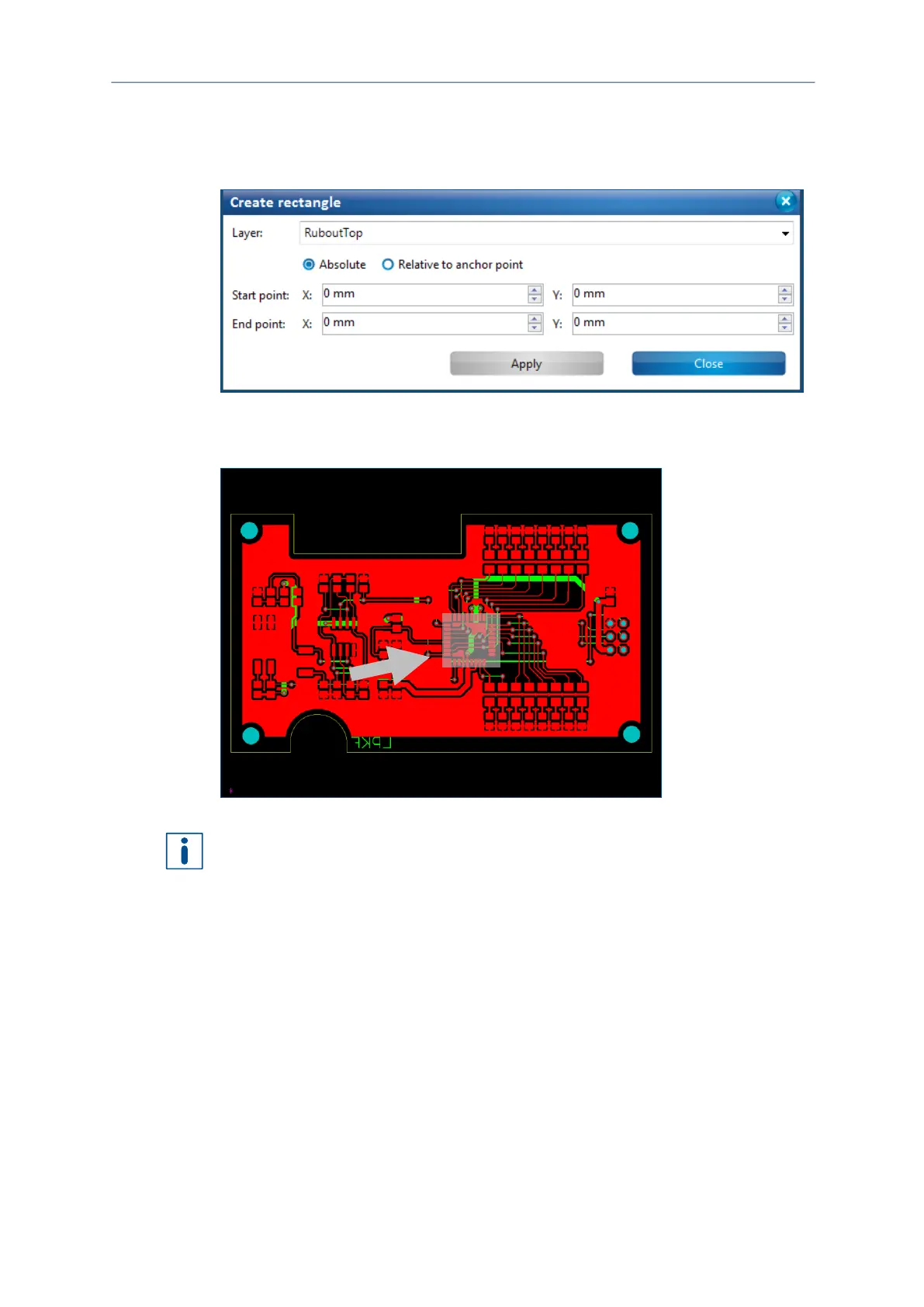
1. Click on Insert > Rubout area > RuboutTop.
The following dialog is displayed:
Fig. 32: Create rectangle to create a rubout area
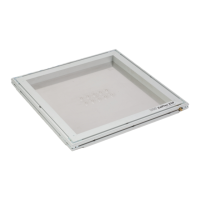
2. Draw a rectangle around the IC's pads of the layout or enter the coordinates of the
corners in Start point and End point:
Fig. 33: Rectangle surrounding the IC pads
It can be helpful to hide other layers to draw the rubout area depending on which layer
the rubout area is to be created.
The presentation of the objects on the individual layers can be defined in the pane
Layers.
3. Click on [Close].
The rubout area has been created.



 To Next Page