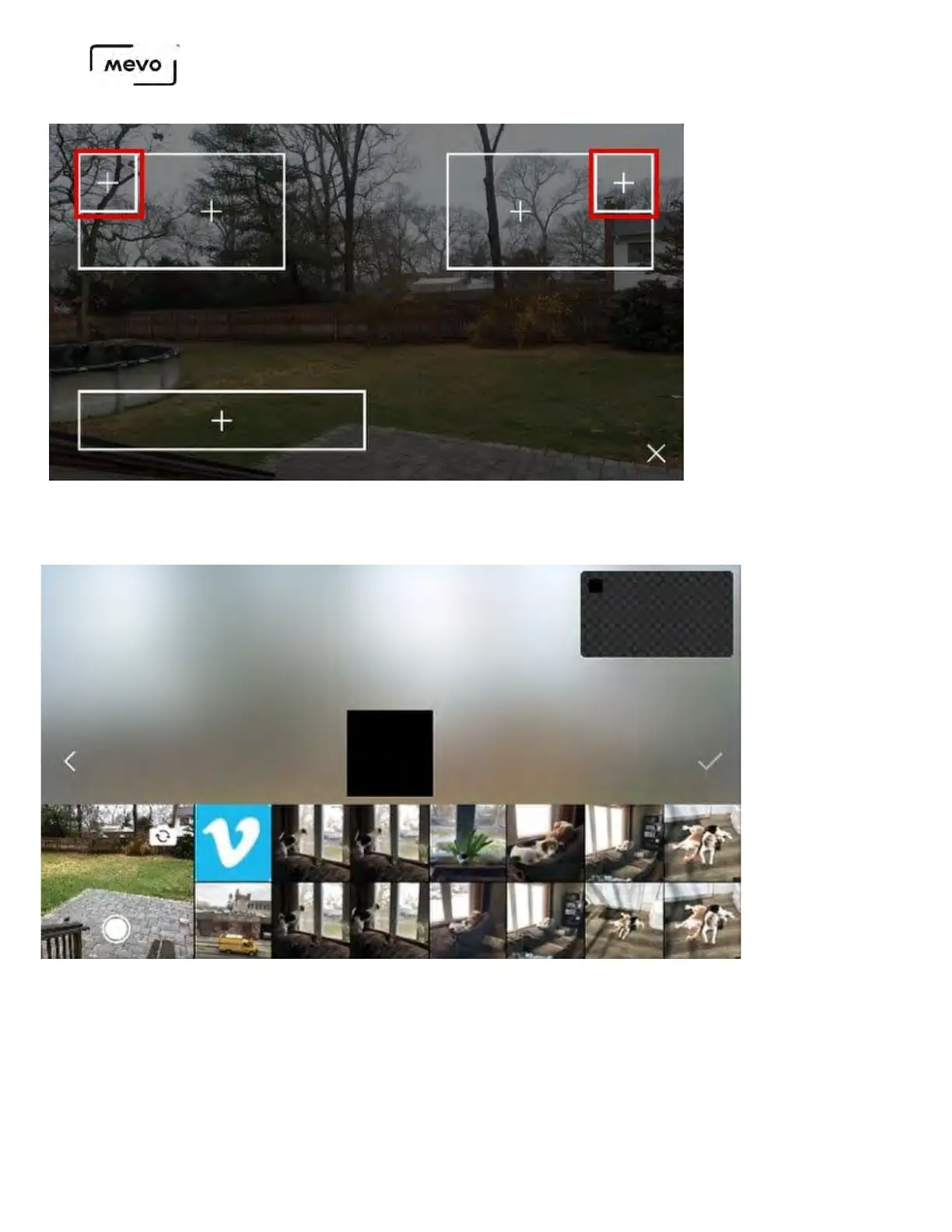
Allow Mevo to access your mobile device's camera and photos. The screen shown below will appear.
You can choose an image from your photo library or take a photo with your camera.
When you select an image, you can adjust how it's cropped, zoomed, and rotated. The rotate icon on the
bottom left side will do a full 90-degree rotation and the slider will allow you to rotate the image in either
direction up to 45 degrees. The bug is locked to a square shape but you can adjust your image to fit the
square as needed.
When you are satisfied with your corner bug, tap the checkmark icon on the right side.
Mevo Start User Manual
Page 133


 To Next Page