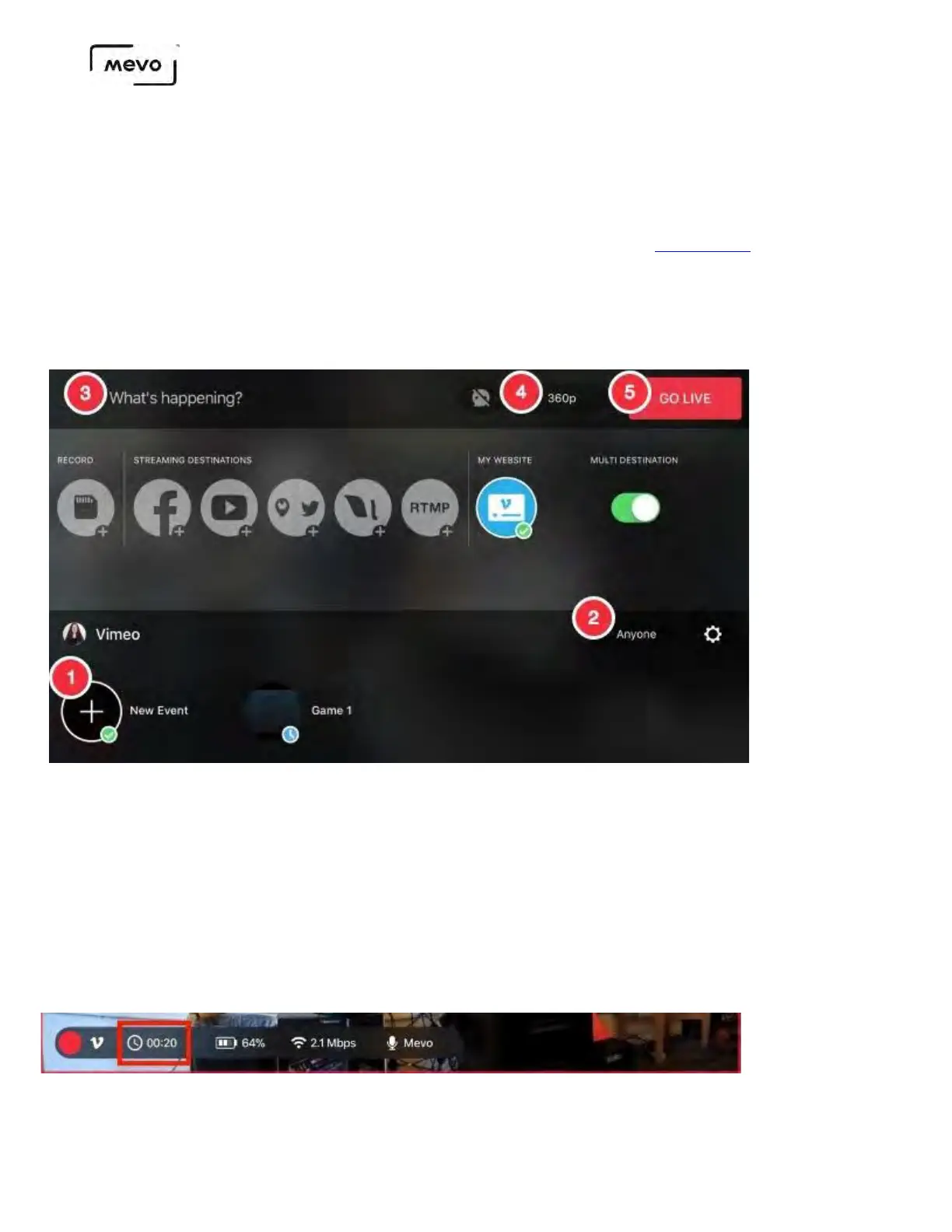
After authorizing Mevo access to Vimeo, you can configure your stream.
1. Create a new event or select a scheduled event from the bottom of the window. If you are not
seeing your Vimeo event, you may need to create a new one following these steps.
2. Choose your desired audience on the right side, above your events.
3. If you are creating a new event, you can give it a title at the top left side of the screen.
4. Choose your streaming quality in the upper right corner (up to 1080p).
5. When your settings are configured, tap Go Live in the upper right corner to start your stream.
Tapping the gearwheel opens a separate window where you can log out of your Vimeo account.
Your stream will be listed with your videos on your Vimeo account; navigate to Manage Videos > My
Videos to find your live video. From there you can get your video's embed code and customize the
embed as needed.
When you are live with Mevo Start, tap the timer displayed to the right of the red dot to temporarily
expand the display; this will show your bitrate, timer, battery level, and audio source. If you prefer to see
one of these over the other, tap one to choose it.
Mevo Start User Manual
Page 59


 To Next Page