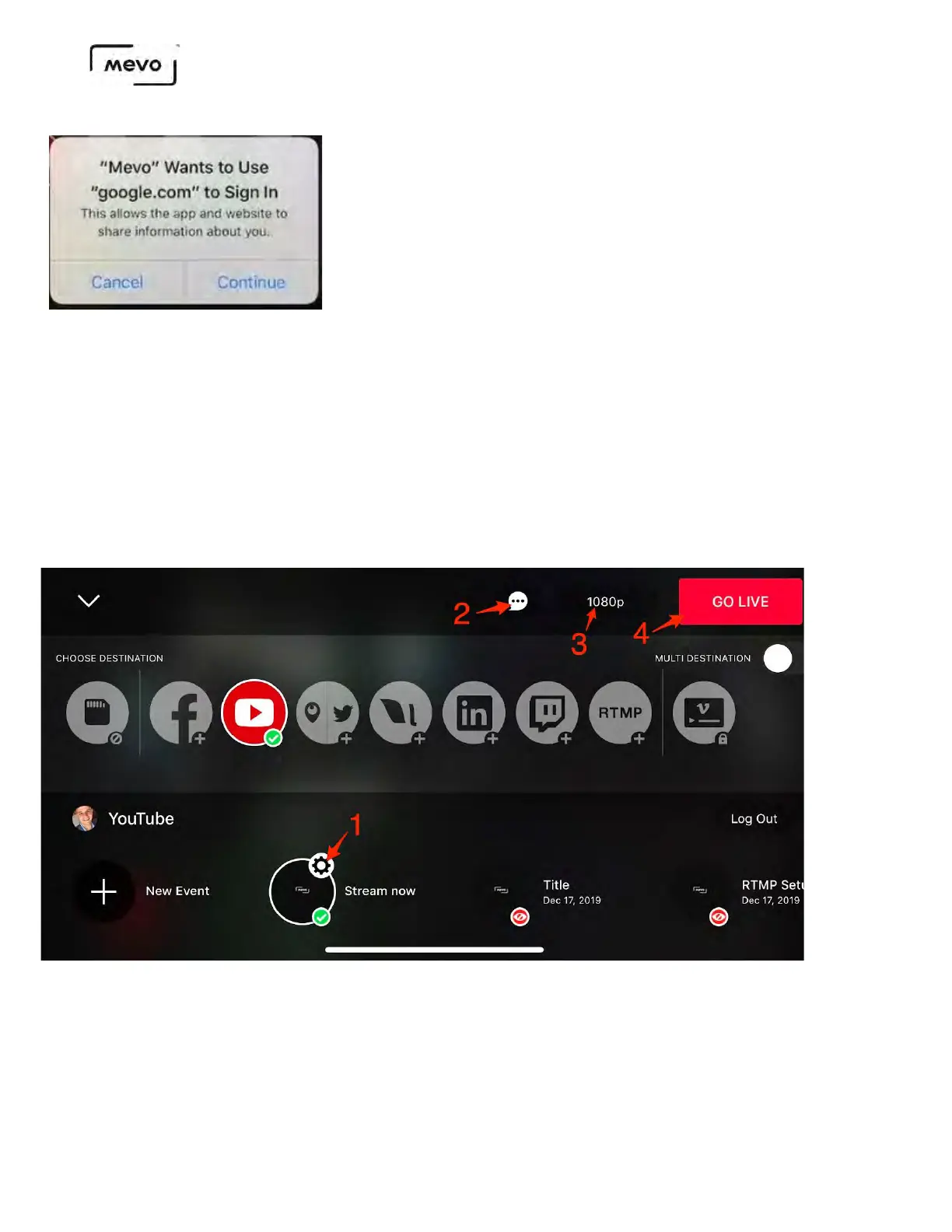
The screen shown below will open. On the bottom, you can either create a new event on your YouTube
channel directly from the Mevo app, select Stream Now to stream directly to your channel page rather
than a pre-configured event page on your YouTube account, or select a pre-existing event on YouTube;
swipe left along the bottom of the screen to see more events.
1. Tap the gearwheel to open another screen where you can toggle YouTube chat on and off; you can also
log out here. Choose your audience setting and event date and time. Give your stream a title.
2. You can also toggle chat on and off here.
3. Choose your streaming quality up to 1080p.
4. When you are ready to start your stream, tap Go Live.
Mevo Start User Manual
Page 72


 To Next Page