If you want to create an event on YouTube.com, see the Events section in this article for instructions; be
sure to select 'Custom' as your event type and not 'Quick.’
If you see a 'Forbidden' error message when attempting to stream to YouTube, make sure you have enabled
live streaming on your YouTube account.
Mevo Start will start sending the stream to YouTube. If you selected Stream Now, your channel is
currently live.
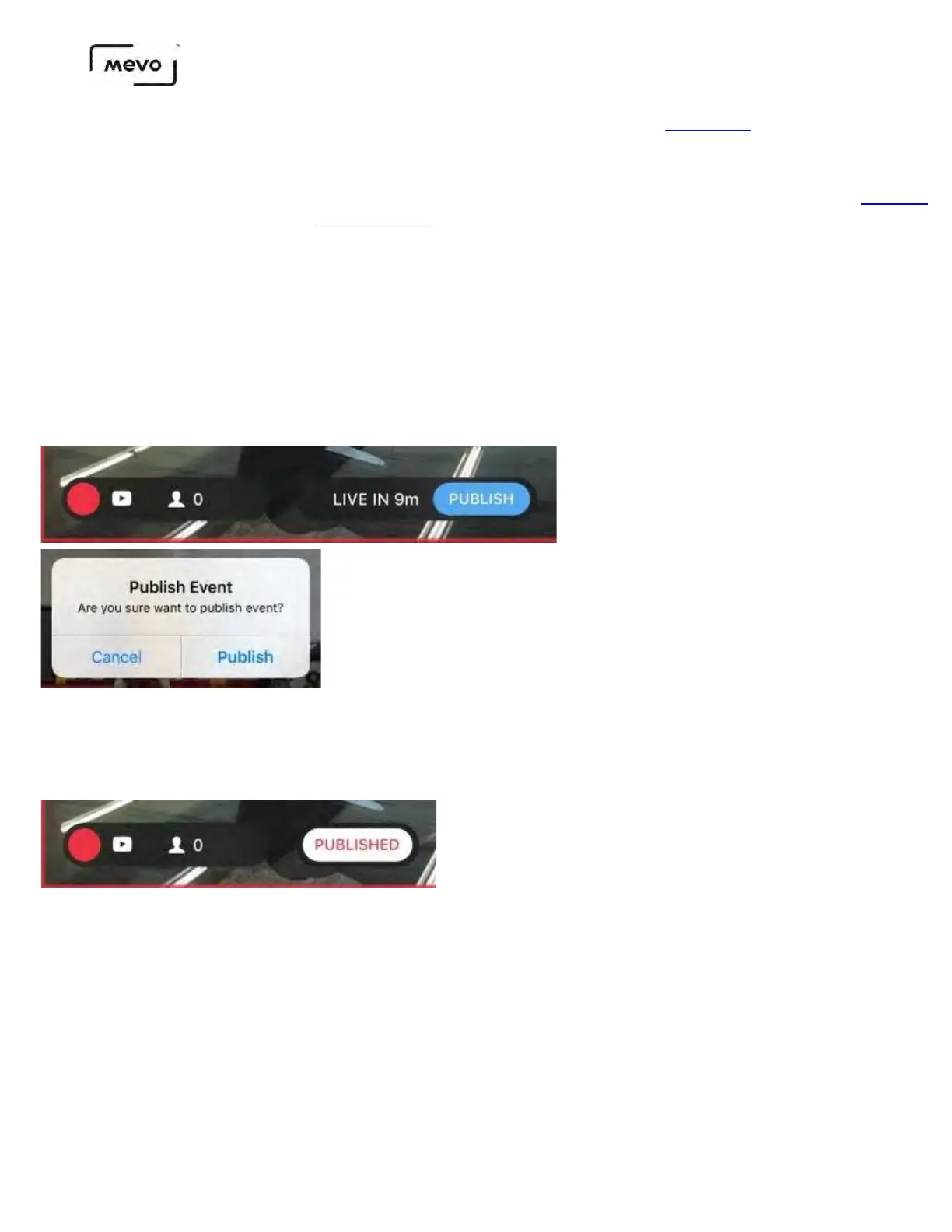
If you selected an event, you will instead see a countdown to the start time you previously configured.
After a moment, a blue Publish button will appear. When you are ready to push your stream live to your
channel, tap Publish.
Please note that manually publishing your stream to your YouTube event is required even if
the countdown ends. The stream will not publish at the set time automatically.
The blue button will indicate the stream is loading. After a few seconds, the app will indicate that your
stream has been published in the lower left corner.
Tap the information bar in the lower left corner to reveal more information about your stream,
including viewer count, battery levels, bitrate, timer, and audio source.
Mevo Start User Manual
Page 73


 To Next Page