104 Microtek ScanWizard Pro for Windows
3. To see the effects of duplication clearly in the steps that follow, do this as an
experiment. Set the image type of the current scan job to Grayscale. You will
see the current scan job as a grayscale job, while the rest of the image
behind the smoked glass background remains in color.
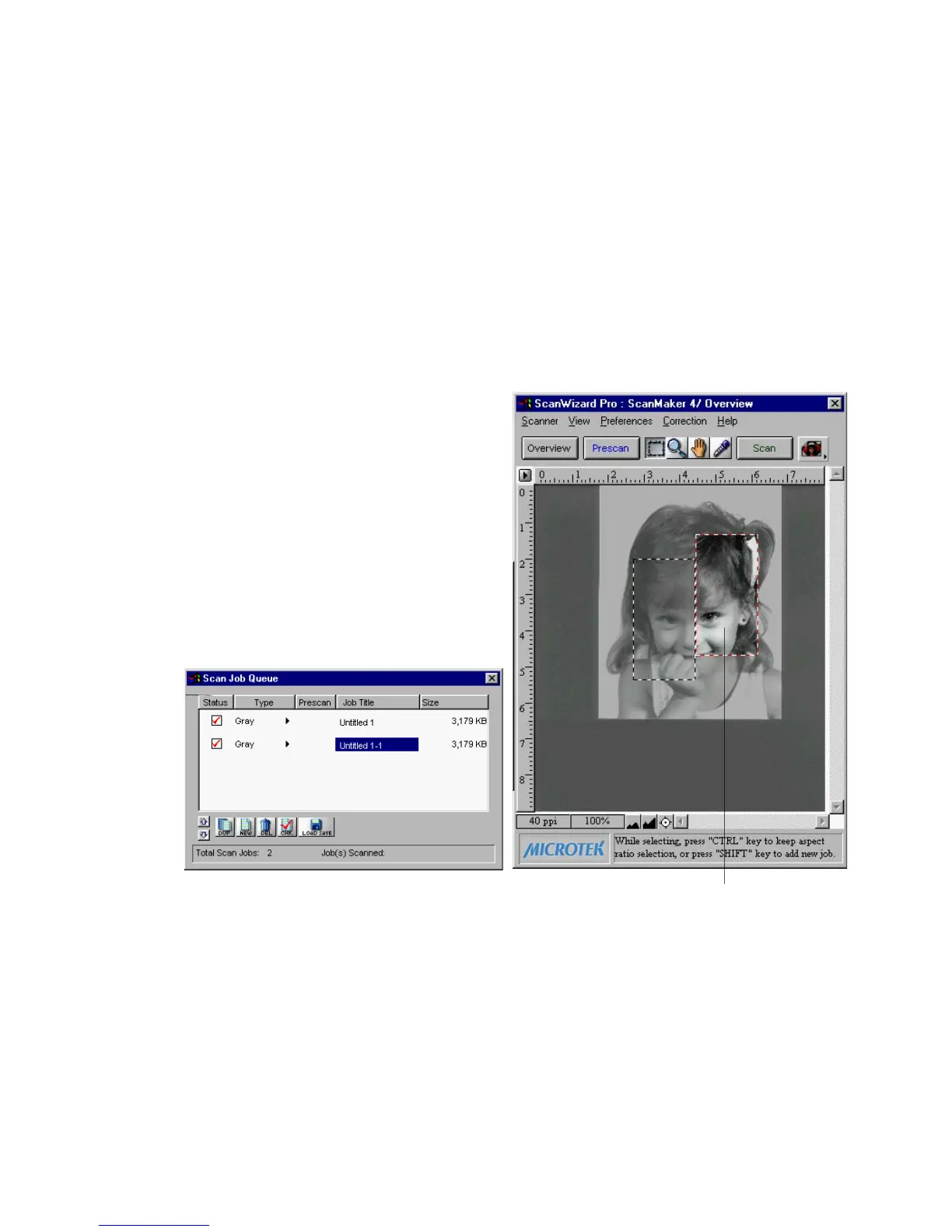
4. Click on the Dup button. Draw another scan frame around a different part
of the image; this is your duplicate scan job. You will see that the duplicate
scan job will also be in grayscale, as it shares the settings of the current scan
job. In the Scan Job window, there will be two titles, and the duplicate scan
job is the one with a number to it (ex. Entitled 1-1).
Duplicate
scan job
(indicated
by number
in the title)
Duplicate scan job,
also in grayscale



 To Next Page