VetPro DC Installation/Service Manual, 00-02-1606, Revision R01
74
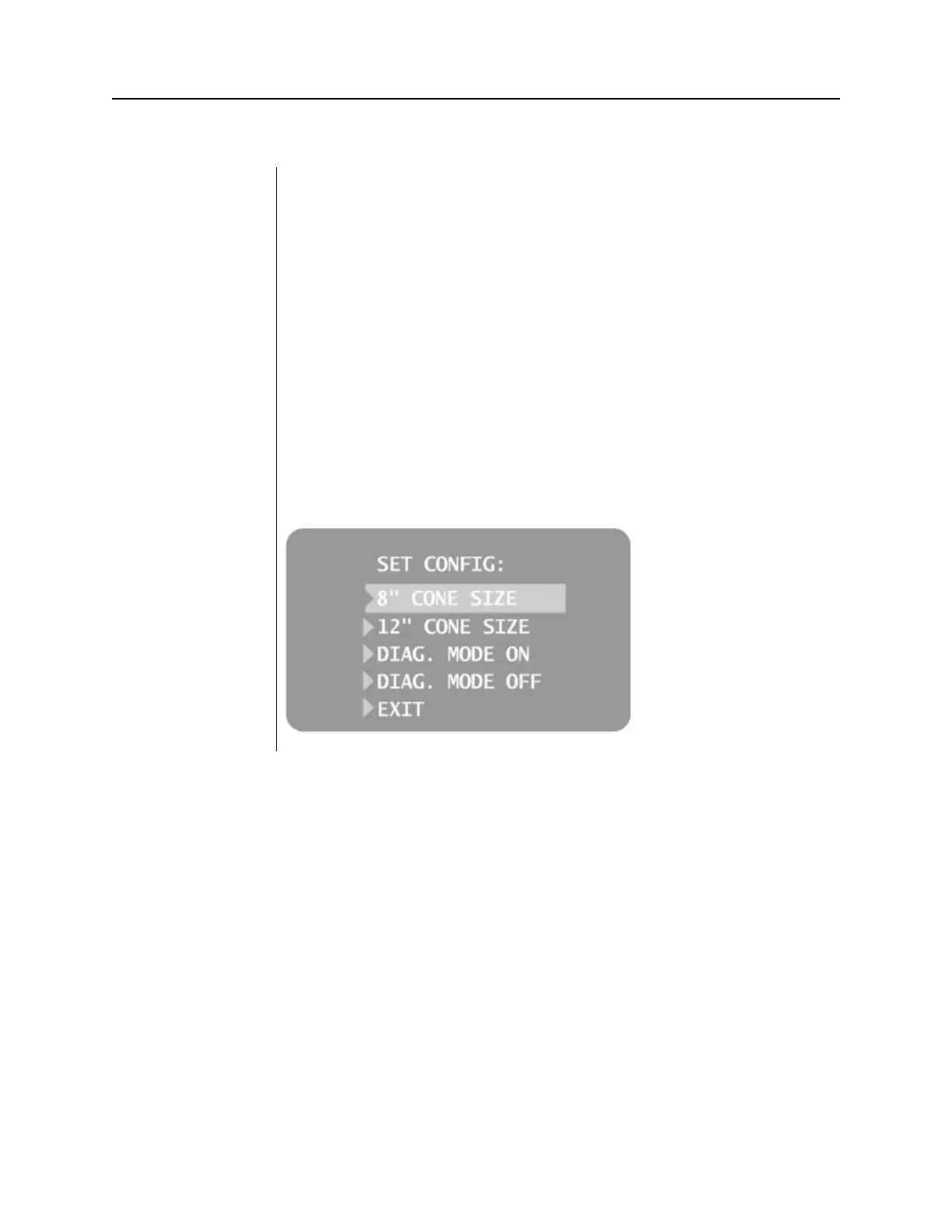
Selecting SET CONFIG from the Configuration menu, Figure 57, displays the
Set Configuration menu, Figure 58, with options to change the cone size. The
VetPro DC Animal Health Dental X-ray System is preset for use with the
standard supplied 8” (20 cm) Cone. The 12” (30 cm) Cone (30-A2033) is
available. Using the longer Cone requires longer exposure times, which the
VetPro DC automatically selects when you change the Cone size in the Set
[30 CM] Cone
1. From the Main System Configuration menu, Figure 54, select
CONFIGURE UNIT. You will see the Configuration menu shown in
Figure 57.
2. Select SET CONFIG. You will see the Set Configuration menu, shown in
Figure 58.
3. From the Set Configuration menu, use the up and down arrows to
highlight the 12” CONE SIZE.
4. Press the right arrow button to select the 12” Cone. The display warns
you that selecting the 12” Cone will override custom presets with the
default factory settings for the 12” Cone.
5. Using the up arrow, select YES to install presets for the 12” Cone.
Figure 58
Set Configuration
Menu



 To Next Page