1699503426 | REV A | 05.2021
© Mitchell International
MD-500
|
User Manual
|
11
|
en-US
Note: When switching vehicles, it is best to return to the home
screen before disconnecting the VCI from the vehicle to avoid
communication errors.
Automatic Pairing
Automatic pairing will reconnect the last paired VCI to the
tablet during the start up process, as well as after unplugging
and plugging the VCI back into an OBDII/DLC connector.
NOTE: After booting the tablet, automatic pairing works immediately
and ready when tool is booted. If it does not pair within a minute,
repeat the manual VCI pairing procedure for that VCI. Typical
connection time after Connect to VCI message is displayed is 5-15
seconds. If this happens, reboot the tablet and allow it to auto-pair. If
it still fails to auto-pair then repeat the manual VCI pairing procedure.
VCI connection status icon will typically take 10-20 seconds
to update after pairing the VCI to the tablet. When connection
is lost, the VCI connection status Icon will typically take 10-20
seconds to update.
Wireless Range
The wireless internet capability of the tool is designed to
communicate with the router when it is within a range of
roughly 90 feet, depending on the shop environment, even
though it is possible to go farther. Every shop has dierent
noises that can interfere and hamper the distance of a
wireless network, such as cordless phones, certain lighting,
other wireless networks in the area, and other signals.
Test Startup and Vehicle Connection
1. Turn ON the tablet.
2. Connect the OBDII/DLC cable to the VCI.
3. Connect the OBDII/DLC cable to the DLC on the vehicle.
4. Turn the ignition ON, but keep the engine OFF (KOEO).
5. Select Diagnostics from the Main Menu screen.
6. Enter the vehicle information one of two ways:
• AutoID
• Manual entry
7. From the Vehicle selected screen, select any diagnostic
function.
System Settings
Settings allow the user to make adjustments to the following:
• Applications
• Software information
• Software update
• Printer Setup
• Subscriptions
• User Details
• Contact Us
• Language
• Service
• Report Options
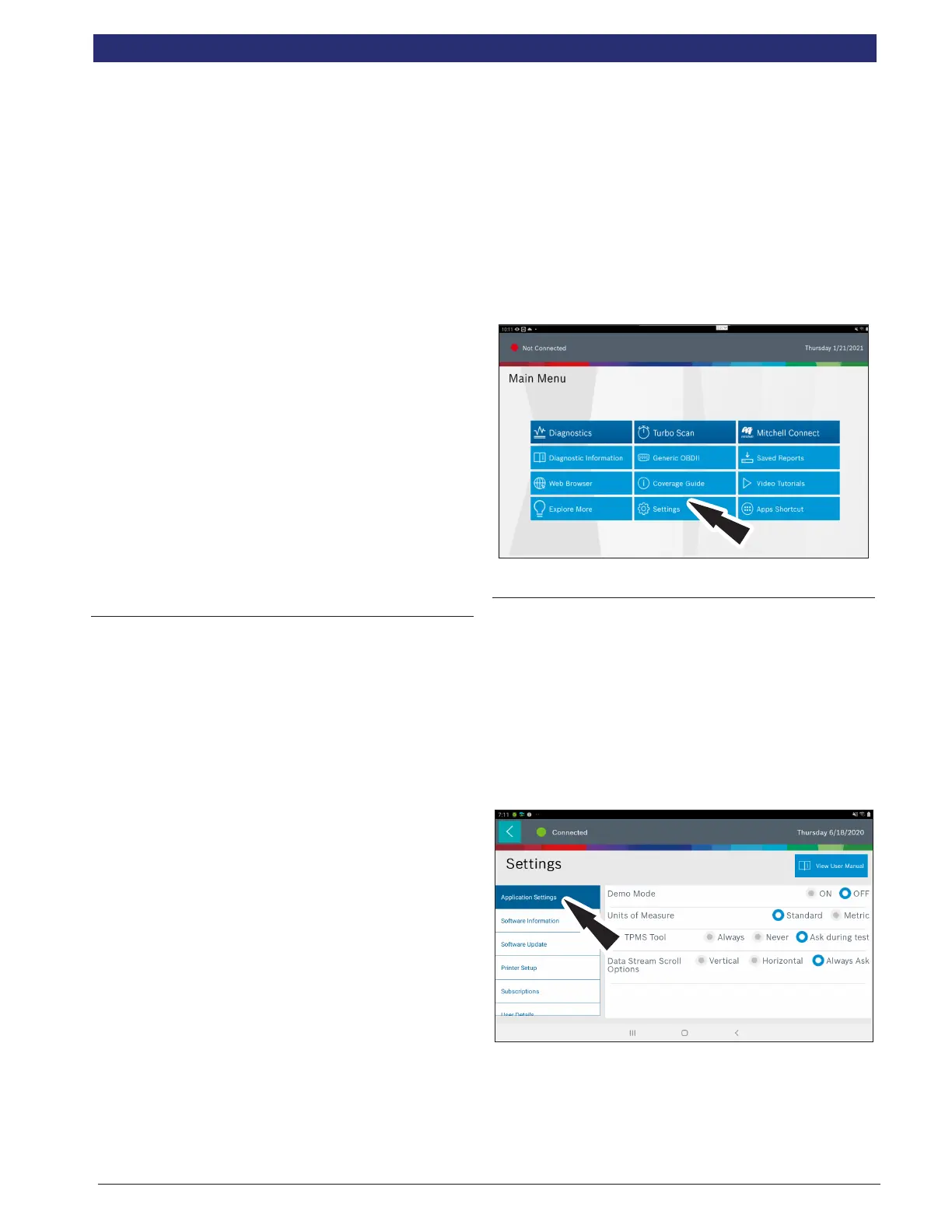
1. Select Settings from the Main Menu.
Application Settings
From the Settings screen select Application Settings. Follow
the prompts on the screen to make changes to the following:
• Demo Mode
• Turn Demo mode ON or OFF
• Units of measure
• Switch between Standard or Metric
• Use TPMS Tool
• Enable TPMS
• Data Stream Scroll Options
• Select scrolling options



 To Next Page