en-US
|
44
|
User Manual
|
MD-500
1699503426 | REV A | 05.2021
© Mitchell International
Browser
Overview
An internet browser window is available for direct internet
access.
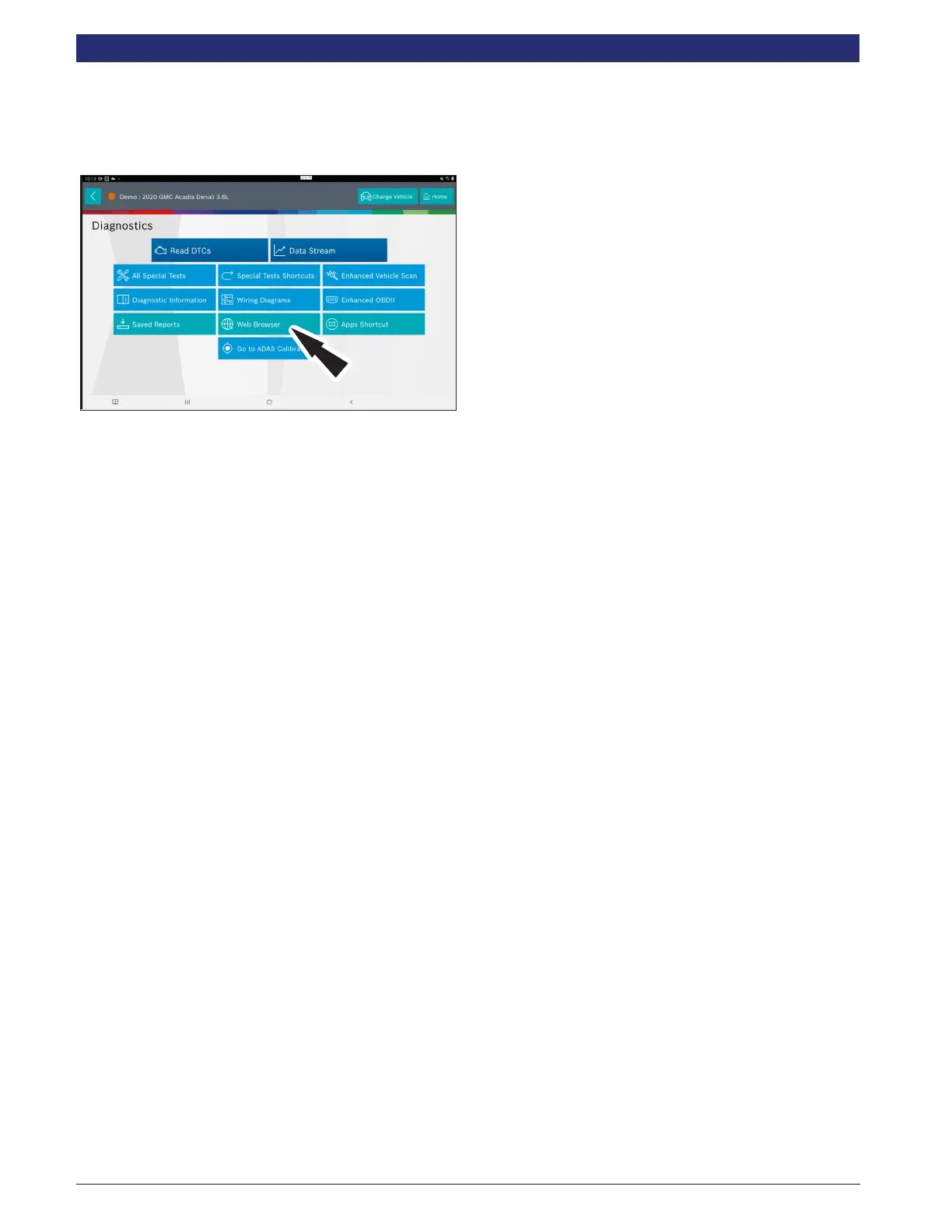
1. Select Web Browser from the Screen.
Note: For more information refer to Web Browser section in
the beginning of the manual.
Android Functions and Features
Taking a Screenshot
To take a screen shot, use the Android screen shot function
by pressing and releasing the power button and the volume
down button a the same time.
Brightness Control
The tablet is equipped with an Adaptive Brightness control.
This is the default setting. You may manually set the
brightness to a specic brightness setting if you disable the
Adaptive Brightness feature. Manually setting the brightness
at a high setting may aect the battery run time.
Turning O/Muting Notications
The tablet default setting is to have the notications enabled.
You may eliminate the notication beeps by selecting the
Settings icon, navigate to the notications and disabling the
notications.
Wireless Printing
Set up wireless printing by setting up your wireless printer
and linking the tablet to your printer. Congure settings for
printer plug-ins installed on the tablet. You can connect the
tablet to a printer via Wi-Fi or Wi-Fi Direct. Follow Android set
up procedures using printer set up functions. Some printers
may not be compatible with the tablet.
Adding Printer Plug-ins
Add printer plug-ins for printers you want to use with the
tablet.
1. On the Settings screen, tap Connections → More
connection settings → Printing → Download plug-in.
2. Search for a printer plug-in in Play Store.
3. Select a printer plug-in and install it.
4. Select the installed printer plug-in. The device will
automatically search for printers that are connected to the
same Wi-Fi network as your device.
5. Select a printer to add. To add printers manually, 5. Select
a printer to add. To add printers manually tap → Add printer.



 To Next Page