FlexStation 3 Benchtop Multi-Mode Microplate Reader User Guide
46 0112-0127 B
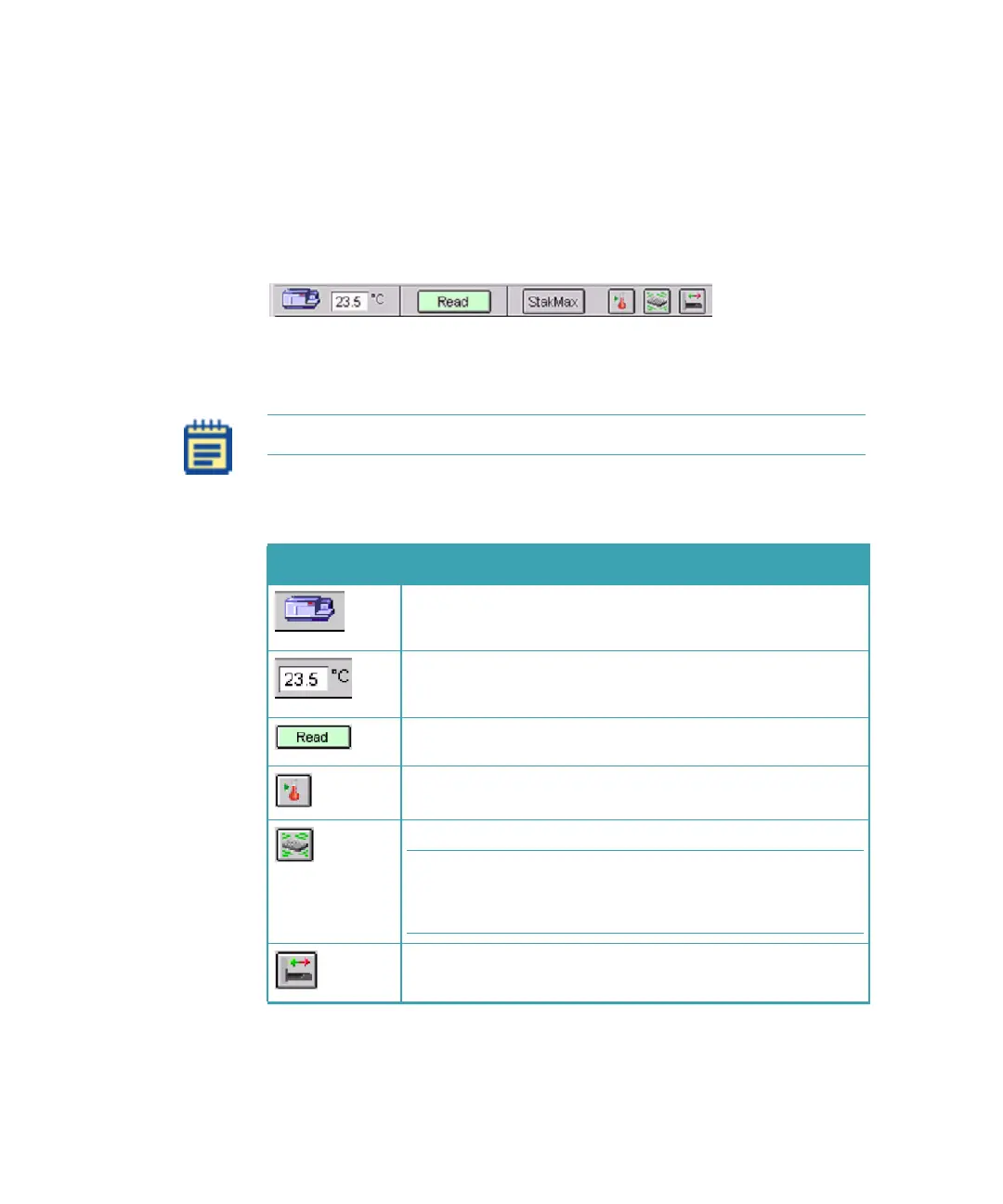
The Status bar allows you to monitor instrument status and access
several functions with the click of a button. You can verify
communication with SoftMax Pro, and monitor the reading chamber
temperature. The Status bar also provides buttons used to begin a
reading, open the Incubator dialog box, shake the microplate (Automix),
and open or close the instrument drawers. The Status bar can be hidden
by selecting Hide Status from the View menu.
Figure 1-20: SoftMax Pro Software Status Bar
The following icons are present in the Status bar and are used to set up
the instrument or interact with it during operation.
Note: Different Molecular Devices systems have different icons.
Table 1-2: SoftMax Pro Software Status Bar Icons
Icon Description
The Instrument Status icon provides visual confirmation that
SoftMax Pro is communicating with the instrument. Double-
click this icon to display the Preferences dialog.
The temperature icon displays the current temperature
inside the instrument. Click this icon to display the
Preferences dialog.
Click to begin reading. It changes to Stop during a reading.
Clicking this button also closes any open drawers.
Click the Incubator button to open the Incubator dialog to
change temperature settings.
Click the Automix button to manually shake the assay plate.
Note: The manual shaking that occurs when you click this
button differs from the Automix that can be selected as an
instrument setting within the protocol settings.
Click the Drawer button to open or close the reading
chamber drawer.
FlexStation_manual.book Page 46 Tuesday, June 25, 2013 10:22 AM


 To Next Page