Moneris® Go Plus: Using Your Terminal 33
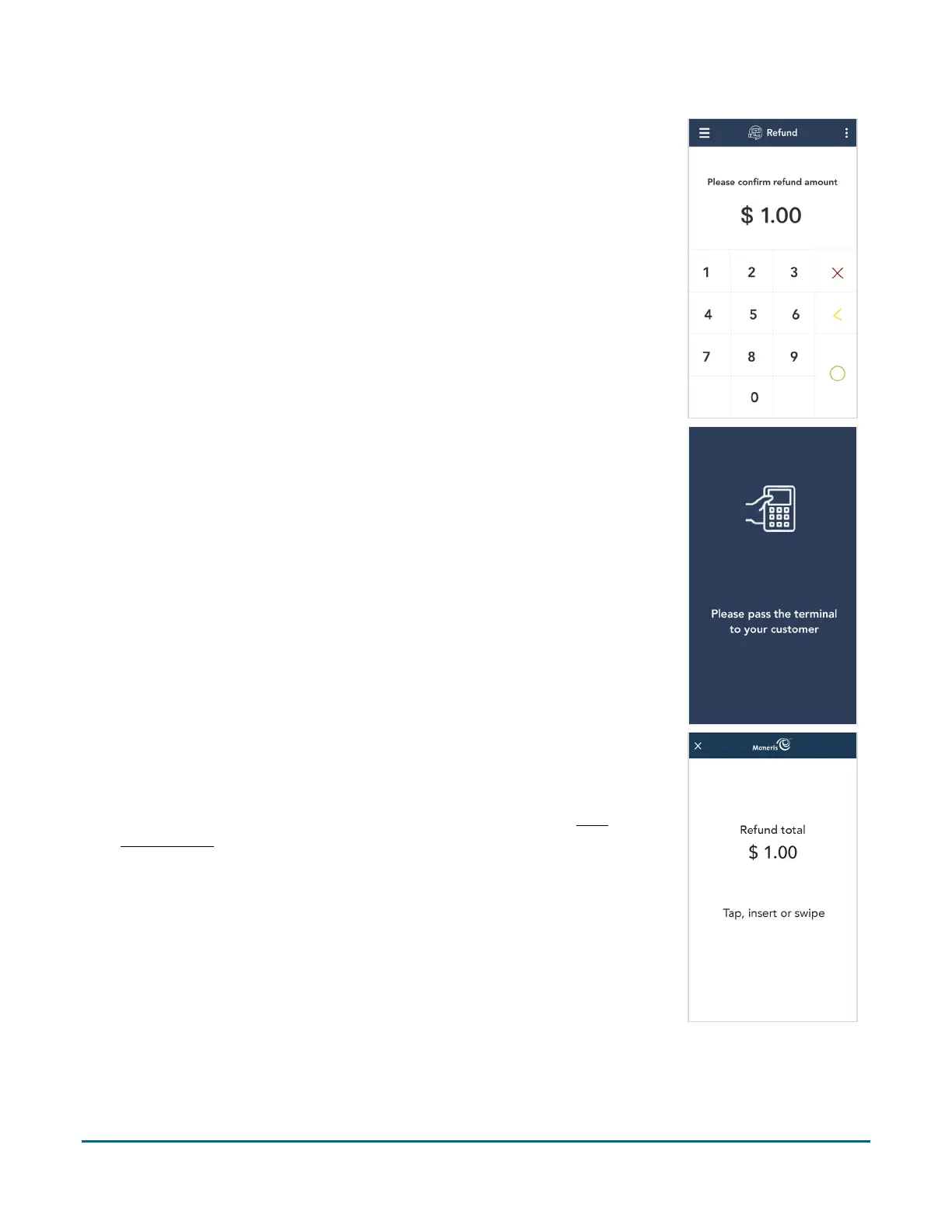
4. The Refund screen appears, showing the full amount of the original
purchase transaction.
To perform a partial refund, tap the Delete < key to delete the full
amount, then enter the amount you want to refund.
5. Tap the OK
key to continue.
If the original purchase was processed using cash, skip to step 10.
If the original purchase was processed using a credit card, skip to
step 9.
If the original purchase was processed using a debit card or UnionPay
card, continue to step 6.
6. As indicated on-screen, pass the terminal to the customer so they can
enter their card and respond to any customer prompts.
7. The refund total screen appears, prompting the customer to “Tap, insert,
or swipe.”
8. The customer enters their card on the terminal. Depending on the type
of card, they can tap, insert, or swipe it. For more information on
Card
entry options (page 11).



 To Next Page