Moneris® Go Plus: Using Your Terminal 4
On-screen buttons
The screen of your terminal is touch sensitive, like a smartphone. You can move around the application and
choose options by touching the appropriate element on screen. Here are the most common icons and buttons:
Screen element Action performed
Go to the Main menu.
Cancel a transaction and return to the Purchase screen.
Delete key
Delete one or more characters in a data-entry field.
OK key
Submit the data shown on-screen. For example, tap OK to indicate the
transaction amount is correct.
Accept/confirm the choice or information displayed on-screen.
Back icon
Go back to the previous screen/menu.
Additional options icon
Display additional options
Navigating the terminal
Touch screen interaction
Your Moneris Go Plus features a large color touch screen.
To access a function displayed on screen (for example, a button, a menu, a field), simply use your finger to
tap the item on the screen.
To view content (for example, a menu or report) that extends past the bottom of
the screen, swipe up. Swipe down to go back to the top of the screen.
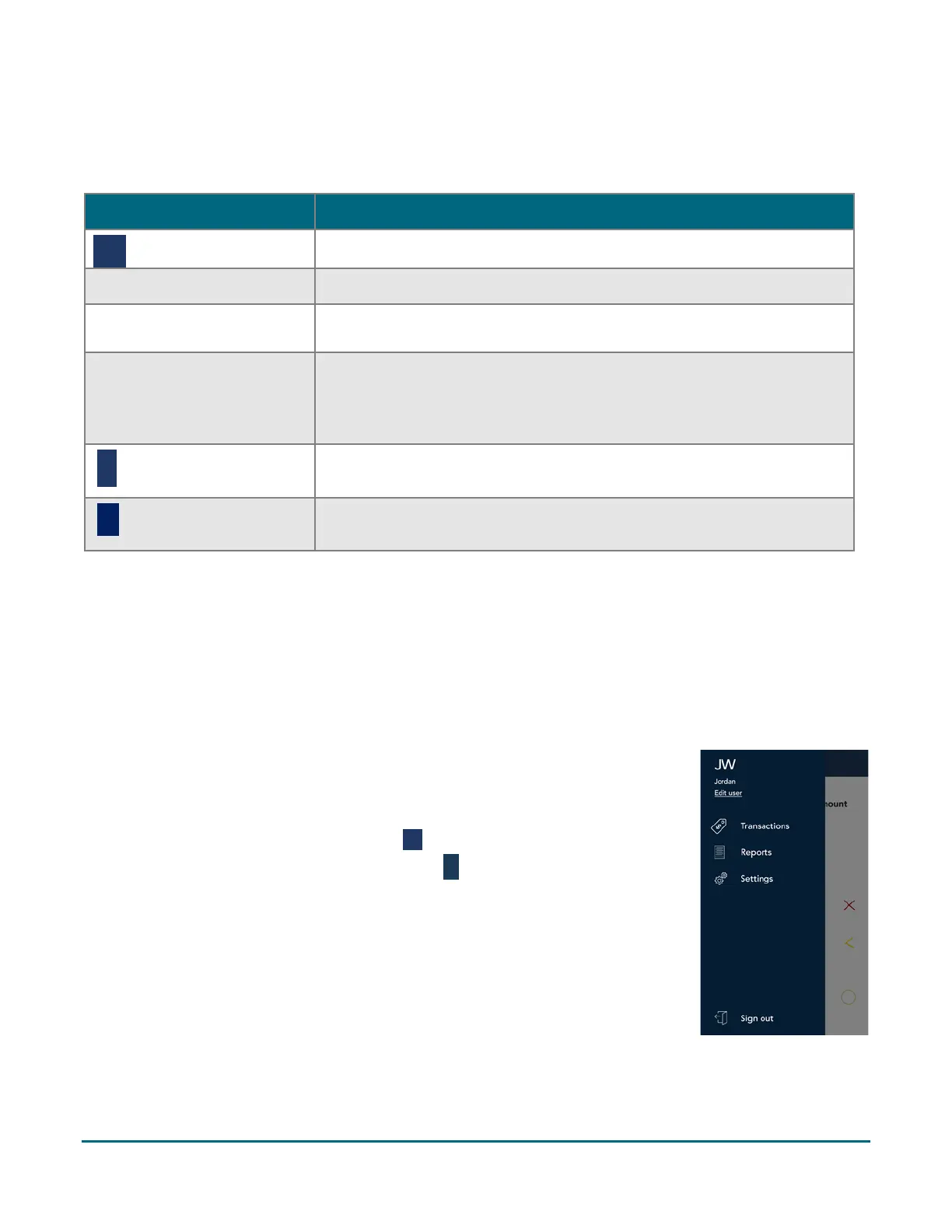
Getting to the Main menu
To get to the Main menu, tap the Main menu ≡ icon.
If the Main menu icon is not available, tap the Back
<
icon until the Main menu icon is
visible.



 To Next Page